Web based School
Chapter 5
Java Graphics Techniques
CONTENTS
- The Graphics Coordinate System
- The Basics of Color
- The Graphics Class
- Tracking Images
- Summary
- Q&A
- Workshop
- The Basics of Color
Graphics are at the heart of most games. Knowing this, you need to understand a certain degree of Java graphics fundamentals before you get into full-blown game graphics. ToChapter's lesson focuses on some of the basic Java graphics techniques that will be important as you move on to programming game graphics. You aren't going to get into too many gritty details toChapter, because this lesson is meant to only lay the groundwork of using Java graphics. Don't worry, you'll build some serious Java graphics skills throughout the rest of the guide.
You begin toChapter's lesson by learning about the Java graphics coordinate system and the class used as the basis for most of the Java graphics operations. You then move on to images and how they are used in the context of a Java applet. The lesson finishes with an in-depth discussion of how to track the loading of images over a Web connection, which is a very important topic in regard to game graphics.
The following topics are covered in toChapter's lesson:
- The graphics coordinate system
- The basics of color
- The graphics class
- Tracking images
- The basics of color
The Graphics Coordinate System
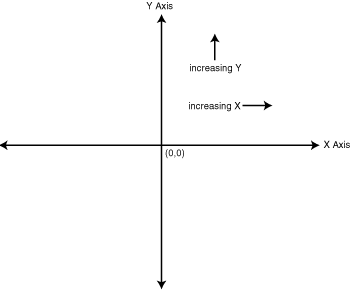
All graphical computing systems use some sort of coordinate system to specify the nature of points in the system. Coordinate systems typically spell out the origin (0,0) of a graphical system, as well as the axes and directions of increasing value for each of the axes. The traditional mathematical coordinate system familiar to most of us is shown in Figure 5.1.
Figure 5.1 : The traditional coordinate system.
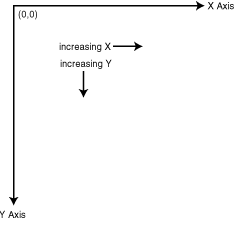
The graphical system in Java uses a coordinate system of its own to specify how and where drawing operations take place. Because all drawing in Java takes place within the confines of an applet window, the Java coordinate system is realized by the applet window. The coordinate system in Java has an origin that is located in the upper-left corner of the window; positive X values increase to the right and positive Y values increase down. All values in the Java coordinate system are positive integers. Figure 5.2 shows how this coordinate system looks.
Figure 5.2 : The Java graphics coordinate system.
The Basics of Color
A topic that impacts almost every area of Java graphics is color. Therefore, it's important to understand the underlying nature of color and how it is modeled in Java and in computer systems in general. Most computer systems take a similar approach to representing color. The main function of color in a computer system is to accurately reflect the physical nature of color within the confines of a graphical system. This physical nature isn't hard to figure out; anyone who has experienced the joy of Play-Doh can tell you that colors react in different ways when they are combined with each other. Like Play-Doh, a computer color system needs to be able to mix colors with accurate, predictable results.
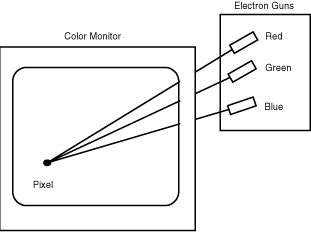
Color computer monitors provide possibly the most useful insight into how software systems implement color. A color monitor has three electron guns: red, green, and blue. The output from these three guns converges on each pixel of the screen, exciting phosphors to produce the appropriate color (see Figure 5.3). The combined intensities of each gun determine the resulting pixel color. This convergence of different colors from the monitor guns is very similar to the convergence of different colored Play-Doh.
Figure 5.3 : Electron guns in a color monitor converging to create a unique color.
| Note |
Technically speaking, the result of combining colors on a monitor is different than that of combining similarly colored Play Doh. The reason for this is that color combinations on a monitor are additive, meaning that mixed colors are emitted by the monitor; Play oh color combinations are subtractive, meaning that mixed colors are absorbed. The additive or subtractive nature of a color combination is dependent on the physical properties of the particular medium involved. |
The Java color system is very similar to the physical system used by color monitors; it forms unique colors by using varying intensities of the colors red, green, and blue. Therefore, Java colors are represented by the combination of the numeric intensities of the primary colors (red, green, and blue). This color system is known as RGB (Red Green Blue) and is standard across most graphical computer systems.
| Note |
Although RGB is the most popular computer color system in use, there are others. Another popular color system is HSB, which stands for Hue Saturation Brightness. In this system, colors are defined by varying degrees of hue, saturation, and brightness. The HSB color system is also supported by Java. |
Table 5.1 shows the numeric values for the red, green, and blue components of some basic colors. Notice that the intensities of each color component range from 0 to 255 in value.
Table 5.1. RGB component values for some basic colors.
| Color | |||
| White | |||
| Black | |||
| Light Gray | |||
| Dark Gray | |||
| Red | |||
| Green | |||
| Blue | |||
| Yellow | |||
| Purple |
Java provides a class, Color, for modeling colors. The Color class represents an RGB color and provides methods for extracting and manipulating the primary color components. Color also includes constant members representing many popular colors. You typically use the Color class to specify the color when you are using many of Java's graphical functions, about which you learn next.
The Graphics Class
Most of Java's graphics functions are accessible through a single class, Graphics, found in the Java awt (Advanced Windowing Toolkit) package. The Graphics class models a graphics context.
A graphics context is an abstract representation of a graphical surface that can be drawn upon.
An abstract drawing surface (graphics context) is basically a way to allow you to draw in a generic manner, without worrying about where the drawing is physically taking place. Graphics contexts are necessary so that the same graphics routines can be used regardless of whether you are drawing to the screen, to memory, or to a printer. The Graphics class provides you with a graphics context to which you perform all graphics funtions. As you learn about the functionality provided by the Graphics class, keep in mind that its output is largely independent of the ultimate destination thanks to graphics contexts.
Graphical output code in a Java applet is usually implemented in the applet's paint method. A Graphics object is passed into the paint method, which is then used to perform graphical output to the applet window (output surface). Because the Graphics object is provided by paint, you never explicitly create a Graphics object.
| Note |
Actually, you couldn't explicitly create a Graphics object even if you wanted to because it is an abstract class. If you recall from Chapter 3, an abstract class is a class containing unimplemented methods, meaning that objects can't be directly created from the class. |
Even though graphics operations often take place within the context of an applet window, the output of the Graphics object is really tied to a component.
A component is a generic graphical window that forms the basis for all other graphical elements in the Java system. Java components are modeled at the highest level by the Component class, which is defined in the awt package.
An applet window is just a specific type of component. Thinking of graphics in terms of the Component class rather than an applet window shows you that graphics can be output to any object that is derived from Component. As a matter of fact, every Component object contains a corresponding Graphics object that is used to render graphics on its surface.
Java graphics contexts (Graphics objects) have a few attributes that determine how different graphical operations are carried out. The most important of these attributes is the color attribute, which determines the color used in graphics operations such as drawing lines. You set this attribute using the setColor method defined in the Graphics class. setColor takes a Color object as its only parameter. Similar to setColor is setBackground, which is a method in the Component class that determines the color of the component's background. Graphics objects also have a font attribute that determines the size and appearance of text. This attribute is set using the setFont method, which takes a Font object as its only parameter. You learn more about drawing text and using the Font object, which is covered a little later toChapter in the "Drawing Text" section.
Most of the graphics operations provided by the Graphics class fall into one of the following categories:
- Drawing graphics primitives
- Drawing text
- Drawing images
- Drawing text
Drawing Graphics Primitives
Graphics primitives consist of lines, rectangles, circles, polygons, ovals, and arcs. You can create pretty impressive graphics by using these primitives in conjunction with each other; the Graphics class provides methods for drawing these primitives. Certain methods also act on primitives that form closed regions. You can use these methods to erase the area defined by a primitive or fill it with a particular color.
Closed regions are graphical elements with a clearly distinctive inside and outside. For example, circles and rectangles are closed regions, whereas lines and points are not.
I'm not going to go through an exhaustive explanation of how to draw each type of primitive, because they don't usually impact game graphics that much. Most games rely more on images, which you learn about later toChapter in the "Drawing Images" section. Nevertheless, look at a few of the primitives just so you can see how they work.
Lines
Lines are the simplest of the graphics primitives and are therefore the easiest to draw. The drawLine method handles drawing lines, and is defined as follows:
void drawLine(int x1, int y1, int x2, int y2)
The first two parameters, x1 and y1, specify the starting point for the line, and the x2 and y2 parameters specify the ending point. To draw a line in an applet, call drawLine in the applet's paint method, as in the following:
public void paint(Graphics g) {
g.drawLine(5, 10, 15, 55);
}
The results of this code are shown in Figure 5.4.
Figure 5.4 : A line drawn using the drawLine method.
| Note |
Most graphical programming environments provide a means to draw lines (and other graphics primitives) in various widths. Java doesn't currently provide a facility to vary the width of lines, which is a pretty big limitation. A future release of Java will probably alleviate this problem. |
Rectangles
Rectangles are also very easy to draw. The drawRect method enables you to draw rectangles by specifying the upper-left corner and the width and height of the rectangle. The drawRect method is defined in Graphics as follows:
void drawRect(int x, int y, int width, int height)
The x and y parameters specify the location of the upper-left corner of the rectangle, whereas the width and height parameters specify their namesakes. To draw a rectangle using drawRect, just call it from the paint method like this:
public void paint(Graphics g) {
g.drawRect(5, 10, 15, 55);
}
The results of this code are shown in Figure 5.5.
Figure 5.5 : A rectangle drawn using the drawRect method.
You can also use a drawRoundRect method, which allows you to draw rectangles with rounded corners.
Other Primitives
The other graphics primitives (circles, polygons, ovals, and arcs) are drawn in a very similar fashion to lines and rectangles. Because you won't actually be using graphics primitives much throughout this guide, there's no need to go into any more detail with them. If you're curious, feel free to check out the documentation that comes with the Java Developer's Kit. I'm not trying to lessen the importance of graphics primitives, because they are very useful in many situations. It's just that the game graphics throughout this guide are more dependent on images, with a little text sprinkled in.
Drawing Text
Because Java applets are entirely graphical in nature, you must use the Graphics object even when you want to draw text. Fortunately, drawing text is very easy and yields very nice results. You will typically create a font for the text and select it as the font to be used by the graphics context before actually drawing any text. As you learned earlier, the setFont method selects a font into the current graphics context. This method is defined as follows:
void setFont(Font font)
The Font object models a textual font, and includes the name, point size, and style of the font. The Font object supports three different font styles, which are implemented as the following constant members: BOLD, ITALIC, and PLAIN. These styles are really just constant numbers, and can be added together to yield a combined effect. The constructor for the Font object is defined as follows:
public Font(String name, int style, int size)
As you can see, the constructor takes as parameters the name, style, and point size of the font. You might be wondering exactly how the font names work; you simply provide the string name of the font you want to use. The names of the most common fonts supported by Java are Times Roman, Courier, and Helvetica. Therefore, to create a bold, italic, Helvetica, 22-point font, you would use the following code:
Font f = new Font("Helvetica", Font.BOLD + Font.ITALIC, 22);
| Note |
Some systems support other fonts beyond the three common fonts mentioned here (Times Roman, Courier, and Helvetica). Even though you are free to use other fonts, keep in mind that these three common fonts are the only ones guaranteed to be supported across all systems. In other words, it's much safer to stick with these fonts. |
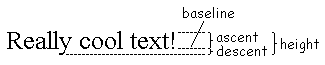
After you've created a font, you will often want to create a FontMetric object to find out the details of the font's size. The FontMetric class models very specific placement information about a font, such as the ascent, descent, leading, and total height of the font. Figure 5.6 shows what each of these font metric attributes represent.
Figure 5.6 : The different font metric attributes.
You can use the font metrics to precisely control the location of text you are drawing. After you have the metrics under control, you just need to select the original Font object into the Graphics object using the setFont method, as in the following:
g.setFont(f);
Now you're ready to draw some text using the font you've created, sized up, and selected. The drawString method, defined in the Graphics class, is exactly what you need. drawString is defined as follows:
void drawString(String str, int x, int y)
drawString takes a String object as its first parameter, which determines the text that is drawn. The last two parameters specify the location in which the string is drawn; x specifies the left edge of the text and y specifies the baseline of the text. The baseline of the text is the bottom of the text, not including the descent. Refer to Figure 5.6 if you are having trouble visualizing this.
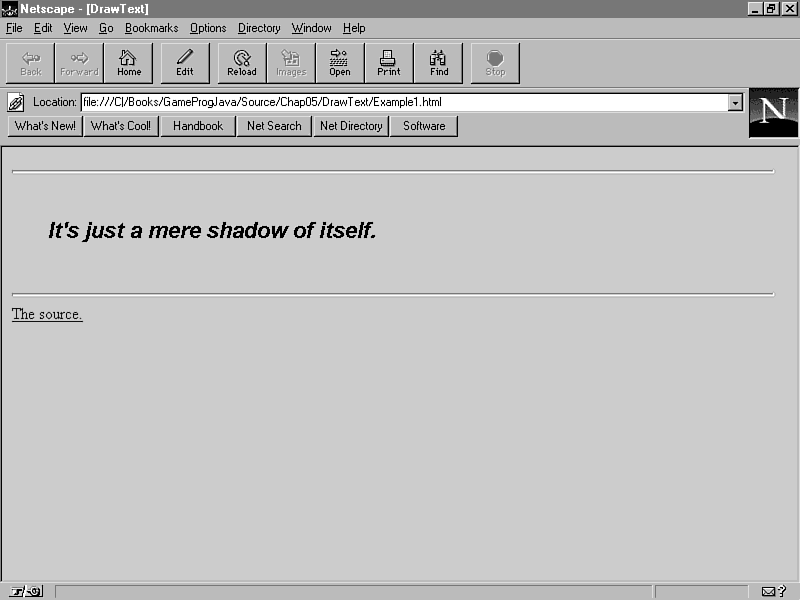
The Drawtext sample applet demonstrates drawing a string centered in the applet window. Figure 5.7 shows the Drawtext applet in action.
Figure 5.7 : The Draw Text sample applet.
The source code for the Drawtext sample applet is shown in Listing 5.1.
Listing 5.1. The Drawtext sample applet.
// Drawtext Class
// Drawtext.java
// Imports
import java.applet.*;
import java.awt.*;
public class Drawtext extends Applet {
public void paint(Graphics g) {
Font font = new Font("Helvetica", Font.BOLD +
Font.ITALIC, 22);
FontMetrics fm = g.getFontMetrics(font);
String str = new
String("It's just a mere shadow of itself.");
g.setFont(font);
g.drawString(str, (size().width - fm.stringWidth(str)) / 2,
((size().height - fm.getHeight()) / 2) + fm.getAscent());
}
}
Drawtext uses the font-related methods you just learned to draw a string centered in the applet window. You might be wondering about the calls to the size method when the location to draw the string is being calculated. The size method is a member of Component and returns a Dimension object specifying the width and height of the applet window.
That sums up the basics of drawing text using the Graphics object. Now it's time to move on to the most important aspect of Java graphics in regard to games: images.
Drawing Images
Images are rectangular graphical objects composed of colored pixels.
Each pixel in an image describes the color at that particular location of the image. Pixels can have unique colors that are usually described using the RGB color system. Java provides support for working with 32-bit images, which means that each pixel in an image is described using 32 bits. The red, green, and blue components of a pixel's color are stored in these 32 bits, along with an alpha component.
The alpha component of a pixel refers to the transparency or opaqueness of the pixel.
Before getting into the details of how to draw an image, you first need to learn how to load images. The getImage method, defined in the Applet class, is used to load an image from a URL. getImage comes in two versions, which are defined as follows:
Image getImage(URL url)
Image getImage(URL url, String name)
These two versions essentially perform the same function; the only difference is that the first version expects a fully qualified URL, including the name of the image, and the second version enables you to specify a separate URL and image name.
You probably noticed that both versions of getImage return an object of type Image. The Image class represents a graphical image, such as a GIF or JPEG file image, and provides a few methods for finding out the width and height of the image. Image also includes a method for retrieving a graphics context for the image, which enables you to draw directly onto an image.
The Graphics class provides a handful of methods for drawing images, which follow:
boolean drawImage(Image img, int x, int y, ImageObserver observer)
boolean drawImage(Image img, int x, int y, int width, int height,
ImageObserver observer)
boolean drawImage(Image img, int x, int y, Color bgcolor, ImageObserver
observer)
boolean drawImage(Image img, int x, int y, int width, int height, Color
bgcolor, ImageObserver observer)
All these methods are variants on the same theme: they all draw an image at a certain location as defined by the parameters x and y. The last parameter in each method is an object of type ImageObserver, which is used internally by drawImage to get information about the image.
The first version of drawImage draws the image at the specified x and y location-x and y represent the upper-left corner of the image. The second version draws the image inside the rectangle formed by x, y, width, and height. If this rectangle is different than the image rectangle, the image will be scaled to fit. The third version of drawImage draws the image with transparent areas filled in with the background color specified in the bgcolor parameter. The last version of drawImage combines the capabilities in the first three, enabling you to draw an image within a given rectangle and with a background color.
| Note |
Don't worry if you haven't heard of transparency before; you learn all about it in Chapter 6, "Sprite Animation." For now, just think of it as areas in an image that aren't drawn, resulting in the background showing through. |
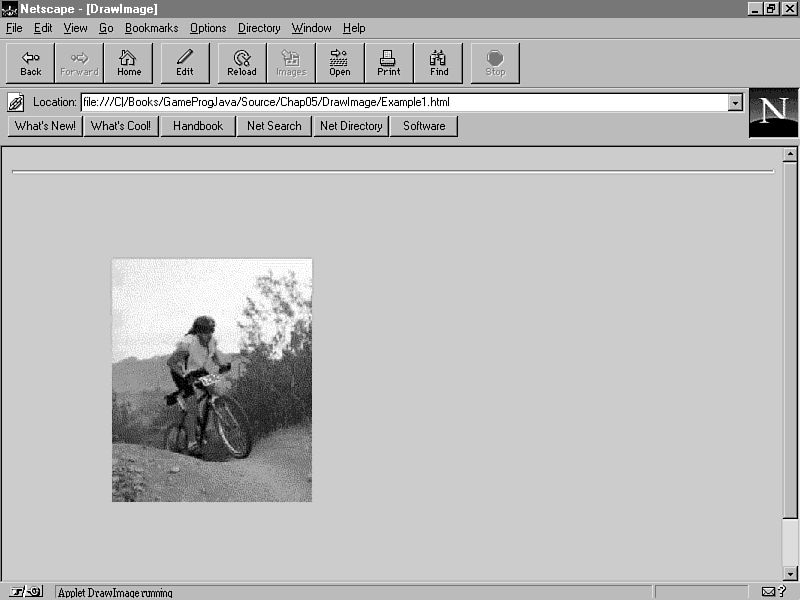
The process of drawing an image involves calling the getImage method to load the image, followed by a call to drawImage, which actually draws the image on a graphics context. The DrawImage sample applet shows how easy it is to draw an image (see Figure 5.8).
Figure 5.8 : The DrawImage sample applet.
The source code for the DrawImage sample applet is shown in Listing 5.2.
Listing 5.2. The DrawImage sample applet.
// DrawImage Class
// DrawImage.java
// Imports
import java.applet.*;
import java.awt.*;
public class DrawImage extends Applet {
public void paint(Graphics g) {
Image img = getImage(getCodeBase(), "Res/Ride.gif");
g.drawImage(img, (size().width - img.getWidth(this)) / 2,
(size().height - img.getHeight(this)) / 2, this);
}
}
The DrawImage sample applet loads an image in the paint method using getImage. The getCodeBase method is used to specify the applet directory where applet resources are usually located, while the image name itself is simply given as a string. The image is actually stored in the Res subdirectory beneath the applet directory, as evident by the image name ("Res/Ride.gif") passed into getImage. The image is then drawn centered in the applet window using the drawImage method. It's as simple as that!
Tracking Images
Even though images are a very neat way of displaying high-quality graphics within a Java applet, they aren't without their drawbacks. The biggest problem with using images is the fact that they must be transmitted over the Web as needed, which brings up the issue of transmitting multimedia content over a limited bandwidth. This means that the speed at which images are transferred over a Web connection will often cause a noticeable delay in a Java applet reliant on them, such as games.
There is a standard technique for dealing with transmission delay as it affects static images. You've no doubt seen this technique at work in your Web browser when you've viewed images in Web pages. The technique is known as interlacing, and it makes images appear blurry until they have been completely transferred. To use interlacing, images must be stored in an interlaced format (usually GIF version 89a), which means that the image data is arranged in a way so that the image can be displayed before it is completely transmitted. Interlacing is a good approach to dealing with transmission delays for static images because it enables you to see the image as it is being transferred. Without interlacing, you have to wait until the entire image has been transferred before seeing it at all.
Before you get too excited about interlacing, keep in mind that it is useful only for static images. You're probably wondering why this is the case. It has to do with the fact that animations (dynamic images) rely on rapidly displaying a sequence of images over time, all of which must be readily available to successfully create the effect of movement.
| Note |
Don't worry if this animation stuff is new to you; you learn all the juicy details on Chapter 6. |
An animation sequence wouldn't look right using interlacing, because some of the images would be transferred before others. A good solution would be to just wait until all the images have been transferred before displaying the animation. That's fine, but how do you know when the images have all been transferred? Enter the Java media tracker.
The Java media tracker is an object that tracks when media objects, such as images, have been successfully transferred. Using the media tracker, you can keep track of any number of media objects and query to see when they have finished being transmitted. For example, suppose you have an animation with four images. Using the media tracker, you would register each of these images and then wait until they have all been transferred before displaying the animation. The media tracker keeps up with the load status of each image. When the media tracker reports that all the images have been successfully loaded, you are guaranteed that your animation has all the necessary images to display correctly.
The MediaTracker Class
The Java MediaTracker class is part of the awt package and contains a variety of members and methods for tracking media objects. Unfortunately, the MediaTracker class that ships with release 1.0 of the Java development kit supports only image tracking. Future versions of Java are expected to add support for other types of media objects such as sound and music.
The MediaTracker class provides member flags for representing various states associated with tracked media objects. These flags are returned by many of the member functions of MediaTracker and are as follows:
- LOADING: Indicates that
a media object is currently in the process of being loaded.
- ABORTED: Indicates that the loading of a media object has been aborted.
- ERRORED: Indicates that some type of error occurred while loading a media object.
- COMPLETE: Indicates that a media object has been successfully loaded.
- ABORTED: Indicates that the loading of a media object has been aborted.
The MediaTracker class provides a variety of methods for helping to track media objects:
MediaTracker(Component comp)
void addImage(Image image, int id)
synchronized void addImage(Image image, int id, int w, int h)
boolean checkID(int id)
synchronized boolean checkID(int id, boolean load)
boolean checkAll()
synchronized boolean checkAll(boolean load)
void waitForID(int id)
synchronized boolean waitForID(int id, long ms)
void waitForAll()
synchronized boolean waitForAll(long ms)
int statusID(int id, boolean load)
int statusAll(boolean load)
synchronized boolean isErrorID(int id)
synchronized boolean isErrorAny()
synchronized Object[] getErrorsID(int id)
synchronized Object[] getErrorsAny()
The constructor for MediaTracker takes a single parameter of type Component. This parameter specifies the Component object on which tracked images will eventually be drawn. This parameter reflects the current limitation of being able to track only images with the MediaTracker class and not sounds or other types of media.
The addImage methods add an image to the list of images currently being tracked. Both methods take as their first parameter an Image object and as their second parameter an identifier that uniquely identifies the image. If you want to track a group of images together, you can use the same identifier for each image. The second addImage method has additional parameters for specifying the width and height of a tracked image. This version of addImage is used for tracking images that you are going to scale; you pass the width and height that you want to use for the scaled the image.
After you have added images to the MediaTracker object, you are ready to check their status. You use the checkID methods to check whether images matching the passed identifier have finished loading. Both versions of checkID return false if the images have not finished loading, and true otherwise. Both methods return true even if the loading has been aborted or if an error has occurred. You must call the appropriate error checking methods to see whether an error has occurred. (You learn the error checking methods a little later in this section.) The only difference between the two checkID methods is how each loads an image. The first version of checkID does not load an image if that image has not already begun loading. The second version enables you to specify that the image should be loaded even if it hasn't already begun loading, which is carried out by passing true in the load parameter.
The checkAll methods are very similar to the checkID methods, except that they apply to all images, not just those matching a certain identifier. Similar to the checkID methods, the checkAll methods come in two versions. The first version checks to see whether the images have finished loading, but doesn't load any images that haven't already begun loading. The second version also checks the status of loading images but enables you to indicate that images are to be loaded if they haven't started already.
You use the waitForID methods to begin loading images with a certain identifier. This identifier should match the identifier used when the images were added to the media tracker with the addImage method. Both versions of waitForID are synchronous, meaning that they do not return until all the specified images have finished loading or an error occurs. The second version of waitForID enables you to specify a timeout period, in which case the load will end and waitForID will return true. You specify the timeout period in milliseconds by using the ms parameter.
The waitForAll methods are very similar to the waitForID methods, except they operate on all images. Like the waitForID methods, there are versions of waitForAll both with and without timeout support.
You use the statusID method to determine the status of images matching the identifier passed in the id parameter. statusID returns the bitwise OR of the status flags related to the images. The possible flags are LOADING, ABORTED, ERRORED, and COMPLETE. To check for a particular status flag, you mask the flag out of the return value of statusID, like this:
if (tracker.statusID(0, true) & MediaTracker.ERRORED) {
// there was an error!
}
The second parameter to statusID, load, should be familiar to you by now because of its use in the other media tracker methods. It specifies whether you want the images to begin loading if they haven't begun already. This functionality is very similar to that provided by the second version of the checkID and waitForID methods.
The statusAll method is very similar to the statusId method; the only difference is that statusAll returns the status of all the images being tracked rather than those matching a specific identifier.
Finally, you arrive at the error-checking methods mentioned earlier in this section. The isErrorID and isErrorAny methods check the error status of images being tracked. The only difference between the two is that isErrorID checks on images with a certain identifier, whereas isErrorAny checks on all images. Both of these methods basically check the status of each image for the ERRORED flag. Note that both methods will return true if any of the images have errors; it's up to you to determine which specific images had errors.
If you use isErrorID or isErrorAny and find out that there are load errors, you need to find out which images have errors. You do this by using the getErrorsID and getErrorsAny methods. These two methods both return an array of Objects containing the media objects that have load errors. In the current implementation of the MediaTracker class, this array is always filled with Image objects. If there are no errors, these methods return null. Similar to the isErrorID and isErrorAny methods, getErrorsID and getErrorsAny differ only by the images that they check; getErrorsID returns errored images matching the passed identifier, and getErrorsAny returns all errored images.
That wraps up the description of the MediaTracker class. Now that you understand what the class is all about, you're probably ready to see it in action. Read on!
Using the Media Tracker
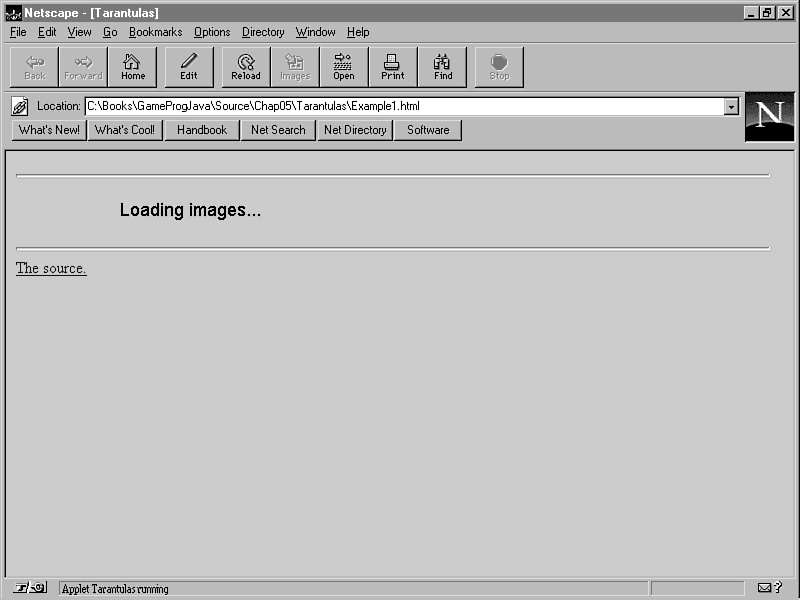
With the media tracker, you know exactly when certain images have been transferred and are ready to use. This enables you to display alternative output based on whether or not images have finished transferring. The Tarantulas sample applet, which is located on the accompanying CD-ROM, demonstrates how to use the media tracker to track the loading of multiple images and display them only when they have all finished transferring. Figure 5.9 shows the Tarantulas applet while the images are still being loaded.
Figure 5.9 : The Tarantulas applet with images partially loaded.
As you can see, none of the images are displayed until they have all been successfully transferred. While they are loading, a text message is displayed informing the user that the images are still in the process of loading. This is a pretty simple enhancement to the applet, but one that makes the applet look much more professional. By displaying a simple message while media objects are loading, you solve the problem of drawing partially transferred images, and more important, the problem of displaying animations with missing images. The source code for Tarantulas is shown in Listing 5.3.
Listing 5.3. The Tarantulas sample applet.
import java.applet.*;
import java.awt.*;
public class Tarantulas extends Applet implements Runnable {
Image img[] = new Image[8];
Thread thread;
MediaTracker tracker;
public void init() {
tracker = new MediaTracker(this);
for (int i = 0; i < 8; i++) {
img[i] = getImage(getDocumentBase(), "Res/Tarant" + i + ".gif");
tracker.addImage(img[i], 0);
}
}
public void start() {
thread = new Thread(this);
thread.start();
}
public void stop() {
thread.stop();
thread = null;
}
public void run() {
try {
tracker.waitForID(0);
}
catch (InterruptedException e) {
return;
}
repaint();
}
public void paint(Graphics g) {
if ((tracker.statusID(0, true) & MediaTracker.ERRORED) != 0) {
g.setColor(Color.red);
g.fillRect(0, 0, size().width, size().height);
return;
}
if ((tracker.statusID(0, true) & MediaTracker.COMPLETE) != 0) {
for (int i = 0; i < 8; i++)
g.drawImage(img[i], i * img[i].getWidth(this), 0, this);
}
else {
Font font = new Font("Helvetica", Font.PLAIN, 18);
FontMetrics fm = g.getFontMetrics(font);
String str = new String("Loading images...");
g.setFont(font);
g.drawString(str, (size().width - fm.stringWidth(str)) / 2,
((size().height - fm.getHeight()) / 2) + fm.getAscent());
}
}
}
Begin examining the Tarantulas sample applet by looking at the member variables. The thread member is a Thread object that is used by the media tracker to wait for the images to load. The tracker member is the MediaTracker object used to track the images.
In the init method, the MediaTracker object is created by passing this as the only parameter to its constructor. Because the init method is a member of the applet class, Tarantulas, this refers to the applet object. If you recall from the discussion of the MediaTracker class earlier in this chapter, the sole constructor parameter is of type Component and represents the component on which the tracked images will be drawn. All Applet objects are derived from Component, so passing the Applet object (this) correctly initializes the media tracker.
Also notice that the images are added to the media tracker in the init method. You do this by calling the addImage method of MediaTracker and passing the Image object and an identifier. Notice that 0 is passed as the identifier for all the images. This means that you are tracking them as a group using 0 to uniquely identify them.
The start and stop methods are used to manage the creation and destruction of the Thread member object. These are pretty standard implementations for adding basic multithreading support to an applet. You'll see these methods several times throughout the guide because most of the sample applets use threads extensively.
The tracking actually starts taking place with the run method. The waitForID method of MediaTracker is called within a try-catch clause. It must be placed in this exception-handling clause because an InterruptedException will be thrown if another thread interrupts this thread. Recall that waitForID is synchronous, meaning that it won't return until all the images with the specified identifier have been loaded. This means that the call to repaint will not occur until the images have all been loaded.
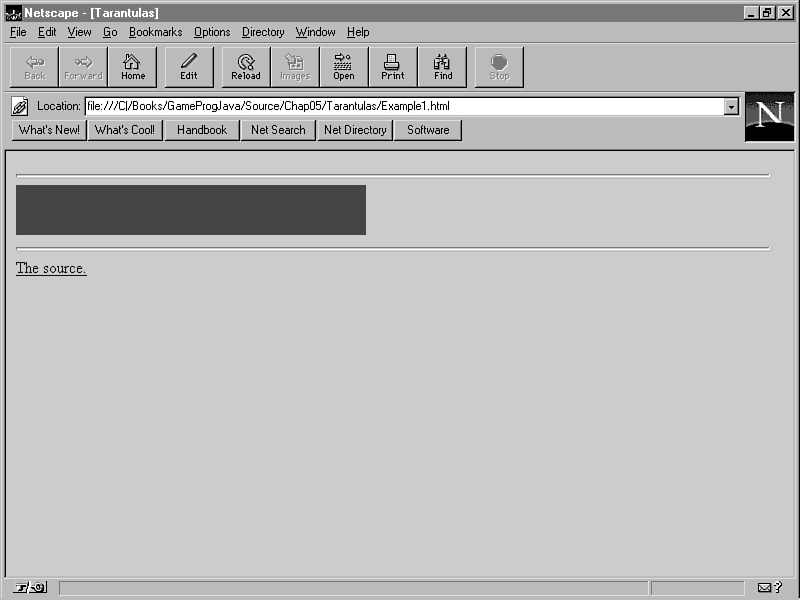
To understand why this works, you need to look at the last method in Tarantulas, paint. The paint method begins by checking to see whether an error has occurred in loading the images. It does this by calling statusID and checking the result against the ERRORED flag. If an error has occurred, paint fills the applet window with the color red to indicate an error. Figure 5.10 shows what Tarantulas looks like when an error occurs.
Figure 5.10 : The Tarantulas applet with an error loading the images.
The next check performed by paint is to see whether the images have finished loading. It does this by calling statusID and comparing the result with the COMPLETE flag. If the images have finished loading, the image array is iterated through and each image is drawn on the applet window. If the images have not finished loading, the text message Loading images... is displayed. Figure 5.11 shows the Tarantulas applet with all the images successfully loaded.
Figure 5.11 : The Tarantulas applet with all the images loaded.
That's all there is to tracking images. Too bad all of Java game programming isn't this easy-actually, it almost is!
Summary
ToChapter you were bombarded with a lot of information about the graphics support in Java. Most of it was centered around the Graphics object, which is fortunately pretty straightforward to use. You began by learning about color and what it means in the context of Java. You then moved on to drawing graphics primitives, text, and images. The lesson concluded with a detailed look at how images are tracked and managed using the Java media tracker.
ToChapter marked your first major foray into real Java coding for games. Even though no game-specific code was developed, you learned a great deal about the Java graphics system, which is used extensively in games. If you're still hungry for more, don't worry, because tomorrow's lesson picks up where you left off and dives into animation. If you think you learned a lot toChapter, you better brace yourself for tomorrow!
Q&A
| Q | If the Color class already contains predefined colors, why does it still have a constructor that accepts the three primary colors? |
| A | Because there might be times when you want to use a color that isn't defined in the Color class, in which case you would create a Color object using the desired levels of red, green, and blue. |
| Q | Why are graphics primitives not as important as images in regard to game graphics? |
| A | Because most games take advantage of the high level of realism afforded by images, and therefore rely heavily on images rather than primitive graphics types. However, there are exceptions to this rule; for example, vector games are made up entirely of lines, and some 3-D games are made up entirely of polygons. |
| Q | When exactly is the paint method called, and why? |
| A | The paint method is called any time a portion of a component, such as the applet window, needs to be updated. For example, if a dialog pops up on top of the applet and then disappears, the applet needs to be updated, so paint is called. You can force a call to paint by calling the repaint method; you did this very thing in the Tarantulas applet to update the status of the loading images. |
Workshop
The Workshop section provides questions and exercises to help you get a better feel for the material you learned toChapter. Try to answer the questions and at least study the exercises before moving on to tomorrow's lesson. You'll find the answers to the questions in appendix A, "Quiz Answers."
Quiz
- What are the four components of a 32-bit Java color?
- What is a graphics context?
- What class provides information about fonts and enables you to fine-tune the placement of text?
- What is the purpose of the media tracker?
- What is a graphics context?
Exercises
- Study the Java Developer's Kit documentation and try out some
of the other graphics primitives not demonstrated in toChapter's lesson.
- Modify the Drawtext applet to draw a different string and make sure the centering code works correctly.
- Modify the Tarantulas applet to run without the media tracker and notice the change in behavior.
- Modify the Drawtext applet to draw a different string and make sure the centering code works correctly.




Popular Tutorials
-
 MS Access
1109
MS Access
1109
-
 C++
1222
C++
1222
-
 HTML
584
HTML
584
-
 JavaScript
616
JavaScript
616
-
 Vbscript
873
Vbscript
873
-
 Oracle
473
Oracle
473
-
 VC++
875
VC++
875
-
 SQL
2959
SQL
2959
-
 XML
514
XML
514
-
 Java
814
Java
814
-
 Perl
455
Perl
455
-
 Linux
451
Linux
451