Web based School
Chapter 6
Sprite Animation
CONTENTS
- What Is Animation?
- Types of Animation
- Implementing Sprite Animation
- Sample Applet: Atoms
- Summary
- Q&A
- Workshop
- Types of Animation
The heart of graphics in almost all games is animation. Without animation, there would be no movement, and without movement, we'd all be stuck playing board games and card games. ToChapter's lesson presents the fundamental concepts surrounding animation in games and, more specifically, sprite animation. As you'll soon learn, practically every game with animation employs some type of animation engine, typically involving sprites.
After learning the basics of animation and how it applies to games, you dig into building a set of sprite animation classes that are powerful and extensive enough to handle all of your Java game animation needs. As a matter of fact, you'll reuse the sprite classes in every game throughout the rest of the guide. These sprite classes handle all the details of managing multiple animated sprite objects with support for transparency, Z-order, collision detection, and custom actions. You don't understand some of those last features? Well, don't worry; you will soon enough. Read on!
What Is Animation?
Before getting into animation as it relates to Java and games, it's important to understand the basics of what animation is and how it works. Let's begin by asking this fundamental question: What is animation? Put simply, animation is the illusion of movement. Am I saying that every animation you've ever seen is really just an illusion? That's exactly right! And probably the most surprising animated illusion is one that captured attentions long before computers-the television. When you watch television, you see lots of things moving around. But what you perceive as movement is really just a trick being played on your eyes.
Animation is the illusion of movement.
In the case of television, the illusion of movement is created by displaying a rapid succession of images with slight changes in content. The human eye perceives these changes as movement because of its low visual acuity, which means that your eyes are fairly easy to trick into believing the illusion of animation. More specifically, the human eye can be tricked into perceiving animated movement with as low as 12 frames of movement per second. It should come as no surprise that this animation speed is the minimum target speed for most computer games. Animation speed is measured in frames per second (fps).
Frames per second (fps) is the number of animation frames, or image changes, presented every second.
Although 12 fps is technically enough to fool your eyes into seeing animation, animations at speeds this low often end up looking somewhat jerky. Therefore, most professional animations use a higher frame rate. Television, for example, uses 30 fps. When you go to the movies, you see motion pictures at about 24 fps. It's pretty apparent that these frame rates are more than enough to captivate your attention and successfully create the illusion of movement.
Unlike television and motion pictures, computer games are much more limited when it comes to frame rate. Higher frame rates in games correspond to much higher processor overhead, so game developers are left to balance the frame rate against the system speed and resources. That is why some games provide different resolution and graphics quality options. By using a lower resolution and more simple graphics, a game can increase its frame rate and generate smoother animations. Of course, the trade-off is a lower resolution and more simple graphics.
When programming animation in Java, you typically have the ability to manipulate the frame rate a reasonable amount. The most obvious limitation on frame rate is the speed at which the computer can generate and display the animation frames. Actually, the same limitation must be dealt with by game developers, regardless of the programming language or platform. However, it is a little more crucial in Java because Java applets are currently much slower than native applications. Hopefully, the advent of just-in-time Java compilers will speed up Java applets and therefore give Java games a boost.
When determining the frame rate for a Java game, you usually have some give and take in establishing a low enough frame rate to yield a smooth animation, while not bogging down the processor and slowing the system down. But don't worry too much about this right now. For now, just keep in mind that when programming animation for Java games, you are acting as a magician creating the illusion of movement.
Types of Animation
Although the focus of toChapter's lesson is ultimately on sprite animation, it is important to understand the primary types of animation used in Java programming. Actually, a lot of different types of animation exist, all of which are useful in different instances. However, for the purposes of implementing animation in Java, I've broken animation down into two basic types: frame-based animation and cast-based animation.
Frame-Based Animation
The most simple animation technique is frame-based animation, which finds a lot of usage in nongaming animations. Frame-based animation involves simulating movement by displaying a sequence of pregenerated, static frame images. A movie is a perfect example of frame-based animation: Each frame of the film is a frame of animation, and when the frames are shown in rapid succession, they create the illusion of movement.
Frame-based animation simulates movement by displaying a sequence of pregenerated, static frame images.
Frame-based animation has no concept of a graphical object distinguishable from the background; everything appearing in a frame is part of that frame as a whole. The result is that each frame image contains all the information necessary for that frame in a static form. This is an important point because it distinguishes frame-based animation from cast-based animation, which you learn about next.
Cast-Based Animation
A more powerful animation technique employed by many games is cast-based animation, which is also known as sprite animation. Cast-based animation involves graphical objects that move independently of a background. At this point, you might be a little confused by the usage of the term graphical object when referring to parts of an animation. In this case, a graphical object is something that logically can be thought of as a separate entity from the background of an animation image. For example, in the animation of a space shoot-em-up game, the aliens are separate graphical objects that are logically independent of the starfield background.
Cast-based animation simulates movement using graphical objects that move independently of a background.
Each graphical object in a cast-based animation is referred to as a sprite, and can have a position that varies over time. In other words, sprites have a velocity associated with them that determines how their position changes over time. Almost every video game uses sprites to some degree. For example, every object in the classic Asteroids game is a sprite that moves independently of the background.
A sprite is a graphical object that can move independently of a background or other objects.
| Note |
You might be wondering where the term cast-based animation comes from. It comes from the fact that sprites can be thought of as cast members moving around on a stage. This analogy of relating computer animation to theatrical performance is very useful. By thinking of sprites as cast members and the background as a stage, you can take the next logical step and think of an animation as a theatrical performance. In fact, this isn't far from the mark, because the goal of theatrical performances is to entertain the audience by telling a story through the interaction of the cast members. Likewise, cast-based animations use the interaction of sprites to entertain the user, while often telling a story. |
Even though the fundamental principle behind sprite animation is the positional movement of a graphical object, there is no reason you can't incorporate frame-based animation into a sprite. Incorporating frame-based animation into a sprite enables you to change the image of the sprite as well as alter its position. This hybrid type of animation is actually what you will implement later in toChapter's lesson in the Java sprite classes.
I mentioned in the frame-based animation discussion that television is a good example of frame-based animation. But can you think of something on television that is created in a manner similar to cast-based animation (other than animated movies and cartoons)? Have you ever wondered how weatherpeople magically appear in front of a computer-generated map showing the weather? The news station uses a technique known as blue-screening, which enables them to overlay the weatherperson on top of the weather map in real time. It works like this: The person stands in front of a blue backdrop, which serves as a transparent background. The image of the weatherperson is overlaid onto the weather map; the trick is that the blue background is filtered out when the image is overlaid so that it is effectively transparent. In this way, the weatherperson is acting exactly like a sprite!
Transparency
The weatherperson example brings up a very important point regarding sprites: transparency. Because bitmapped images are rectangular by nature, a problem arises when sprite images aren't rectangular in shape. In sprites that aren't rectangular in shape, which is the majority of sprites, the pixels surrounding the sprite image are unused. In a graphics system without transparency, these unused pixels are drawn just like any others. The end result is sprites that have visible rectangular borders around them, which completely destroys the effectiveness of having sprites overlaid on a background image.
What's the solution? Well, one solution is to make all of your sprites rectangular. Because this solution isn't very practical, a more realistic solution is transparency, which allows you to define a certain color in an image as unused, or transparent. When pixels of this color are encountered by drawing routines, they are simply skipped, leaving the original background intact. Transparent colors in images act exactly like the weatherperson's blue screen in the example earlier.
Transparency colors are colors in an image that are unused, meaning that they aren't drawn when the rest of the colors in the image are drawn.
You're probably thinking that implementing transparency involves a lot of low-level bit twiddling and image pixel manipulation. In some programming environments, you would be correct in this assumption, but not in Java. Fortunately, transparency is already supported in Java by way of the GIF 89a image format. In the GIF 89a image format, you simply specify a color of the GIF image that serves as the transparent color. When the image is drawn, pixels matching the transparent color are skipped and left undrawn, leaving the background pixels unchanged.
Z-Order
In many instances, you will want some sprites to appear on top of others. For example, in a war game you might have planes flying over a battlefield dropping bombs on everything in sight. If a plane sprite happens to fly over a tank sprite, you obviously want the plane to appear above the tank and, therefore, hide the tank as it passes over. You handle this problem by assigning each sprite a screen depth, which is also referred to as Z-order.
Z-order is the relative depth of sprites on the screen.
The depth of sprites is called Z-order because it works sort of like another dimension-like a Z axis. You can think of sprites moving around on the screen in the XY axis. Similarly, the Z axis can be thought of as another axis projected into the screen that determines how the sprites overlap each other. To put it another way, Z-order determines a sprite's depth within the screen. By making use of a Z axis, you might think that Z-ordered sprites are 3D. The truth is that Z-ordered sprites can't be considered 3D because the Z axis is a hypothetical axis that is only used to determine how sprite objects hide each other.
Just to make sure that you get a clear picture of how Z-order works, let's go back for a moment to the good old Chapters of traditional animation. Traditional animators, such as those at Disney, used celluloid sheets to draw animated objects. They drew on celluloid sheets because the sheets could be overlaid on a background image and moved independently. This was known as cel animation and should sound vaguely familiar. (Cel animation is an early version of sprite animation.) Each cel sheet corresponds to a unique Z-order value, determined by where in the pile of sheets the sheet is located. If a sprite near the top of the pile happens to be in the same location on the cel sheet as any lower sprites, it conceals them. The location of each sprite in the stack of cel sheets is its Z-order, which determines its visibility precedence. The same thing applies to sprites in cast-based animations, except that the Z-order is determined by the order in which the sprites are drawn, rather than the cel sheet location. This concept of a pile of cel sheets representing all the sprites in a sprite system will be useful later toChapter when you develop the sprite classes.
Collision Detection
No discussion of animation as it applies to games would be complete without covering collision detection. Collision detection is simply the method of determining whether sprites have collided with each other. Although collision detection doesn't directly play a role in creating the illusion of movement, it is tightly linked to sprite animation and extremely crucial in games.
Collision detection is the process of determining whether sprites have collided with each other.
Collision detection is used to determine when sprites physically interact with each other. In an Asteroids game, for example, if the ship sprite collides with an asteroid sprite, the ship is destroyed. Collision detection is the mechanism employed to find out whether the ship collided with the asteroid. This might not sound like a big deal; just compare their positions and see whether they overlap, right? Correct, but consider how many comparisons must take place when lots of sprites are moving around; each sprite must be compared to every other sprite in the system. It's not hard to see how the overhead of effective collision detection can become difficult to manage.
Not surprisingly, there are many approaches to handling collision detection. The most simple approach is to compare the bounding rectangles of each sprite with the bounding rectangles of all the other sprites. This method is very efficient, but if you have objects that are not rectangular, a certain degree of error occurs when the objects brush by each other. This is because the corners might overlap and indicate a collision when really only the transparent areas are overlapping. The more irregular the shape of the sprites, the more error typically occurs. Figure 6.1 shows how simple rectangle collision works.
Figure 6.1 : Collision detection using simple rectangle collision.
In Figure 6.1, the areas determining the collision detection are shaded. You can see how simple rectangle collision detection isn't very accurate, unless you're dealing with sprites that are rectangular in shape. An improvement on this technique is to shrink the collision rectangles a little, which reduces the corner error. This method improves things a little, but it has the potential of causing error in the reverse direction by allowing sprites to overlap in some cases without signaling a collision. Figure 6.2 shows how shrinking the collision rectangles can improve the error on simple rectangle collision detection. Shrunken rectangle collision is just as efficient as simple rectangle collision because all you are doing is comparing rectangles for intersection.
Figure 6.2 : Collision detection using shrunken rectangle collision.
The most accurate collision detection technique is to detect collision based on the sprite image data, which involves actually checking to see whether transparent parts of the sprite or the sprite images themselves are overlapping. In this case, you get a collision only if the actual sprite images are overlapping. This is the ideal technique for detecting collisions because it is exact and allows objects of any shape to move by each other without error. Figure 6.3 shows collision detection using the sprite image data.
Figure 6.3 : Collision detection using sprite image data.
Unfortunately, the technique shown in Figure 6.3 requires far more overhead than rectangle collision detection and is often a major bottleneck in performance. Furthermore, implementing image data for collision detection can get very messy. Considering these facts, it's safe to say that you won't be worrying about image data collision detection in this guide. It might be an avenue worth considering in the future if the just-in-time Java compilers can squeeze enough additional performance out of Java, and if you are willing to dig into the programming complexities involved in pulling it off.
Implementing Sprite Animation
As you learned earlier in toChapter's lesson, sprite animation involves the movement of individual graphic objects called sprites. Unlike simple frame animation, sprite animation involves considerably more overhead. More specifically, it is necessary to develop not only a sprite class, but also a sprite management class for keeping up with all the sprites in the system. This is necessary because sprites need to be able to interact with each other through a common mechanism. Furthermore, it is useful to extract the background behind the sprites into a class of its own.
In this section, you learn how to implement sprite animation in Java by creating a suite of sprite classes. The primary sprite classes are Sprite and SpriteVector. However, there are also a few support classes that you will learn about as you get into the details of these two primary classes. The Sprite class models a single sprite and contains all the information and methods necessary to get a single sprite up and running. However, the real power of sprite animation is harnessed by combining the Sprite class with the SpriteVector class, which is a container class that manages multiple sprites and their interaction with each other.
The Sprite Class
Although sprites can be implemented simply as moveable graphical objects, you saw earlier that the sprite class developed here will also contain support for frame animation. A frame- animated sprite is basically a sprite with multiple frame images that can be displayed in succession. The Sprite class you are about to see supports frame animation in the form of an array of frame images and some methods for setting the current frame image. Using this approach, you end up with a Sprite class that supports both fundamental types of animation and is much more suitable for Java games.
Before jumping into the details of how the Sprite class is implemented, take a moment to think about the different pieces of information that a sprite must keep up with. When you understand the components of a sprite at a conceptual level, it will be much easier to understand the Java code. So, exactly what information should a Sprite class maintain? The following list contains the key information that the Sprite class needs to include:
- Array of frame images
- Current frame
- XY position
- Velocity
- Z-order
- Boundary
- Current frame
The first component, an array of frame images, is necessary to carry out the frame animations. Even though this sounds like you are forcing a sprite to have multiple animation frames, a sprite can also use a single image. In this way, the frame animation aspects of the sprite are optional. The current frame keeps up with the current frame of animation. In a typical frame- animated sprite, the current frame is incremented to the next frame when the sprite is updated.
The XY position stores the position of the sprite. You can move the sprite simply by altering this position. Alternatively, you can set the velocity and let the sprite alter its position internally.
The Z-order represents the depth of the sprite in relation to other sprites. Ultimately, the Z-order of a sprite determines its drawing order (more on that a little later).
Finally, the boundary of a sprite refers to the bounded region in which the sprite can move. All sprites are bound by some region-usually the size of the applet window. The sprite boundary is important because it determines the limits of a sprite's movement.
Now that you understand the core information required by the Sprite class, it's time to get into the specific Java implementation. Keep in mind that the Sprite class contains all the features necessary to implement sprites in the sample games throughout the rest of the guide. Let's begin with the Sprite class's member variables, which follow:
public static final int SA_KILL = 0,
SA_RESTOREPOS = 1,
SA_ADDSPRITE = 2;
public static final int BA_STOP = 0,
BA_WRAP = 1,
BA_BOUncE = 2,
BA_DIE = 3;
protected Component component;
protected Image[] image;
protected int frame,
frameInc,
frameDelay,
frameTrigger;
protected Rectangle position,
collision;
protected int zOrder;
protected Point velocity;
protected Rectangle bounds;
protected int boundsAction;
protected boolean hidden = false;
The member variables include the important sprite information mentioned earlier, along with some other useful information. Most notably, you are probably curious about the static final members at the beginning of the listing. These members are constant identifiers that define actions for the sprite. Two different types of actions are supported by Sprite: sprite actions and bounds actions. Sprite actions are general actions that a sprite can perform, such as killing itself or adding another sprite. Bounds actions are actions that a sprite takes in response to reaching a boundary, such as wrapping to the other side or bouncing. Unlike sprite actions, bounds actions are mutually exclusive, meaning that only one can be set at a time.
After the actions, the Component member variable is the next member variable that you might be curious about. It is necessary because an ImageObserver object is required to retrieve information about an image. But what does Component have to do with ImageObserver? The Component class implements the ImageObserver interface, and the Applet class is derived from Component. So, a Sprite object gets its image information from the Java applet itself, which is used to initialize the Component member variable.
| Note |
ImageObserver is an interface defined in the java.awt.image package that provides a means for receiving information about an image. |
The frameInc member variable is used to provide a means to change the way that the animation frames are updated. For example, in some cases you might want the frames to be displayed in the reverse order. You can easily do this by setting frameInc to -1 (its typical value is 1). The frameDelay and frameTrigger member variables are used to provide a means of varying the speed of the frame animation. You'll see how the speed of animation is controlled when you learn about the incFrame method later toChapter.
Another member variable that you might be curious about is collision, which is a Rectangle object. This member variable is used to support rectangle collision detection, in which a rectangle is used in collision detection tests. You'll see how collision is used later in toChapter's lesson when you learn about the setCollision and testCollision methods.
The last member variable, hidden, is a boolean flag that determines whether or not the sprite is hidden. When you set this variable to true, the sprite is hidden from view. Its default setting is true, meaning that the sprite is visible.
The Sprite class has two constructors. The first constructor creates a Sprite without frame animations, meaning that it uses a single image to represent the sprite. The code for this constructor is as follows:
public Sprite(Component comp, Image img, Point pos, Point vel, int z,
int ba) {
component = comp;
image = new Image[1];
image[0] = img;
setPosition(new Rectangle(pos.x, pos.y, img.getWidth(comp),
img.getHeight(comp)));
setVelocity(vel);
frame = 0;
frameInc = 0;
frameDelay = frameTrigger = 0;
zOrder = z;
bounds = new Rectangle(0, 0, comp.size().width, comp.size().height);
boundsAction = ba;
}
This constructor takes an image, position, velocity, Z-order, and boundary action as parameters. The second constructor takes an array of images and some additional information about the frame animations. The code for the second constructor is as follows:
public Sprite(Component comp, Image[] img, int f, int fi, int fd,
Point pos, Point vel, int z, int ba) {
component = comp;
image = img;
setPosition(new Rectangle(pos.x, pos.y, img[f].getWidth(comp),
img[f].getHeight(comp)));
setVelocity(vel);
frame = f;
frameInc = fi;
frameDelay = frameTrigger = fd;
zOrder = z;
bounds = new Rectangle(0, 0, comp.size().width, comp.size().height);
boundsAction = ba;
}
The additional information required of this constructor includes the current frame, frame increment, and frame delay.
The Sprite class contains a number of access methods, which are simply interfaces to get and set certain member variables. These methods consist of one or two lines of code and are pretty self-explanatory. Check out the code for the getVelocity and setVelocity access methods to see what I mean about the access methods being self-explanatory:
public Point getVelocity() {
return velocity;
}
public void setVelocity(Point vel)
{
velocity = vel;
}
More access methods exist for getting and setting other member variables in Sprite, but they are just as straightforward as getVelocity and setVelocity. Rather than spending time on those, let's move on to some more interesting methods!
The incFrame method is the first Sprite method with any real substance:
protected void incFrame() {
if ((frameDelay > 0) && (--frameTrigger <= 0)) {
// Reset the frame trigger
frameTrigger = frameDelay;
// Increment the frame
frame += frameInc;
if (frame >= image.length)
frame = 0;
else if (frame < 0)
frame = image.length - 1;
}
}
incFrame is used to increment the current animation frame. It first checks the frameDelay and frameTrigger member variables to see whether the frame should actually be incremented. This check is what allows you to vary the frame animation speed for a sprite, which is done by changing the value of frameDelay. Larger values for frameDelay result in a slower animation speed. The current frame is incremented by adding frameInc to frame. frame is then checked to make sure that its value is within the bounds of the image array, because it is used later to index into the array when the frame image is drawn.
The setPosition methods set the position of the sprite. The following is their source code:
void setPosition(Rectangle pos) {
position = pos;
setCollision();
}
public void setPosition(Point pos) {
position.move(pos.x, pos.y);
setCollision();
}
Even though the sprite position is stored as a rectangle, the setPosition methods allow you to specify the sprite position as either a rectangle or a point. In the latter version, the position rectangle is simply moved to the specified point. After the position rectangle is moved, the collision rectangle is set with a call to setCollision. setCollision is the method that sets the collision rectangle for the sprite. The source code for setCollision is as follows:
protected void setCollision() {
collision = position;
}
Notice that setCollision sets the collision rectangle equal to the position rectangle, which results in simple rectangle collision detection. Because there is no way to know what sprites will be shaped like, you leave it up to derived sprite classes to implement versions of setCollision with specific shrunken rectangle calculations. Therefore, to implement shrunken rectangle collision, you just calculate a smaller collision rectangle in setCollision.
This isPointInside method is used to test whether a point lies inside the sprite. The source code for isPointInside is as follows:
boolean isPointInside(Point pt) {
return position.inside(pt.x, pt.y);
}
This method is very handy for determining whether the user has clicked on a certain sprite. A good example of this is a board game in which the user drags pieces around with the mouse. You could implement the pieces as sprites and use the isPointInside method to see whether the mouse has clicked on one of the pieces.
The method that does most of the work in Sprite is the update method, which is shown in Listing 6.1.
Listing 6.1. The Sprite class's update method.
public BitSet update() {
BitSet action = new BitSet();
// Increment the frame
incFrame();
// Update the position
Point pos = new Point(position.x, position.y);
pos.translate(velocity.x, velocity.y);
// Check the bounds
// Wrap?
if (boundsAction == Sprite.BA_WRAP) {
if ((pos.x + position.width) < bounds.x)
pos.x = bounds.x + bounds.width;
else if (pos.x > (bounds.x + bounds.width))
pos.x = bounds.x - position.width;
if ((pos.y + position.height) < bounds.y)
pos.y = bounds.y + bounds.height;
else if (pos.y > (bounds.y + bounds.height))
pos.y = bounds.y - position.height;
}
// Bounce?
else if (boundsAction == Sprite.BA_BOUncE) {
boolean bounce = false;
Point vel = new Point(velocity.x, velocity.y);
if (pos.x < bounds.x) {
bounce = true;
pos.x = bounds.x;
vel.x = -vel.x;
}
else if ((pos.x + position.width) >
(bounds.x + bounds.width)) {
bounce = true;
pos.x = bounds.x + bounds.width - position.width;
vel.x = -vel.x;
}
if (pos.y < bounds.y) {
bounce = true;
pos.y = bounds.y;
vel.y = -vel.y;
}
else if ((pos.y + position.height) >
(bounds.y + bounds.height)) {
bounce = true;
pos.y = bounds.y + bounds.height - position.height;
vel.y = -vel.y;
}
if (bounce)
setVelocity(vel);
}
// Die?
else if (boundsAction == Sprite.BA_DIE) {
if ((pos.x + position.width) < bounds.x ||
pos.x > bounds.width ||
(pos.y + position.height) < bounds.y ||
pos.y > bounds.height) {
action.set(Sprite.SA_KILL);
return action;
}
}
// Stop (default)
else {
if (pos.x < bounds.x ||
pos.x > (bounds.x + bounds.width - position.width)) {
pos.x = Math.max(bounds.x, Math.min(pos.x,
bounds.x + bounds.width - position.width));
setVelocity(new Point(0, 0));
}
if (pos.y < bounds.y ||
pos.y > (bounds.y + bounds.height - position.height)) {
pos.y = Math.max(bounds.y, Math.min(pos.y,
bounds.y + bounds.height - position.height));
setVelocity(new Point(0, 0));
}
}
setPosition(pos);
return action;
}
The update method handles the task of updating the animation frame and position of the sprite. update begins by creating an empty set of action flags, which are stored in a BitSet object. The animation frame is then updated with a call to incFrame. The position of the sprite is updated by translating the position rectangle based on the velocity. You can think of the position rectangle as sliding a distance determined by the velocity.
| Note |
The BitSet class is included in the standard Java package java.util and provides a means of maintaining a set of boolean flags or bit fields. |
The rest of the code in update is devoted to handling the various bounds actions. The first bounds action flag, BA_WRAP, causes the sprite to wrap around to the other side of the bounds rectangle. This flag is useful in an Asteroids type game, in which the asteroids float off one side of the screen and back from the other. The BA_BOUncE flag causes the sprite to bounce if it encounters a boundary. This flag is useful in a Breakout or Pong type game, in which a ball bounces off the edges of the screen. The BA_DIE flag causes the sprite to die if it encounters a boundary. This flag is useful for sprites such as bullets, which you often want destroyed when they travel beyond the edges of the screen. Finally, the default flag, BA_STOP, causes the sprite to stop when it encounters a boundary.
Notice that update finishes by returning a set of sprite action flags, action. Derived sprite classes can return different sprite action values to trigger different actions. Judging by its size, it's not hard to figure out that the update method is itself the bulk of the code in the Sprite class. This is logical though, because the update method is where all the action takes place; update handles all the details of updating the animation frame and position of the sprite, along with carrying out different bounds actions.
Another important method in the Sprite class is draw, whose source code is as follows:
public void draw(Graphics g) {
// Draw the current frame
if (!hidden)
g.drawImage(image[frame], position.x, position.y, component);
}
After wading through the update method, the draw method looks like a piece of cake! It simply uses the drawImage method to draw the current sprite frame image to the Graphics object that is passed in. Notice that the drawImage method requires the image, XY position, and component (ImageObserver) to carry this out.
The addSprite method is used to add sprites to the sprite list:
protected Sprite addSprite(BitSet action) {
return null;
}
The sprite list contains all the sprites and is maintained by the SpriteVector class, which you'll learn about a little later toChapter. The reason for having the addSprite method is that a sprite occasionally needs to create and add another sprite to the sprite list. However, there is a big problem in that an individual sprite doesn't know anything about the sprite list. To get around this problem, you use sprite actions. Sprite actions work like this: A sprite notifies the sprite list that it wants to add a sprite by setting the SA_ADDSPRITE action flag in the set of action flags returned by the update method. The sprite list, in turn, calls the addSprite method for the sprite and adds the new sprite to the list. I know this sounds like a convoluted way to handle sprite creation, but it actually works quite well and fits in with the object-oriented design of the sprite classes. The remaining question, then, is why does this implementation of addSprite return null? The answer is that it is up to derived sprites to provide a specific implementation for addSprite. Knowing this, you could make addSprite abstract, but then you would be forced to derive a new sprite class any time you want to create a sprite.
The last method in Sprite is testCollision, which is used to check for collisions between sprites:
protected boolean testCollision(Sprite test) {
// Check for collision with another sprite
if (test != this)
return collision.intersects(test.getCollision());
return false;
}
The sprite to test for collision is passed in the test parameter. The test simply involves checking to see whether the collision rectangles intersect. If so, testCollision returns true. testCollision isn't all that useful within the context of a single sprite, but it is very handy when you put together the SpriteVector class, which you are going to do next.
The SpriteVector Class
At this point, you have a Sprite class with some pretty impressive features, but you don't really have any way to manage it. Of course, you could go ahead and create an applet with some Sprite objects, but how would they be able to interact with each other? The answer to this question is the SpriteVector class, which handles all the details of maintaining a list of sprites and the handling of interactions between them.
The SpriteVector class is derived from the Vector class, which is a standard class provided in the java.util package. The Vector class models a growable array of objects. In this case, the SpriteVector class is used as a container for a growable array of Sprite objects.
The SpriteVector class has only one member variable, background, which is a Background object:
protected Background background;
This Background object represents the background upon which the sprites appear. It is initialized in the constructor for SpriteVector, like this:
public SpriteVector(Background back) {
super(50, 10);
background = back;
}
The constructor for SpriteVector simply takes a Background object as its only parameter. You'll learn about the Background class a little later toChapter. Notice that the constructor for SpriteVector calls the Vector parent class constructor and sets the default storage capacity (50) and amount to increment the storage capacity (10) if the vector needs to grow.
SpriteVector contains the following two access methods for getting and setting the background member variable:
public Background getBackground() {
return background;
}
public void setBackground(Background back) {
background = back;
}
These methods are useful in games in which the background changes based on the level of the game. To change the background, you simply call setBackground and pass in the new Background object.
The getEmptyPosition method is used by the SpriteVector class to help position new sprites. Listing 6.2 contains the source code for getEmptyPosition.
Listing 6.2. The SpriteVector class's getEmptyPosition method.
public Point getEmptyPosition(Dimension sSize) {
Rectangle pos = new Rectangle(0, 0, sSize.width, sSize.height);
Random rand = new Random(System.currentTimeMillis());
boolean empty = false;
int numTries = 0;
// Look for an empty position
while (!empty && numTries++ < 50) {
// Get a random position
pos.x = Math.abs(rand.nextInt() %
background.getSize().width);
pos.y = Math.abs(rand.nextInt() %
background.getSize().height);
// Iterate through sprites, checking if position is empty
boolean collision = false;
for (int i = 0; i < size(); i++) {
Rectangle testPos = ((Sprite)elementAt(i)).getPosition();
if (pos.intersects(testPos)) {
collision = true;
break;
}
}
empty = !collision;
}
return new Point(pos.x, pos.y);
}
getEmptyPosition is a method whose importance might not be readily apparent to you right now; it is used to find an empty physical position in which to place a new sprite in the sprite list. This doesn't mean the position of the sprite in the list; rather, it means its physical position on the screen. This method is very useful when you want to randomly place multiple sprites on the screen. By using getEmptyPosition, you eliminate the possibility of placing new sprites on top of existing sprites. For example, in an adventure game you could randomly place scenery objects such as trees using getEmptyPosition to make sure none of them overlap each other.
The isPointInside method in SpriteVector is similar to the version of isPointInside in Sprite, except it goes through the entire sprite list checking each sprite. Check out the source code for it:
Sprite isPointInside(Point pt) {
// Iterate backward through the sprites, testing each
for (int i = (size() - 1); i >= 0; i--) {
Sprite s = (Sprite)elementAt(i);
if (s.isPointInside(pt))
return s;
}
return null;
}
If the point passed in the parameter pt lies in a sprite, isPointInside returns the sprite. Notice that the sprite list is searched in reverse, meaning that the last sprite is checked before the first. The sprites are searched in this order for a very important reason: Z-order. The sprites are stored in the sprite list sorted in ascending Z-order, which specifies their depth on the screen. Therefore, sprites near the beginning of the list are sometimes concealed by sprites near the end of the list. If you want to check for a point lying within a sprite, it only makes sense to check the topmost sprites first-that is, the sprites with larger Z-order values. If this sounds a little confusing, don't worry; you'll learn more about Z-order later toChapter when you get to the add method.
As in Sprite, the update method is the key method in SpriteVector because it handles updating all the sprites. Listing 6.3 contains the source code for update.
Listing 6.3. The SpriteVector class's update method.
public void update() {
// Iterate through sprites, updating each
Sprite s, sHit;
Rectangle lastPos;
for (int i = 0; i < size(); ) {
// Update the sprite
s = (Sprite)elementAt(i);
lastPos = new Rectangle(s.getPosition().x, s.getPosition().y,
s.getPosition().width, s.getPosition().height);
BitSet action = s.update();
// Check for the SA_ADDSPRITE action
if (action.get(Sprite.SA_ADDSPRITE)) {
// Add the sprite
Sprite sToAdd = s.addSprite(action);
if (sToAdd != null) {
int iAdd = add(sToAdd);
if (iAdd >= 0 && iAdd <= i)
i++;
}
}
// Check for the SA_RESTOREPOS action
if (action.get(Sprite.SA_RESTOREPOS))
s.setPosition(lastPos);
// Check for the SA_KILL action
if (action.get(Sprite.SA_KILL)) {
removeElementAt(i);
continue;
}
// Test for collision
int iHit = testCollision(s);
if (iHit >= 0)
if (collision(i, iHit))
s.setPosition(lastPos);
i++;
}
}
The update method iterates through the sprites, calling Sprite's update method on each one. It then checks for the various sprite action flags returned by the call to update. If the SA_ADDSPRITE flag is set, the addSprite method is called on the sprite and the returned sprite is added to the list. If the SA_RESTOREPOS flag is set, the sprite position is set to the position of the sprite prior to being updated. If the SA_KILL flag is set, the sprite is removed from the sprite list. Finally, testCollision is called to see whether a collision has occurred between sprites. You get the whole scoop on testCollision in this section. If a collision has occurred, the old position of the collided sprite is restored and the collision method is called.
The collision method is used to handle collisions between two sprites:
protected boolean collision(int i, int iHit) {
// Swap velocities (bounce)
Sprite s = (Sprite)elementAt(i);
Sprite sHit = (Sprite)elementAt(iHit);
Point swap = s.getVelocity();
s.setVelocity(sHit.getVelocity());
sHit.setVelocity(swap);
return true;
}
The collision method is responsible for handling any actions that result from a collision between sprites. The action in this case is to simply swap the velocities of the collided Sprite objects, which results in a bouncing effect. This method is where you provide specific collision actions in derived sprites. For example, in a space game, you might want alien sprites to explode upon collision with a meteor sprite.
The testCollision method is used to test for collisions between a sprite and the rest of the sprites in the sprite list:
protected int testCollision(Sprite test) {
// Check for collision with other sprites
Sprite s;
for (int i = 0; i < size(); i++)
{
s = (Sprite)elementAt(i);
if (s == test) // don't check itself
continue;
if (test.testCollision(s))
return i;
}
return -1;
}
The sprite to be tested is passed in the test parameter. The sprites are then iterated through and the testCollision method in Sprite is called for each. Notice that testCollision isn't called on the test sprite if the iteration refers to the same sprite. To understand the significance of this code, consider the effect of passing testCollision the same sprite on which the method is being called; you would be checking to see whether a sprite was colliding with itself, which would always return true. If a collision is detected, the Sprite object that has been hit is returned from testCollision.
The draw method handles drawing the background, as well as drawing all the sprites:
public void draw(Graphics g) {
// Draw the background
background.draw(g);
// Iterate through sprites, drawing each
for (int i = 0; i < size(); i++)
((Sprite)elementAt(i)).draw(g);
}
The background is drawn with a simple call to the draw method of the Background object. The sprites are then drawn by iterating through the sprite list and calling the draw method for each.
The add method is probably the trickiest method in the SpriteVector class. Listing 6.4 contains the source code for add.
Listing 6.4. The SpriteVector class's add method.
public int add(Sprite s) {
// Use a binary search to find the right location to insert the
// new sprite (based on z-order)
int l = 0, r = size(), i = 0;
int z = s.getZOrder(),
zTest = z + 1;
while (r > l) {
i = (l + r) / 2;
zTest = ((Sprite)elementAt(i)).getZOrder();
if (z < zTest)
r = i;
else
l = i + 1;
if (z == zTest)
break;
}
if (z >= zTest)
i++;
insertElementAt(s, i);
return i;
}
The add method handles adding new sprites to the sprite list. The catch is that the sprite list must always be sorted according to Z-order. Why is this? Remember that Z-order is the depth at which sprites appear on the screen. The illusion of depth is established by the order in which the sprites are drawn. This works because sprites drawn later are drawn on top of sprites drawn earlier, and therefore appear to be at a higher depth. Therefore, sorting the sprite list by ascending Z-order and then drawing them in that order is an effective way to provide the illusion of depth. The add method uses a binary search to find the right spot to add new sprites so that the sprite list remains sorted by Z-order.
That wraps up the SpriteVector class! You now have not only a powerful Sprite class, but also a SpriteVector class for managing and providing interactivity between sprites. All that's left is putting these classes to work in a real applet.
The Background Classes
Actually, there is some unfinished business to deal with before you try out the sprite classes. I'm referring to the Background class used in SpriteVector. While you're at it, let's look at a few different background classes that will come in handy later in the guide.
Background
If you recall, I mentioned earlier toChapter that the Background class provides the overhead of managing a background for the sprites to appear on top of. The source code for the Background class is shown in Listing 6.5.
Listing 6.5. The Background class.
public class Background {
protected Component component;
protected Dimension size;
public Background(Component comp) {
component = comp;
size = comp.size();
}
public Dimension getSize() {
return size;
}
public void draw(Graphics g) {
// Fill with component color
g.setColor(component.getBackground());
g.fillRect(0, 0, size.width, size.height);
g.setColor(Color.black);
}
}
As you can see, the Background class is pretty simple. It basically provides a clean abstraction of the background for the sprites. The two member variables maintained by Background are used to keep up with the associated component and dimensions for the background. The constructor for Background takes a Component object as its only parameter. This Component object is typically the applet window, and it serves to provide the dimensions of the background and the default background color.
The getSize method is an access method that simply returns the size of the background. The draw method fills the background with the default background color, as defined by the component member variable.
You're probably thinking that this Background object isn't too exciting. Couldn't you just stick this drawing code directly into SpriteVector's draw method? Yes, you could, but then you would miss out on the benefits provided by the more derived background classes, ColorBackground and ImageBackground, which are explained next. The background classes are a good example of how object-oriented design makes Java code much cleaner and easier to extend.
ColorBackground
The ColorBackground class provides a background that can be filled with any color. Listing 6.6 contains the source code for the ColorBackground class.
Listing 6.6. The ColorBackground class.
public class ColorBackground extends Background {
protected Color color;
public ColorBackground(Component comp, Color c) {
super(comp);
color = c;
}
public Color getColor() {
return color;
}
public void setColor(Color c) {
color = c;
}
public void draw(Graphics g) {
// Fill with color
g.setColor(color);
g.fillRect(0, 0, size.width, size.height);
g.setColor(Color.black);
}
}
ColorBackground adds a single member variable, color, which is a Color object. This member variable holds the color used to fill the background. The constructor for ColorBackground takes Component and Color objects as parameters. There are two access methods for getting and setting the color member variable. The draw method for ColorBackground is very similar to the draw method in Background, except that the color member variable is used as the fill color.
ImageBackground
A more interesting Background derived class is ImageBackground, which uses an image as the background. Listing 6.7 contains the source code for the ImageBackground class.
Listing 6.7. The ImageBackground class.
public class ImageBackground extends Background {
protected Image image;
public ImageBackground(Component comp, Image img) {
super(comp);
image = img;
}
public Image getImage() {
return image;
}
public void setImage(Image img) {
image = img;
}
public void draw(Graphics g) {
// Draw background image
g.drawImage(image, 0, 0, component);
}
}
The ImageBackground class adds a single member variable, image, which is an Image object. This member variable holds the image to be used as the background. Not surprisingly, the constructor for ImageBackground takes Component and Image objects as parameters. There are two access methods for getting and setting the image member variable. The draw method for ImageBackground simply draws the background image using the drawImage method of the passed Graphics object.
Sample Applet: Atoms
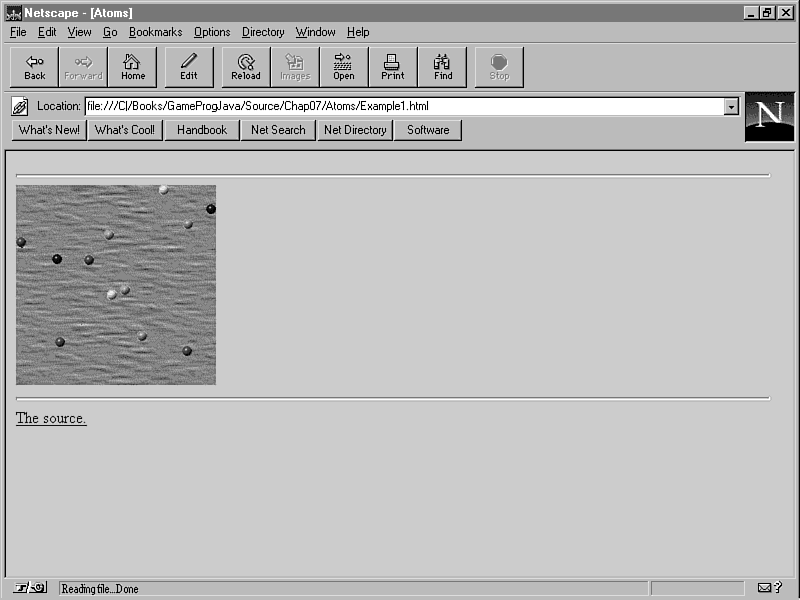
It's time to take all the hard work that you put into the sprite classes and see what it amounts to. You didn't come this far for nothing. Figure 6.4 shows a screen shot of the Atoms applet, which shows off the sprite classes you've toiled over for so long. The complete source code, images, and executable classes for the Atoms applet are on the accompanying CD-ROM.
Figure 6.4 : The Atoms sample applet.
The Atoms applet uses a SpriteVector object to manage 12 atomic Sprite objects. This object, sv, is one of the Atom applet class's member variables, which look like this:
private Image offImage, back;
private Image[] atom = new Image[6];
private Graphics offGrfx;
private Thread animate;
private MediaTracker tracker;
private SpriteVector sv;
private int delay = 83; // 12 fps
private Random rand = new
Random(System.currentTimeMillis());
The Image member variables in the Atoms class represent the offscreen buffer, the background image, and the atom images. The Graphics member variable, offGrfx, holds the graphics context for the offscreen buffer image. The Thread member variable, animate, is used to hold the thread where the animation takes place. The MediaTracker member variable, tracker, is used to track the various images as they are being loaded. The SpriteVector member variable, sv, holds the sprite vector for the applet. The integer member variable, delay, determines the animation speed of the sprites. Finally, the Random member variable, rand, is used to generate random numbers throughout the applet.
Notice that the delay member variable is set to 83. The delay member variable specifies the amount of time (in milliseconds) that elapses between each frame of animation. You can determine the frame rate by inverting the value of delay, which results in a frame rate of about 12 frames per second (fps) in this case. This frame rate is pretty much the minimum rate required for fluid animation, such as sprite animation. You'll see how delay is used to establish the frame rate later in this lesson when you get into the details of the run method.
The Atoms class's init method loads all the images and registers them with the media tracker:
public void init() {
// Load and track the images
tracker = new MediaTracker(this);
back = getImage(getCodeBase(), "Res/Back.gif");
tracker.addImage(back, 0);
atom[0] = getImage(getCodeBase(), "Res/Red.gif");
tracker.addImage(atom[0], 0);
atom[1] = getImage(getCodeBase(), "Res/Green.gif");
tracker.addImage(atom[1], 0);
atom[2] = getImage(getCodeBase(), "Res/Blue.gif");
tracker.addImage(atom[2], 0);
atom[3] = getImage(getCodeBase(), "Res/Yellow.gif");
tracker.addImage(atom[3], 0);
atom[4] = getImage(getCodeBase(), "Res/Purple.gif");
tracker.addImage(atom[4], 0);
atom[5] = getImage(getCodeBase(), "Res/Orange.gif");
tracker.addImage(atom[5], 0);
}
Tracking the images is necessary because you want to wait until all the images have been loaded before you start the animation. The start and stop methods are standard thread handler methods:
public void start() {
if (animate == null) {
animate = new Thread(this);
animate.start();
}
}
public void stop() {
if (animate != null) {
animate.stop();
animate = null;
}
}
The start method is responsible for initializing and starting the animation thread. Likewise, the stop method stops the animation thread and cleans up after it.
| Warning |
If for some reason you think that stopping the animation thread in the stop method isn't really that big of a deal, think again. The stop method is called whenever a user leaves the Web page containing an applet, in which case it is of great importance that you stop all threads executing in the applet. So always make sure to stop threads in the stop method of your applets. |
The run method is the heart
of the animation thread. Listing 6.8 shows the source code
for run.
Listing 6.8. The Atom class's run method.
public void run() {
try {
tracker.waitForID(0);
}
catch (InterruptedException e) {
return;
}
// Create and add the sprites
sv = new SpriteVector(new ImageBackground(this, back));
for (int i = 0; i < 12; i++) {
Point pos = sv.getEmptyPosition(new Dimension(
atom[0].getWidth(this), atom[0].getHeight(this)));
sv.add(createAtom(pos, i % 6));
}
// Update everything
long t = System.currentTimeMillis();
while (Thread.currentThread() == animate) {
sv.update();
repaint();
try {
t += delay;
Thread.sleep(Math.max(0, t - System.currentTimeMillis()));
}
catch (InterruptedException e) {
break;
}
}
}
The run method first waits for the images to finish loading by calling the waitForID method of the MediaTracker object. After the images have finished loading, the SpriteVector is created. Twelve different atom Sprite objects are then created using the createAtom method, which you'll learn about a little later toChapter. These atom sprites are then added to the sprite vector. Notice that the position for each sprite is found by using the getEmptyPosition method of SpriteVector. This guarantees that the sprites won't be placed on top of each other.
After creating and adding the sprites, a while loop is entered that handles updating the SpriteVector and forcing the applet to repaint itself. By forcing a repaint, you are causing the applet to redraw the sprites in their newly updated states.
Before you move on, it's important to understand how the frame rate is controlled in the run method. The call to currentTimeMillis returns the current system time in milliseconds. You aren't really concerned with what absolute time this method is returning you, because you are only using it here to measure relative time. After updating the sprites and forcing a redraw, the delay value is added to the time you just retrieved. At this point, you have updated the frame and calculated a time value that is delay milliseconds into the future. The next step is to tell the animation thread to sleep an amount of time equal to the difference between the future time value you just calculated and the present time.
This probably sounds pretty confusing, so let me clarify things a little. The sleep method is used to make a thread sleep for a number of milliseconds, as determined by the value passed in its only parameter. You might think that you could just pass delay to sleep and things would be fine. This approach technically would work, but it would have a certain degree of error. The reason is that a finite amount of time passes between updating the sprites and putting the thread to sleep. Without accounting for this lost time, the actual delay between frames wouldn't be equal to the value of delay. The solution is to check the time before and after the sprites are updated, and then reflect the difference in the delay value passed to the sleep method. And that's how the frame rate is managed! This frame rate technique is so useful that you'll use it throughout the rest of the guide.
The update method is where the sprites are actually drawn to the applet window:
public void update(Graphics g) {
// Create the offscreen graphics context
if (offGrfx == null) {
offImage = createImage(size().width, size().height);
offGrfx = offImage.getGraphics();
}
// Draw the sprites
sv.draw(offGrfx);
// Draw the image onto the screen
g.drawImage(offImage, 0, 0, null);
}
The update method uses double buffering to eliminate flicker in the sprite animation. By using double buffering, you eliminate flicker and allow for speedier animations. The offImage member variable contains the offscreen buffer image used for drawing the next animation frame. The offGrfx member variable contains the graphics context associated with the offscreen buffer image.
In update, the offscreen buffer is first created as an Image object whose dimensions match those of the applet window. It is important that the offscreen buffer be exactly the same size as the applet window. The graphics context associated with the buffer is then retrieved using the getGraphics method of Image. After the offscreen buffer is initialized, all you really have to do is tell the SpriteVector object to draw itself to the buffer. Remember that the SpriteVector object takes care of drawing the background and all the sprites. This is accomplished with a simple call to SpriteVector's draw method. The offscreen buffer is then drawn to the applet window using the drawImage method.
Even though the update method takes care of drawing everything, it is still important to implement the paint method. As a matter of fact, the paint method is very useful in providing the user visual feedback regarding the state of the images used by the applet. Listing 6.9 shows the source code for paint.
Listing 6.9. The Atom class's paint method.
public void paint(Graphics g) {
if ((tracker.statusID(0, true) & MediaTracker.ERRORED) != 0) {
// Draw the error rectangle
g.setColor(Color.red);
g.fillRect(0, 0, size().width, size().height);
return;
}
if ((tracker.statusID(0, true) & MediaTracker.COMPLETE) != 0) {
// Draw the offscreen image
g.drawImage(offImage, 0, 0, null);
}
else {
// Draw the title message (while the images load)
Font f1 = new Font("TimesRoman", Font.BOLD, 28),
f2 = new Font("Helvetica", Font.PLAIN, 16);
FontMetrics fm1 = g.getFontMetrics(f1),
fm2 = g.getFontMetrics(f2);
String s1 = new String("Atoms"),
s2 = new String("Loading images...");
g.setFont(f1);
g.drawString(s1, (size().width - fm1.stringWidth(s1)) / 2,
((size().height - fm1.getHeight()) / 2) + fm1.getAscent());
g.setFont(f2);
g.drawString(s2, (size().width - fm2.stringWidth(s2)) / 2,
size().height - fm2.getHeight() - fm2.getAscent());
}
}
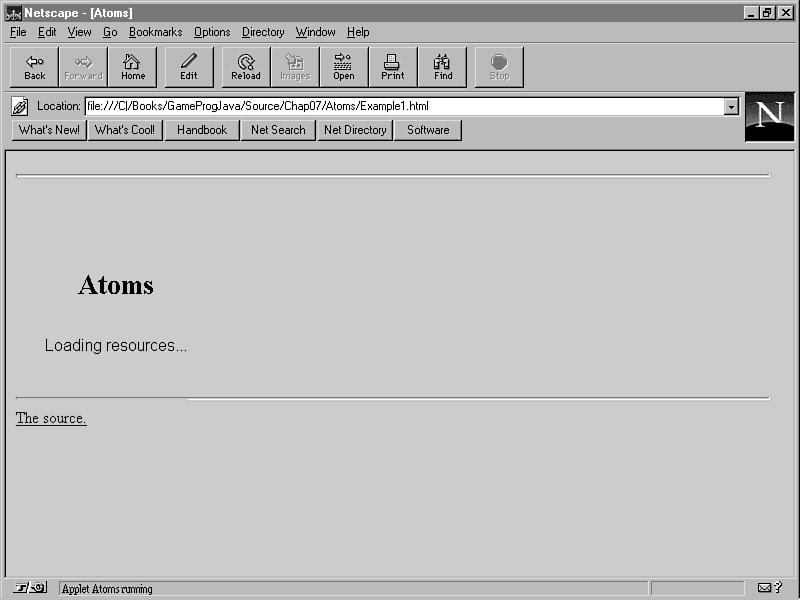
Using the media tracker, paint notifies the user that the images are still loading, or that an error has occurred while loading them. This paint method is very similar to the one you saw yesterChapter in the Tarantulas class. The primary difference is the addition of drawing the title text in the Atom version. Check out Figure 6.5, which shows the Atoms applet while the images are loading.
Figure 6.5 : The Atoms sample applet while the images are loading.
If an error occurs while loading one of the images, the paint method displays a red rectangle over the entire applet window area. If the images have finished loading, paint just draws the latest offscreen buffer to the applet window. If the images haven't finished loading, paint displays the title of the applet and a message stating that the images are still loading (see Figure 6.5). Displaying the title and status message consists of creating the appropriate fonts and centering the text within the applet window.
| Warning |
You might think that the time spent waiting for images to load is an ideal time to display a flashy title screen for a game. Although this is a good time to present information to the user, remember that the whole point here is that the game images haven't finished loading, which includes any title images. Therefore, it's important to design any type of title displayed at this point as straight text and not try to display any images. |
The last method in Atoms is createAtom, which handles creating a single atom sprite:
private Sprite createAtom(Point pos, int i) {
return new Sprite(this, atom[i], pos, new Point(rand.nextInt()
% 5, rand.nextInt() % 5), 0, Sprite.BA_BOUncE);
}
createAtom takes a Point as its first parameter, pos, which determines the sprite's initial position. The second parameter, i, is an integer that specifies which atom image to use. createAtom then calculates a random velocity for the sprite using the rand member variable. Each velocity component for the sprite (X and Y) is given a random value between -5 and 5. The sprite is given a Z-order value of 0. Finally, the sprite is assigned the BA_BOUncE bounds action, which means that it will bounce when it encounters the edge of the applet window.
That's all it takes to get the sprite classes working together. It might seem like a lot of code at first, but think about all that the applet is undertaking. The applet is responsible for loading and keeping track of all the images used by the sprites, as well as the background and offscreen buffer. If the images haven't finished loading, or if an error occurs while loading, the applet has to notify the user accordingly. Additionally, the applet is responsible for maintaining a consistent frame rate and drawing the sprites using double buffering. Even with these responsibilities, the applet is still benefiting a great deal from the functionality provided by the sprite classes.
You can use this applet as a template applet for other applets you create that use the sprite classes. You now have all the functionality required to manage both cast- and frame-based animation, as well as provide support for interactivity among sprites via collision detection and sprite actions.
Summary
In toChapter's lesson, you learned all about animation, including the two major types of animation: frame-based and cast-based. Adding to this theory, you learned that sprite animation is where the action is really at. You saw firsthand how to develop a powerful duo of sprite classes for implementing sprite animation, including a few support classes to make things easier. You then put the sprite classes to work in a sample applet that involved relatively little additional overhead.
Although it covered a lot of material, toChapter's lesson laid the groundwork for the graphics used throughout the rest of the guide. Without sprite animation, most games just wouldn't be that exciting. And without reusable Java sprite classes, implementing sprite animation in Java games would be much more difficult.
Most importantly, you learned toChapter the fundamental animation concepts that underlie almost every Java game you'll write. Armed with the knowledge and code developed toChapter, you are ready to move on to more advanced techniques that take you closer to writing cool Java games. More specifically, the next topic you need to cover is that of deriving your own sprite objects and working with interactions between them. You're in luck, because tomorrow's lesson covers exactly that topic by way of a really neat sample applet.
Q&A
| Q | What's the big deal with sprites? |
| A | The big deal is that sprites provide a very flexible approach to implementing animation. This is important because almost every game has its own unique animation requirements. By designing a powerful sprite engine, you have a base level of animation support that can be extended to provide game-specific features. |
| Q | What exactly is Z-order, and do I really need it? |
| A | Z-order is the depth of a sprite relative to other sprites; sprites with higher Z-order values appear to be on top of sprites with lower Z-order values. You only need Z-order when two or more sprites overlap each other, which is in most games. |
| Q | Why bother with the different types of collision detection? |
| A | The different types of collision detection (rectangle, shrunken rectangle, and image data) provide different trade-offs in regard to performance and accuracy. Rectangle and shrunken rectangle collision detection provide a very high-performance solution, but with moderate to poor accuracy. Image data collision detection is perfect when it comes to accuracy, but it can bring your game to its knees in the performance department. |
| Q | Why do I need the SpriteVector class? Isn't the Sprite class enough? |
| A | The Sprite class is nice, but it only represents a single sprite. To enable multiple sprites to interact with each other, which most games require, you must have a second entity that acts as a storage unit for the sprites. The SpriteVector class solves this problem by doubling as a container for all the sprites as well as a communication medium between sprites. |
Workshop
The Workshop section provides questions and exercises to give you a firmer grasp on the material you learned toChapter. Try to answer the questions and at least think about the exercises before moving on to tomorrow's lesson. You'll find the answers to the questions in appendix A, "Quiz Answers."
Quiz
- What is animation?
- What are the two main types of animation?
- What is transparency?
- What is flicker?
- What is double buffering?
- What are the two main types of animation?
Exercises
- Watch some cartoons and think about how each type of animation
is being used.
- Go see a movie and marvel at how well the illusion of movement works. I can't help it; I'm into entertainment!
- Modify the Atoms applet so that the sprites wrap around the edges of the screen rather than bouncing.
- Modify the Atoms applet so that the atom sprites don't bounce off each other.
- Substitute frame animated sprites for the single frame atom sprites.
- Go see a movie and marvel at how well the illusion of movement works. I can't help it; I'm into entertainment!




Popular Tutorials
-
 MS Access
1109
MS Access
1109
-
 C++
1222
C++
1222
-
 HTML
584
HTML
584
-
 JavaScript
616
JavaScript
616
-
 Vbscript
873
Vbscript
873
-
 Oracle
473
Oracle
473
-
 VC++
875
VC++
875
-
 SQL
2959
SQL
2959
-
 XML
514
XML
514
-
 Java
814
Java
814
-
 Perl
455
Perl
455
-
 Linux
451
Linux
451