Web based School
Chapter 7
Sim Tarantulas Creepy Crawly Sprites
CONTENTS
- Extending the Sprite Class
- Designing Sim Tarantula
- Sample Applet: Sim Tarantula
- Summary
- Q&A
- Workshop
- Designing Sim Tarantula
On Chapter 6, you developed a suite of very powerful and easy to use sprite classes. You saw them in action in an applet that demonstrated their basic functionality. ToChapter, you expand on that knowledge by extending the sprite classes to fit a more applied sample applet. More specifically, you derive new sprite classes to help build a tarantula simulation applet.
ToChapter's lesson is completely devoted to the development of this applet, which makes great use of the sprite classes. You learn all about sprite actions and how to use them to add new sprites and kill existing sprites. You also learn how to incorporate multiple frame animation images into derived sprites to give them a sense of direction.
More than anything, you learn how to apply the sprite classes to problems requiring unique solutions. This is the one skill that is essential in creating Java games. So let's get busy!
Extending the Sprite Class
The concept of extending the Sprite class to fit a particular situation is crucial in Java game development. It is also important from an object-oriented design point of view and will ultimately save you a great deal of time and code testing. When you derive sprites from the Sprite class, you can reuse all the code in Sprite, while adding additional code to carry out more specific chores.
However, not all sprites derived from Sprite have to be specific to a particular game. You might need some functionality that is not included in Sprite and that might be needed by various other sprite objects in a more general sense. In this case, you are better off to create an intermediate class that is derived from Sprite. You can then derive game-specific classes from this class.
An example of this idea is a directional sprite. The Sprite class, although feature packed, includes no support for a sprite having direction. Some examples of sprites that would require direction are tanks and monsters-basically, anything that has a distinguishable front, back, and sides. If you were to use the Sprite class to create a monster, you would be able to move the monster and even give it a frame animation, but you would have no way to show it facing the direction it is moving in. Clearly, this would look pretty strange.
The solution is to derive a directional sprite that adds the functionality necessary to provide a sense of direction. Then you can derive the monster sprite from the directional sprite and instantly give it direction. From then on, any other game-specific directional sprites can simply be derived from the generic directional sprite class and gain all the same benefits. This is object-oriented programming at its best!
Designing a Directional Sprite
Because you'll need it for the Sim Tarantula applet later in toChapter's lesson, go ahead and design a directional sprite class. The directional sprite class needs to encapsulate all the behavior necessary to provide a direction of movement.
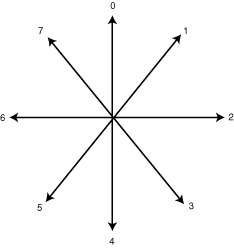
The first step in designing the directional sprite is to determine how to model the different directions. Because you won't attempt to render the sprite image at different directions on the fly, it's important to realize that each direction requires its own image. In the case of a frame-animated directional sprite, each direction requires an array of images. You have to decide on a limited set of directions that the sprite can have, because it would be very costly in terms of resources to provide images for the sprite at many different directions. Figure 7.1 shows a discrete set of directions that apply well to directional sprites.
Figure 7.1 : Discrete directions for a directional sprite.
Of course, providing more directions would yield smoother rotating effects for the sprite. However, it would also up the ante a great deal in terms of resources. Remember that each direction brings with it the overhead of an image or array of images. And all those images must be transferred over a potentially low-bandwidth Internet connection. In Java programming, you must always think about the fact that the applet and resources have to be transmitted over the Internet to the user's computer. At times like this, you need to look at the design from the game player's perspective: Are smoother directional sprites worth waiting 10 minutes for the images to transfer? I seriously doubt it!
Now that you've settled on a workable set of directions for the directional sprite, you need to consider what aspects of the original Sprite class are affected by the addition of directions. Probably the most obvious change has to do with the sprite image. Now, instead of a single image, you must provide an image for each possible direction. In the case of a frame-animated directional sprite, you must provide an array of images for each direction.
The other major change brought on by the directional sprite relates to velocity. The velocity of a directional sprite is tightly linked to the direction because the sprite must be facing the direction it is traveling. This means that you need to alter the velocity whenever you change the direction, and vice versa. You'll see that this is not a problem, because you can just override the method that deals with setting the velocity.
The DirectionalSprite Class
With all the design issues laid out, it's time to move on to the Java implementation of the DirectionalSprite class. The following are the member variables defined in DirectionalSprite:
protected static final int[][] velDirs = {
{0, -1}, {1, -1}, {1, 0}, {1, 1},
{0, 1}, {-1, 1}, {-1, 0}, {-1, -1} };
protected Image[][] image;
protected int direction;
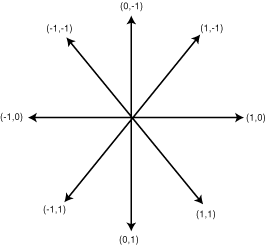
The first member variable, velDirs, is a two-dimensional array of integers. This array holds values that are used to calculate the sprite's velocity based on a given direction. When the direction of the sprite is changed, the velocity is multiplied by an X and Y component from the velDirs array. Figure 7.2 shows how the X and Y multiplier values in velDirs correspond to the different directions of the sprite.
Figure 7.2 : Velocity multipliers for the different sprite directions.
The other two member variables in DirectionalSprite, image and direction, are storage members for the directional images and the current direction. Notice that image is a two-dimensional array of Image objects, which reflects the frame animation support in DirectionalSprite.
DirectionalSprite has two constructors, similar to the original Sprite class:
public DirectionalSprite(Component comp, Image[] img, Point pos,
Point vel, int z, int ba, int d) {
super(comp, img[d], pos, vel, z, ba);
image[0] = img;
setDirection(d);
}
public DirectionalSprite(Component comp, Image[][] img, int f,
int fi, int fd, Point pos, Point vel, int z, int ba, int d) {
super(comp, img[d], f, fi, fd, pos, vel, z, ba);
image = img;
setDirection(d);
}
The first constructor creates a directional sprite without frame animation, and the second constructor supports frame animation, as is evident by the extra parameters. Notice that the setDirection method is called to initialize the direction of the sprite, rather than a simple assignment being made to the direction member variable. This is because the direction impacts both the velocity and image of the sprite. You see how this works later in toChapter's lesson when you get into the setDirection method.
The getDirection method is a simple access method that returns the current direction:
public int getDirection() {
return direction;
}
The setDirection method involves a little more work, as the following code shows:
public void setDirection(int dir) {
// Set the direction
if (dir < 0)
dir = 7;
else if (dir > 7)
dir = 0;
direction = dir;
// Change the velocity
velocity.x *= velDirs[dir][0];
velocity.y *= velDirs[dir][1];
// Set the image
setImage(image[dir]);
}
setDirection first ensures that the direction is within the directional bounds (0 to 7). Notice that setDirection takes care to wrap the direction around if it goes beyond a boundary; this gives the sprite the capability to rotate freely. The velocity is then modified using the velDirs directional velocity multipliers. Finally, the new direction image is set with a call to setImage.
The setVelocity method is overridden in DirectionalSprite because changing the velocity should cause a change in the direction. Check out the following code:
public void setVelocity(Point vel) {
velocity = vel;
// Change the direction
if (vel.x == 0 && vel.y == 0)
return;
if (vel.x == 0)
direction = (vel.y + 1) * 2;
else if (vel.x == 1)
direction = vel.y + 1;
else if (vel.x == -1)
direction = -vel.y + 6;
}
In setVelocity, velocity is first assigned its new value. The direction is then altered based on the new velocity by way of a few comparisons and equations. If the function of these equations isn't obvious to you at first, just think about what task they are handling. The task is to obtain a direction in the range 0 to 7 from a given velocity. Because no single equation can do this, I worked out a fairly concise way of calculating the direction based on the velocity. There's nothing magical about it; it's just a matter of closely analyzing the different values.
You now have a fully functional directional sprite class that can be reused in any applet from now on. Speaking of reusing the DirectionalSprite class, let's start working on the tarantula simulator.
Designing Sim Tarantula
Before jumping into the Java code of any applet, it's important to decide to some degree what you want the applet to do. This is very important because it gives you a clear goal and a strategy toward implementing the various classes that make up a complete applet. By using this approach, you save a lot of time rewriting code, and you end up with a cleaner set of classes the first time around.
Writing Java games requires a similar design approach. In the design phase of a Java game, you must determine what sprites the game needs, as well as how they interact with each other. The only potential difference in designing a game is that there are aspects of games that have to be played and then tweaked based on feel. This trial and error approach is hard to avoid in some cases because the subtleties of games are often the most fun.
Having said all that, let's take a stab at designing a simple tarantula simulator, Sim Tarantula. Although it's not technically a game, Sim Tarantula contains nearly all of the components of a game-just about everything except user interaction.
First, what objects does a tarantula simulator contain? By defining the objects used in the applet, you are indirectly defining the applet itself. Well, no doubt it will have tarantulas, and preferably some kind of background. Because tarantulas often live in the desert, it only makes sense to use a desert background. Additionally, tarantulas clearly have a front and a back, so it makes sense to model them as directional sprites. This is important because you want a tarantula to always face the direction in which it is walking; otherwise, it will look like the tarantula is sliding across the desert floor rather than walking.
Next, you might wonder where tarantulas come from. Of course, eggs! Rather than create fully grown tarantulas, it would be much more interesting to have them hatch from eggs and grow into larger tarantulas. This is a perfect place to display a frame animation of a tarantula hatching from an egg and growing up into an adult tarantula.
Then what? At this point, the full-grown tarantulas can walk around, explore things, and talk amongst themselves if they like. They can even lay more eggs, which eventually results in more tarantulas. But sooner or later, they start getting old. And like all creatures, at some point they must die. Sounds like another cool place for an animation. A frame animation showing a tarantula getting more and more frail until it just withers away should do the trick.
You now have enough information to make a pretty neat little tarantula simulator. At this point, it makes sense to break down the design into sprites so that you'll have an idea of what classes need to be written. Based on what you have so far, Sim Tarantula requires the following sprites:
- Spiderling
- Tarantula
- Spidercide
- Tarantula
A spiderling is a baby tarantula, and the spiderling sprite basically models the birth of a tarantula from the egg. This sprite is really just a frame-animated sprite that is used to show the birth of a tarantula. The tarantula sprite models a fully grown tarantula. It is a frame-animated directional sprite and can walk around freely and create new spiderlings. The spidercide sprite models the death of a tarantula. It is a frame-animated sprite that shows a tarantula growing weaker and weaker until it finally disappears.
Overall, these sprites probably sound pretty reasonable to you. However, you haven't addressed one thing, and that is the issue of how the sprites are created and destroyed. The only sprite out of these three that the applet ever needs to create directly is the spiderling sprite. This is because the other two sprites should be created automatically. For example, the tarantula sprite should be created automatically when the spiderling finishes its animation. Similarly, the spidercide sprite should be created automatically when the tarantula is ready to die.
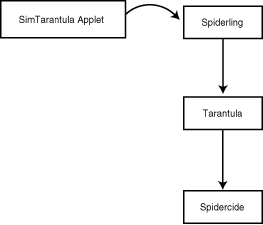
That covers creating the sprites, but how about destroying them? In this case, the applet isn't responsible for destroying any of the sprites. The spiderling sprite should kill itself whenever it finishes its animation and creates the tarantula sprite. Similarly, the tarantula sprite should kill itself when it creates the spidercide sprite. And last but not least, the spidercide sprite should kill itself when it finishes its animation. Just in case you've had trouble following any of this, check out Figure 7.3, which shows the life cycle of the Sim Tarantula sprites.
Figure 7.3 : The life cycle of the sprites in Sim Tarantula.
Now you understand when each sprite is created and destroyed, but how in the world do sprites create and destroy each other in the first place? The answer is sprite actions. When you use sprite actions, you have full control over creating and destroying sprites from within a sprite. You even have the option of creating custom actions for derived sprites that can make them do anything you want. Sprite actions are probably the most powerful aspect of using sprites, and you've already written support for them into the sprite classes in the last lesson.
A sprite action is a mechanism that allows sprites to interact with each other. For example, using sprite actions, a sprite can create new sprites or kill existing sprites.
By now, you'll probably agree that the design of Sim Tarantula is far enough along to move on to the applet. I couldn't agree more!
Sample Applet: Sim Tarantula
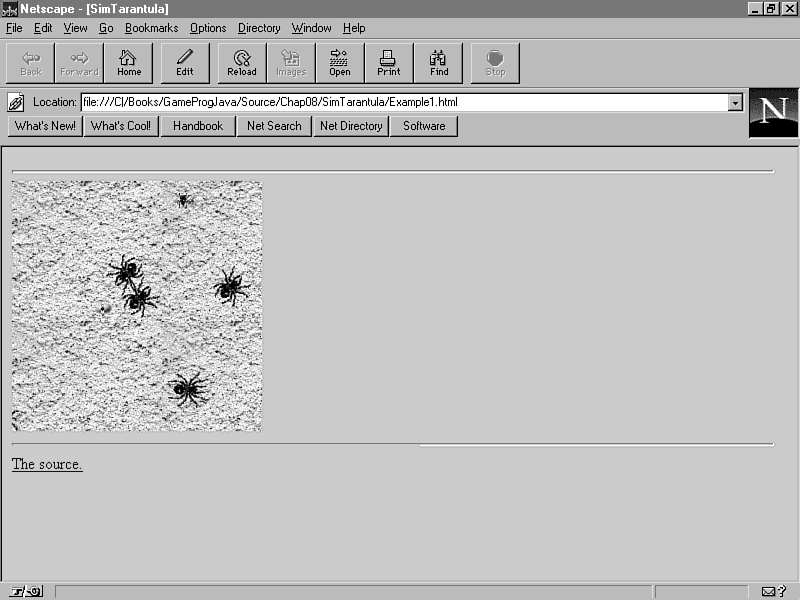
The Sim Tarantula applet contains most of the elements of a complete Java game, including extensive support for derived sprites. Figure 7.4 shows the Sim Tarantula applet in action.
Figure 7.4 : The Sim Tarantula sample applet.
Sim Tarantula first places a number of spiderlings that eventually grow into tarantulas. These tarantulas then roam around dropping new spiderlings until they die. This process continues until all of the tarantulas die. Because the creation of spiderlings and the death of tarantulas occur randomly, the applet has the potential of running indefinitely. On the other hand, all the tarantulas could potentially die off, leaving an empty landscape.
Now that you've seen Sim Tarantula in action, let's look under the hood and figure out how everything works.
The Sprite Classes
The core of the Sim Tarantula applet is the extended sprite classes. The first of these classes is the Spiderling class, which handles displaying an animation of a tarantula hatching from an egg. The Spiderling class shows an animation and then creates a new tarantula and kills itself. The Spiderling class has a single constructor, whose code follows:
public Spiderling(Component comp, Point pos) {
super(comp, image, 0, 1, 20, pos, new Point(0, 0), 40,
Sprite.BA_DIE);
}
Notice that, unlike the Sprite class, the constructor for Spiderling only takes a couple of parameters. This simplification is handy because it enables you to create spiderlings in the applet without having to supply a bunch of information. This is a common technique that you will use on game-specific sprites throughout the rest of the guide.
The initResources method is used to initialize the resources used by the spiderling:
public static void initResources(Applet app, MediaTracker tracker,
int id) {
for (int i = 0; i < 6; i++) {
image[i] = app.getImage(app.getCodeBase(), "Res/Spling" +
i + ".gif");
tracker.addImage(image[i], id);
}
}
Resources initialized by initResources could include anything from images to sound and music. In this case, the only resources used by Spiderling are images. It's important that initResources is defined as static. This means that initResources applies to all instances of the Spiderling class, which results in all Spiderling objects referencing the same images. Furthermore, this makes the loading of resources smoother because you can load the resources at the beginning of the applet before you even create any Spiderling objects. This is another tactic that will be used frequently throughout the rest of the guide.
| Warning |
Because the Spiderling class is completely dependent on its resources (images), the initResources method must be called before creating or using any Spiderling objects. The same rule applies to all other sprites you develop that use the initResources method to initialize their resources. |
The overridden update method in Spiderling takes care of incrementing the spiderling frame animation:
public BitSet update() {
BitSet action = new BitSet();
// Die?
if (frame >= 5) {
action.set(Sprite.SA_KILL);
action.set(Sprite.SA_ADDSPRITE);
action.set(Tarantula.SA_ADDTARANTULA);
return action;
}
// Increment the frame
incFrame();
return action;
}
An important thing to notice is how update kills the Spiderling object and creates a new Tarantula object. This is carried out simply by checking the current animation frame and returning the correct sprite action. The update method makes use of a custom sprite action, SA_ADDTARANTULA, which is defined in the Tarantula class. You learn about the Tarantula class in a moment.
| Note |
Notice that even though the SA_ADDTARANTULA sprite action is used to add tarantula sprites, the standard sprite action SA_ADDSPRITE must also be used in conjunction with it. This is true because the SA_ADDSPRITE action signals that a sprite is to be added, and the SA_ADDTARANTULA action specifies the specific type of sprite (a tarantula sprite). |
The addSprite method is the other overridden method in Spiderling and handles adding a new Tarantula object when the spiderling dies:
protected Sprite addSprite(BitSet action) {
// Add spider?
if (action.get(Tarantula.SA_ADDTARANTULA))
return new Tarantula(component, new Point(position.x, position.y));
return null;
}
addSprite checks for the SA_ADDTARANTULA action flag and creates the new tarantula if it is set. The newly created Tarantula object is then returned so that it can be added to the sprite list.
The next extended sprite class used in Sim Tarantula is the Tarantula class, which you might have suspected models a tarantula. The following are the member variables defined in the Tarantula class:
public static final int SA_ADDTARANTULA = 3,
SA_ADDSPIDERLING = 4,
SA_ADDSPIDERCIDE = 5;
public static Image[][] image;
protected static Random rand = new Random(
System.currentTimeMillis());
Probably the most important aspect of the Tarantula class is the addition of the custom sprite actions. These three actions define a mechanism to add Tarantula, Spiderling, and Spidercide objects. Notice that the actions are assigned increasing integer values beginning with 3. This is extremely important because the standard sprite actions defined in the Sprite class are already assigned the values 0, 1, and 2. If you recall, the sprite actions are actually flags used in a BitSet object to pass actions back and forth between individual sprites and the sprite list.
The Image member variable, image, is simply used to hold the array of images for the sprite. The Tarantula class also contains a Random object member variable, rand. This member variable is defined as static and is used to provide random numbers for all Tarantula objects. It is seeded with the current system time, which is a useful way to help guarantee randomness.
The constructor for Tarantula is very simple and alleviates having to pass a bunch of specific parameters:
public Tarantula(Component comp, Point pos) {
super(comp, image, 0, 1, 2, pos, new Point(1, 1), 50,
Sprite.BA_WRAP, 0);
}
The tarantula is given a bounds action of BA_WRAP, which means that it can roam off one side of the applet window and back onto the other side.
Similar to the one in Spiderling, the initResources method for Tarantula loads all the images used by the class:
public static void initResources(Applet app, MediaTracker tracker,
int id) {
image = new Image[8][2];
for (int i = 0; i < 8; i++) {
for (int j = 0; j < 2; j++) {
image[i][j] = app.getImage(app.getCodeBase(),
"Res/Tarant" + i + j + ".gif");
tracker.addImage(image[i][j], id);
}
}
}
The update method is where most of the action takes place in Tarantula. Listing 7.1 shows the source code for the update method.
Listing 7.1. The Tarantula class's update method.
public BitSet update() {
// Randomly change direction
if ((rand.nextInt() % 10) == 0) {
velocity.x = velocity.y = 1;
setDirection(direction + rand.nextInt() % 2);
}
// Call parent's update()
BitSet action = super.update();
// Give birth?
if (rand.nextInt() % 250 == 0) {
action.set(Sprite.SA_ADDSPRITE);
action.set(Tarantula.SA_ADDSPIDERLING);
}
// Die?
if (rand.nextInt() % 250 == 0) {
action.set(Sprite.SA_KILL);
action.set(Sprite.SA_ADDSPRITE);
action.set(Tarantula.SA_ADDSPIDERCIDE);
}
return action;
}
The update method first handles giving the tarantula its ability to roam by randomly altering the direction. The superclass update method is then called so that all the default handling can take place. The update method then randomly decides whether a new Spiderling object should be created. If so, the SA_ADDSPRITE and SA_ADDSPIDERLING flags are set. Similarly, update randomly decides whether a Spidercide object should be created. If so, the SA_KILL, SA_ADDSPRITE, and SA_ADDSPIDERCIDE flags are set. The SA_KILL flag takes care of killing the Tarantula object itself, while the other two cause the new Spidercide object to be created.
The last method in Tarantula is addSprite, which handles creating Spiderling and Spidercide objects that are to be added to the sprite list:
protected Sprite addSprite(BitSet action) {
// Add spiderling?
if (action.get(Tarantula.SA_ADDSPIDERLING))
return new Spiderling(component, new Point(position.x,
position.y));
// Add spidercide?
else if (action.get(Tarantula.SA_ADDSPIDERCIDE))
return new Spidercide(component, new Point(position.x,
position.y));
return null;
}
The addSprite method checks the sprite action flags and creates a new sprite, if necessary. addSprite then makes sure to return the newly created sprite so that it can be added to the sprite list.
Last but not least is the Spidercide class, which models a dying tarantula with a simple frame animation. The Spidercide class is very similar to Spiderling, because they both act effectively as temporary animations. Listing 7.2 contains the source code for the Spidercide class.
Listing 7.2. The Spidercide class.
public class Spidercide extends Sprite {
protected static Image[] image = new Image[4];
public Spidercide(Component comp, Point pos) {
super(comp, image, 0, 1, 20, pos, new Point(0, 0), 30,
Sprite.BA_DIE);
}
public static void initResources(Applet app, MediaTracker tracker,
int id) {
for (int i = 0; i < 4; i++) {
image[i] = app.getImage(app.getCodeBase(), "Res/Spcide" +
i + ".gif");
tracker.addImage(image[i], id);
}
}
public BitSet update() {
BitSet action = new BitSet();
// Die?
if (frame >= 3) {
action.set(Sprite.SA_KILL);
return action;
}
// Increment the frame
incFrame();
return action;
}
}
You can undoubtedly see a lot of similarities between Spidercide and Spiderling. As a matter of fact, the only significant difference between the two is that the Spidercide class doesn't add new sprites. Of course, it also provides its own unique frame images. Otherwise, you've seen all this code before in the Spiderling class, so I won't go over it again.
There is actually one other sprite-related class in Sim Tarantula that you need to learn about before moving on to the applet class. I'm referring to the TarantulaVector class, which is derived from SpriteVector and provides features specific to the Sim Tarantula sprite classes. Listing 7.3 contains the source code for TarantulaVector.
Listing 7.3. The TarantulaVector class.
public class TarantulaVector extends SpriteVector {
public TarantulaVector(Background back) {
super(back);
}
public int add(Sprite s) {
// Only allow up to 10 sprites at once
if (size() <= 10)
return super.add(s);
return -1;
}
protected boolean collision(int i, int iHit) {
// Do nothing!
return false;
}
}
The TarantulaVector class probably has a lot less code than you might have guessed, because the majority of the derived functionality in Sim Tarantula is carried out in the three sprite classes you just covered. You really only need to have the TarantulaVector class for two reasons: limiting the maximum number of sprites and eliminating collision actions.
Limiting the number of sprites that can be added to the sprite list is necessary because the performance of the applet starts dragging if you get too many tarantulas running around. Also, it becomes very difficult to see what is happening if too many sprites are on the screen at one time. The solution is an overridden version of the add method, which simply checks to see how many sprites are currently in the list and only adds new sprites if it is under the limit.
Getting rid of collision actions isn't absolutely necessary, but it helps make the animation look a little more realistic. You might recall that the default collision method in Sprite causes two sprites that collide to bounce off each other. In the case of tarantulas, it actually looks better having them just walk over each other, so you simply supply a collision method that returns false and all is well.
At this point, you have all the support classes necessary to move on to the applet itself. You'll see that the applet has little responsibility in regard to the specifics of Sim Tarantula, because the derived sprite classes basically take care of themselves. This is a direct benefit of using an object-oriented design approach.
The SimTarantula Class
The SimTarantula class models the applet itself and takes care of all the dirty work related to setting up the sprite classes. Because the overhead of managing the sprite classes is very similar, much of the code in the SimTarantula class is the same as that in the Atoms class you developed yesterChapter. Knowing that, it makes more sense to focus on the code in SimTarantula that is new, such as the init method:
public void init() {
// Load and track the images
tracker = new MediaTracker(this);
back = getImage(getCodeBase(), "Res/Back.gif");
tracker.addImage(back, 0);
Tarantula.initResources(this, tracker, 0);
Spiderling.initResources(this, tracker, 0);
Spidercide.initResources(this, tracker, 0);
}
The init method takes care of initializing all the resources for the different sprites. This is done by calling the static initResource method for each. A MediaTracker class is passed in so that the image resources can be tracked.
The run method is the workhorse for SimTarantula and is somewhat similar to the run method implemented in the Atoms class. Listing 7.4 contains the source code for the run method in SimTarantula.
Listing 7.4. The SimTarantula class's run method.
public void run() {
try {
tracker.waitForID(0);
}
catch (InterruptedException e) {
return;
}
// Create and add some spiderlings
tv = new TarantulaVector(new ImageBackground(this, back));
for (int i = 0; i < 5; i++) {
Point pos = tv.getEmptyPosition(new Dimension(
Spiderling.image[0].getWidth(this),
Spiderling.image[0].getHeight(this)));
tv.add(new Spiderling(this, pos));
}
// Update everything
long t = System.currentTimeMillis();
while (Thread.currentThread() == animate) {
tv.update();
repaint();
try {
t += delay;
Thread.sleep(Math.max(0, t - System.currentTimeMillis()));
}
catch (InterruptedException e) {
break;
}
}
}
The run method creates the TarantulaVector object and passes an ImageBackground object into its constructor. This gives Sim Tarantula a desert background image and makes the animation a lot more realistic. Five Spiderling objects are then created and added to the tarantula vector. This is all it takes to get the simulation underway.
| Note |
If you recall, the TarantulaVector class takes a Background object as its only constructor parameter. However, in SimTarantula the TarantulaVector object is constructed using an object of type ImageBackground. This is a very neat usage of the object-oriented design of the sprite and background classes. You can use a completely different type of background simply by passing a different type of Background derived object into the TarantulaVector constructor. |
The rest of the SimTarantula class is basically the same as Atoms, with the exception of different text in the applet title that is displayed while the images are loading. With that, you have a complete tarantula simulator applet with lots of cool derived sprite objects that interact with each other.
Summary
Although you didn't cover a lot of new territory in theory, you made huge strides in this lesson in regard to practical sprite usage. You started off by deriving a powerful new sprite class that gives sprites a sense of direction. You followed up on this by designing a simple tarantula simulator and putting it together piece by piece. Although the tarantula simulator isn't technically a game, it is about as close as you can get in terms of deriving new sprites that interact with each other. With this knowledge, you are empowered to create sophisticated applets with more complex sprites that can work together to do more than just give the illusion of movement.
You might be thinking at this point that it's time to jump into writing a complete Java game. Although you are technically almost ready, the next lesson changes the pace a little by introducing you to handling user input in games. By learning how to handle user input, you'll clear a major hurdle on your way to writing full-blown Java games.
Q&A
| Q | Why derive a directional sprite? |
| A | A directional sprite is a sprite with a more specific purpose. In object-oriented programming, any time you have an object that extends another object, you should derive from the original object and add the new functionality. In this case, the DirectionalSprite class inherits all the functionality of the original Sprite class, while adding its own specific features. |
| Q | Can the DirectionalSprite class be used to model sprites with more than eight directions? |
| A | Unfortunately, no. The DirectionalSprite class is specifically designed to support exactly eight directions. It could be redesigned to be more general, in which case you would probably need to change the constructor to accept a parameter specifying the number of directions. |
| Q | Why do I have to use sprite actions to do something as simple as adding a new sprite to the sprite list? |
| A | Because you are trying to add a sprite from within another sprite. Sprites have no concept of the sprite list, so they don't know how to add sprites. The sprite actions define a communication protocol between the sprites and the sprite list that enables sprites to indirectly manipulate the list. |
| Q | Why are the spiderlings and spidercides implemented as sprites? |
| A | Because they are frame animations that need to be able to interact with the tarantula sprites. More generally, they are separate conceptual objects that are well suited for the sprite model provided by the Sprite class. Remember that just because an object isn't moving and bouncing around doesn't mean that it isn't a good candidate for a sprite. |
Workshop
The Workshop section provides questions and exercises to help you get a handle on the material you learned toChapter. Try to answer the questions and at least briefly ponder the exercises before moving on to tomorrow's lesson. You'll find the answers to the questions in appendix A, "Quiz Answers."
Quiz
- How are directions modeled in the DirectionalSprite
class?
- How do the velocity multipliers in the DirectionalSprite class work?
- How do the tarantulas determine when to give birth to new spiderlings?
- How do the tarantulas determine when to die?
- Why do you need to derive the TarantulaVector class, as opposed to just using the SpriteVector class?
- How do the velocity multipliers in the DirectionalSprite class work?
Exercises
- Modify DirectionalSprite
so that it can be used to model sprites with any number of directions.
- Modify Sim Tarantula to use the new DirectionalSprite class.
- Think about how cool (and scared) I felt when I saw a real tarantula in the wild while riding my mountain bike.
- Write a Food class to model food that the tarantulas can eat.
- Modify the TarantulaVector class to detect collisions between the tarantulas and the food.
- Modify the Tarantula class to extend the life of the tarantulas when they eat food.
- Design your own graphics for the sprites and background to create a different type of simulation. SimSasquatch maybe?
- Modify Sim Tarantula to use the new DirectionalSprite class.




Popular Tutorials
-
 MS Access
1109
MS Access
1109
-
 C++
1222
C++
1222
-
 HTML
584
HTML
584
-
 JavaScript
616
JavaScript
616
-
 Vbscript
873
Vbscript
873
-
 Oracle
473
Oracle
473
-
 VC++
875
VC++
875
-
 SQL
2959
SQL
2959
-
 XML
514
XML
514
-
 Java
814
Java
814
-
 Perl
455
Perl
455
-
 Linux
451
Linux
451