Web based School
Chapter 10
Travelin Gecko: Blistering Desert Fun
CONTENTS
On Chapter 9, you learned all about handling user input in Java. In this lesson, you combine what you learned about user input with your knowledge of the sprite classes to create your first complete Java game, Traveling Gecko. In doing so, you learn and apply new techniques for extending the sprite classes.
ToChapter's lesson presents and solves the major technical issues involved in putting together a complete Java game. By developing a complete game, your core Java game programming skills come full circle. You'll see that putting together a complete game isn't really that much more complex than the sample sprite applets you've already worked on. After you finish this lesson, you'll have the fundamental Java game programming constructs firmly in place so that you can move on to more advanced topics.
Designing Traveling Gecko
As you learned back in Chapter 7, "Sim Tarantula: Creepy Crawly Sprites," it's very important to think through a game design as thoroughly as possible before writing any code. So, before you even consider editing a Java source file, be sure to think about the game design in both general and specific terms. With that in mind, let's break the Traveling Gecko sample game into its logical components.
The Traveling Gecko game is modeled roughly on the classic Atari 2600 Frogger game. In the original Frogger game, you guide a frog through traffic and then across a river using floating logs to get across. Traveling Gecko takes a similar approach, in that the goal is to maneuver an animal from one place to another while dodging dangers along the way. However, the setting for Traveling Gecko is the desert southwest, and your character is a gecko on the move. Your journeying little gecko only wants to get across a particularly small stretch of desert, but he has to contend with a variety of predators to do so. The predators include Gila monsters, scorpions, rattlesnakes, and tarantulas.
Sprites
Based on the game description thus far, you probably already have in mind some sprites that the game will need. Let's go ahead and break the game down into sprites, because that's where most of the substance of the game is located. Obviously, the most important sprite is the gecko sprite itself, which needs to be able to move based on user input. The gecko sprite is the heart of the game and must be designed with care.
Because the gecko is capable of being killed by the predators, you'll also need an animation of the gecko dying-a geckocide sprite. If you recall, you used a similar approach (spidercide sprite) when developing the Sim Tarantula applet on Chapter 7. The geckocide sprite simply shows an animation of the gecko dying so that it doesn't just disappear when it dies.
Moving along, it's fairly obvious that you'll also need sprite objects for the predators. Although each one has basically the same functionality, let's go ahead and think of them as different sprite objects, because you might decide to add unique behavior to one of them later. You should have some special logic for handling a collision between the predators and the gecko, because this contact results in the gecko's death.
Before you finish itemizing the sprites, take a moment to think about the specifics surrounding the gecko's path across the desert. Taking an approach similar to Frogger's, the gecko must travel from the bottom of the screen to safety at the top. However, it seems too easy to simply have him go from the bottom of the screen to the top with no other obstacles than the predators. Frogger has specific locations at the top of the screen where the frog must go. Let's take a similar approach here. By placing large rocks at the top and bottom of the screen, you can provide openings at which the gecko can start and finish. This makes sense too, because the openings in the rocks make good hiding places for the gecko.
If you're now thinking that the rocks would make good additions to the sprite inventory for Traveling Gecko, then pat yourself on the back! If not, don't feel too bad; it might be because you think they could just be made part of the background. That's true, but there would be a big problem in detecting collisions between the gecko and the rocks. The rocks are there for a reason-to limit the gecko's movement. And the only way to limit the gecko's movement is to detect a collision between him and a rock and not let him move if he's colliding with a rock. Without making the rocks sprites, you would have to add a bunch of special case code to a derived SpriteVector class to see whether the gecko is colliding with them. Adding code to a derived SpriteVector class isn't the problem, though; the problem is duplicating the collision detection functionality you've already written.
| Note |
The discussion about the rock sprite brings up a good point in regard to game objects: Practically any graphical object in a game that can be interacted with or handled independently of the background should be implemented as a sprite. Remember that sprites are roughly analogous to cast members in a theatrical play. To carry things a bit further, you can extend the usage of sprites to also include the props used in a play. This is essentially the role rocks play in the Traveling Gecko game: props! |
The rocks are the last sprites you'll need to write for the game. To summarize what you have thus far, Traveling Gecko requires sprites modeling the following objects:
- Gecko
- Geckocide
- Gila monster
- Scorpion
- Rattlesnake
- Tarantula
- Rock
- Geckocide
The gecko sprite models the player and is controlled by the player's user input responses. The geckocide sprite is used to show a dying gecko and comes in the form of a simple frame animation. The Gila monster, scorpion, rattlesnake, and tarantula sprites model the predators who are trying to ruin the gecko's trip. Remember that there has to be some method of killing the gecko based on a collision with these predators. This is an issue you'll deal with later in this lesson, when you get into writing the Java code. Finally, the rock sprite models rocks that block the gecko's movement, thereby making it more difficult for him to get across the desert safely.
Game Play
Now that you have an idea of what sprite classes you need to write, let's take a look at the game itself and how it will play. First, it wouldn't be much fun if the game ended as soon as you were killed by a predator. So let's give the player four geckos (lives) to play with; the game isn't over until all four are killed.
Although it is certainly fulfilling to help out a gecko in need, it would also be nice to reward the player with some type of point system. Let's give the player 25 points each time the gecko makes it safely across the desert. Then the player's good will for saving a gecko's life is given a numeric value that can be viewed with pride!
Because every game ultimately ends when all four geckos are killed, you also need to provide the player with a way to start a new game. This is an ideal situation for a button; the player simply clicks the button to start a new game.
This finishes the game design for Traveling Gecko. You now have all the information you need to get into the specifics surrounding the applet and support classes. What are you waiting for?
Sample Applet: Traveling Gecko
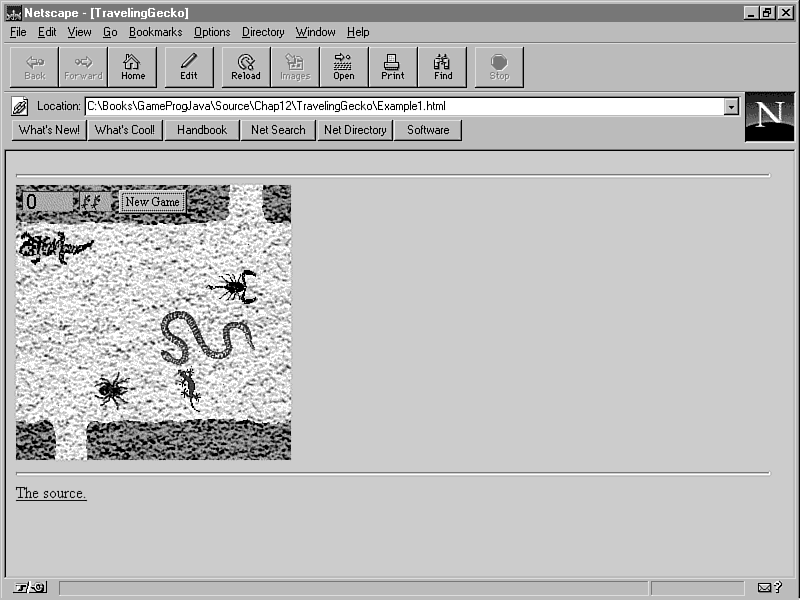
The Traveling Gecko applet is your first complete Java game and makes the most of the indispensable sprite classes you've come to know so well. Figure 10.1 shows the Traveling Gecko applet in the middle of a heated game.
Figure 10.1 : The Traveling Gecko sample applet.
Traveling Gecko begins by creating the gecko, rocks, and predators. You then use the keyboard to control the gecko and attempt to guide him safely into the rock opening at the top right of the screen. The score is displayed in the upper left corner of the screen. Immediately to the right of the score is the number of remaining gecko lives, which are displayed graphically as tiny geckos.
The different predators all roam around the desert background at different speeds hoping to make a quick meal out of your trusting gecko. If one of them gets lucky, a geckocide object is created to show the dying gecko. The number of remaining lives is then decremented.
| Warning |
Watch out for those pesky scorpions; they're quite fast! |
If you guide the gecko safely across, you receive 25 points and the chance to help him across again. I know, one would think that the gecko would be thankful for making it across once and not want to try again, but that's not the case! If you're able to help him across a few times, you'll notice that the predators start calling in reinforcements to make things more difficult.
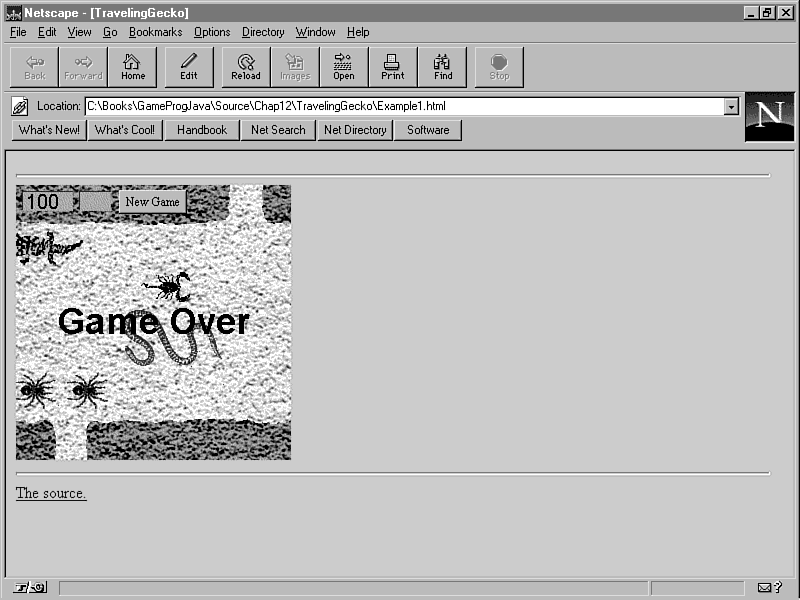
If you manage to lose all four of your geckos to the predators, the game ends and you see a message indicating that the game is over. Figure 10.2 shows Traveling Gecko when a game has just ended.
Figure 10.2 : A Traveling Gecko game that has come to an end.
At this point, all you have to do is click the New Game button with the mouse, and everything starts over. If you haven't checked it out yet, now might be a good time to grab the accompanying CD-ROM and try the game out for yourself. The complete source code, executable, and images for the Traveling Gecko game are included on the CD-ROM. If you just can't wait to find out all the gory details, then by all means skip the CD-ROM and read on!
The Sprite Classes
As you probably guessed, the heart of the Traveling Gecko applet is the extended sprite classes. The first of these classes is the Gecko class, which models the gecko that is controlled by the player. The Gecko class is derived straight from Sprite. You might think that it would make more sense to derive Gecko from DirectionalSprite (see Chapter 7), because a gecko clearly should face and move in different directions. This is logical thinking, but the gecko's movement is limited to up, down, left, and right. The DirectionalSprite class is geared more toward objects that can spin around and move in different directions, including diagonal directions.
However, there is a drawback to not deriving the Gecko class from DirectionalSprite: The gecko can't face in the direction it is moving. That is why the gecko is always facing upward, regardless of its movement. This is a little unrealistic because most geckos probably don't sidestep, but it makes things easier to implement. This is one of those cases in which you sometimes have to make sacrifices in detail for the sake of making the code simpler.
The Gecko class contains the following custom sprite actions that are used to add the predators:
public static final int SA_ADDGILAMONSTER = 3,
SA_ADDSCORPION = 4,
SA_ADDRATTLER = 5,
SA_ADDTARANTULA = 6;
Looking at these sprite actions, it might seem a little strange to allow the gecko to add predators. However, you'll see in a moment that adding new predators is based on the gecko making it safely across the desert, which can only be detected from within the Gecko class.
The constructor for Gecko is pretty simple:
public Gecko(Component comp) {
super(comp, image, 0, 1, 0, new Point(42, 232), new
Point(0, 0), 20, Sprite.BA_STOP);
}
Notice in the constructor that the BA_STOP bounds action is specified, which keeps the gecko from being able to wrap around the sides of the game window.
The setCollision method is used to shrink the gecko's collision rectangle so that collision detection isn't quite so sensitive:
protected void setCollision() {
collision = new Rectangle(position.x + 3, position.y + 3,
position.width - 6, position.height - 6);
}
Shrinking the gecko's collision rectangle is important because having one of the legs of the gecko collide with a predator shouldn't be enough to get him into trouble. By shrinking the collision rectangle, you require more contact for the gecko to qualify as a free lunch.
The update method in Gecko does most of the work. Listing 10.1 contains the source code for the update method.
Listing 10.1. The Gecko class's update method.
public BitSet update() {
BitSet action = super.update();
// Toggle the frame and clear the velocity
if (velocity.x != 0 || velocity.y != 0) {
frame = 1 - frame;
setVelocity(new Point(0, 0));
}
// Has he made it?
if (position.y < 8) {
// Update the score and reposition the gecko
TravelingGecko.score += 25;
position.x = 42;
position.y = 232;
// See if we should add another bad guy
if (TravelingGecko.score % 100 == 0) {
Random rand = new Random(System.currentTimeMillis());
switch(rand.nextInt() % 4) {
case 0:
// Set flag to add a Gila monster
action.set(Sprite.SA_ADDSPRITE);
action.set(Gecko.SA_ADDGILAMONSTER);
break;
case 1:
// Set flag to add a scorpion
action.set(Sprite.SA_ADDSPRITE);
action.set(Gecko.SA_ADDSCORPION);
break;
case 2:
// Set flag to add a rattler
action.set(Sprite.SA_ADDSPRITE);
action.set(Gecko.SA_ADDRATTLER);
break;
case 3:
// Set flag to add a tarantula
action.set(Sprite.SA_ADDSPRITE);
action.set(Gecko.SA_ADDTARANTULA);
break;
}
}
}
return action;
}
The update method first calls the superclass update method to handle all the standard sprite updating. It then toggles the gecko's animation frame and clears the velocity. The animation frame is toggled because there are only two frames, 0 and 1. Because there are only two frames, you can just toggle them rather than increment the current frame. The velocity has to be cleared because of the way you're handling user input. When the user presses an arrow key to move the gecko, the gecko's velocity is set accordingly. But you only want the gecko to move once for each key press. The solution is to update the gecko, allowing his position to be altered based on the velocity, and then clear the velocity.
A check is then performed to see whether the gecko made it across the desert. Because the rocks block him from getting to the top of the screen in all places except the opening, you simply check his vertical position to see whether he made it. If so, the score is updated and he is repositioned back at the start. Notice that the score is referenced from the TravelingGecko class. It is declared as public static in TravelingGecko so that other objects can get to it without having access to a TravelingGecko object. Technically, this goes against standard object-oriented design practice, but the reality is that it would be very difficult to give access to the score variable using only access methods. You learn about the TravelingGecko class a little later in this section.
The update method then decides whether or not to add a new predator. This determination is based on the score: For every 100 points, a new predator is added. A predator is randomly chosen and the appropriate sprite action flags are set to trigger the creation.
The last method in Gecko is addSprite, which handles creating the predator sprite objects:
protected Sprite addSprite(BitSet action) {
// Add new bad guys?
if (action.get(Gecko.SA_ADDGILAMONSTER))
return new GilaMonster(component);
else if (action.get(Gecko.SA_ADDSCORPION))
return new Scorpion(component);
else if (action.get(Gecko.SA_ADDRATTLER))
return new Rattler(component);
else if (action.get(Gecko.SA_ADDTARANTULA))
return new Tarantula(component);
return null;
}
The addSprite method checks the sprite action flags and creates the appropriate predator. addSprite then makes sure to return the newly created sprite so that it can be added to the sprite list.
Before getting to the predator classes, let's look at the Geckocide class. Listing 10.2 contains the complete source code for the Geckocide class.
Listing 10.2. The Geckocide class.
public class Geckocide extends Sprite {
protected static Image[] image = new Image[4];
public Geckocide(Component comp, Point pos) {
super(comp, image, 0, 1, 5, pos, new Point(0, 0), 10,
Sprite.BA_DIE);
}
public static void initResources(Applet app, MediaTracker tracker,
int id) {
for (int i = 0; i < 4; i++) {
image[i] = app.getImage(app.getCodeBase(), "Res/Gekcide" +
i + ".gif");
tracker.addImage(image[i], id);
}
}
public BitSet update() {
BitSet action = new BitSet();
// Die?
if (frame >= 3) {
action.set(Sprite.SA_KILL);
return action;
}
// Increment the frame
incFrame();
return action;
}
}
The Geckocide class is very similar to the Spidercide class developed in Chapter 7, except that it displays graphics for a dying gecko. It provides a simple frame-animated sprite that kills itself after one iteration. This functionality is implemented in the update method, which checks the frame member variable to see whether the animation is finished.
The predator classes (GilaMonster, Scorpion, Rattler, and Tarantula) are all very similar to each other and contain relatively little code. Listing 10.3 shows the source code for the GilaMonster class.
Listing 10.3. The GilaMonster class.
public class GilaMonster extends Sprite {
public static Image[] image;
public GilaMonster(Component comp) {
super(comp, image, 0, 1, 4, new Point(comp.size().width -
image[0].getWidth(comp), 45), new Point(-1, 0), 30,
Sprite.BA_WRAP);
}
public static void initResources(Applet app, MediaTracker
tracker, int id) {
image = new Image[2];
for (int i = 0; i < 2; i++) {
image[i] = app.getImage(app.getCodeBase(),
"Res/GilaMon" + i + ".gif");
tracker.addImage(image[i], id);
}
}
protected void setCollision() {
collision = new Rectangle(position.x + 3, position.y + 3,
position.width - 6, position.height - 6);
}
}
The GilaMonster class uses two images to show a simple animation of a Gila monster kicking its legs. The constructor specifies a fixed horizontal velocity that, when combined with the frame animation, gives the effect of the Gila monster walking. Admittedly, having only two frame animations creates some limitation in how effective the illusion of walking is in this case. But remember that you're trying to avoid using tons of graphics that take up precious time loading over the Internet.
The three other predator classes (Scorpion, Rattler, and Tarantula) are almost identical to GilaMonster, with the changes being the velocities, the images loaded in initResources, and the amount that the collision rectangle is shrunken. Based on the code for GilaMonster, you might be wondering why it's even implemented as a derived sprite class. It doesn't really add any new functionality; you could just as easily create a Gila monster using the Sprite class. The truth is that all the predator classes are created as more of a convenience than a necessity. Allowing the classes to manage their own image resources via initResources, as well as having self-contained constructors that don't take a bunch of parameters, improves organization.
This goes against typical object-oriented design because the classes don't technically add any new functionality. However, the clean packaging of the classes and their improved ease of use makes them justifiable in this case. You might think that I'm taking a lot of liberties by encouraging you to break the rules that are so crucial in object-oriented languages such as Java. That's not entirely true. The real skill in object-oriented programming is in knowing when to apply OOP techniques and when to leverage them against more simple solutions, as you've done here.
The Rock class is the last of the Sprite derived classes used in Traveling Gecko. Listing 10.4 contains the source code for the Rock class.
Listing 10.4. The Rock class
public class Rock extends Sprite {
public static Image[] image;
public Rock(Component comp, int i) {
super(comp, image, i, 0, 0, new Point((i % 2 == 0) ? 0 :
comp.size().width - image[i].getWidth(comp), (i < 2) ?
0 : comp.size().height - image[i].getHeight(comp)),
new Point(0, 0), 40, Sprite.BA_STOP);
}
public static void initResources(Applet app, MediaTracker tracker,
int id) {
image = new Image[4];
for (int i = 0; i < 4; i++) {
image[i] = app.getImage(app.getCodeBase(),
"Res/Rock" + i + ".gif");
tracker.addImage(image[i], id);
}
}
public BitSet update() {
return (new BitSet());
}
}
The Rock class is somewhat similar to the predator classes in that it doesn't add much functionality. However, you have a very useful reason for creating a Rock class, as opposed to just creating rocks as Sprite objects. That reason has to do with an optimization related to the update method. If you recall, the update method is called for every sprite in the sprite list to allow the animation frame and position to be updated. Rocks have no animation frames and the positions are fixed. Therefore, you can speed things up a little by overriding update with a "do nothing" version. Because speed is a crucial issue in games, especially Java games, seemingly small optimizations like this can add up in the end.
| Note |
The trick that is used to help improve speed in the Rock class's update method brings up a good point in regard to game programming: Don't be afraid to override unneeded methods with "do nothing" versions. Every little bit of execution overhead that you can eliminate will ultimately improve the performance of a game. If you see a way to cut a corner in a derived class simply by overriding a parent class method, go for it! Just remember to wait and look for these types of shortcuts after the code is already working. |
The only other sprite-related class to deal with in regard to Traveling Gecko is the derived SpriteVector class, TGVector. You need the TGVector class to handle the collisions between the sprites. Listing 10.5 contains the source code for the TGVector class.
Listing 10.5. The TGVector class.
public class TGVector extends SpriteVector {
private Component component;
public TGVector(Background back, Component comp) {
super(back);
component = comp;
}
protected boolean collision(int i, int iHit) {
Sprite s = (Sprite)elementAt(i);
Sprite sHit = (Sprite)elementAt(iHit);
if (sHit.getClass().getName().equals("Rock"))
// Collided with rock, so stay put
return true;
else if (sHit.getClass().getName().equals("Geckocide"))
// Collided with geckocide, so do nothing
return false;
else if (s.getClass().getName().equals("Gecko")) {
// Kill or reposition it
Point pos = new Point(s.getPosition().x, s.getPosition().y);
if (--TravelingGecko.lives <= 0)
removeElementAt(i--);
else
s.setPosition(new Point(42, 232));
// Collided with bad guy, so add geckocide
if (add(new Geckocide(component, pos)) <= i)
i++;
}
return false;
}
}
As you can see, the only overridden method in TGVector is collision, which is called when a collision occurs between two sprites. The sprite hit in the collision is first checked to see whether it is a Rock object. If so, true is returned, which causes the sprite that is doing the hitting to stay where it is and not use its updated position. This results in the gecko being stopped when he runs into a rock.
The sprite being hit is then checked to see whether it is a Geckocide object, in which case collision returns false. This results in allowing the sprite that is doing the hitting to continue on its course, and basically results in a null collision. The purpose of this code is to make sure that Geckocide objects don't interfere with any other objects; they are effectively ignored by the collision detection routine.
The real work begins when the hitting sprite is checked to see whether it is a Gecko object. If so, you know that the gecko has collided with a predator, so the number of lives is decremented. The lives variable is like score because it is a public static member of the TravelingGecko applet class. If lives is less than or equal to zero, the game is over and the Gecko object is removed from the sprite list. If lives is greater than zero, the gecko is repositioned back at the starting position. To the player, it appears as if a new gecko has been created, but you're really just moving the old one. Because a gecko has died in either case, a Geckocide object is created.
At this point, you've seen all the supporting sprite classes required of Traveling Gecko. The last step is to see what tasks the applet class itself is responsible for.
The TravelingGecko Class
The TravelingGecko class drives the applet and takes care of higher-level issues such as dealing with user input. Much of this class consists of animation overhead that you're already familiar with, so let's skip ahead to the more interesting aspects of TravelingGecko.
The init method adds a new twist by creating the New Game button. It also handles initializing all the resources for the different sprites. The code for the init method is shown in Listing 10.6.
Listing 10.6. The TravelingGecko class's init method.
public void init() {
// Create the UI
if (ngButton == null) {
ngButton = new Button("New Game");
add(ngButton);
}
// Load and track the images
tracker = new MediaTracker(this);
back = getImage(getCodeBase(), "Res/Back.gif");
tracker.addImage(back, 0);
smGecko = getImage(getCodeBase(), "Res/SmGecko.gif");
tracker.addImage(smGecko, 0);
Gecko.initResources(this, tracker, 0);
Geckocide.initResources(this, tracker, 0);
Rock.initResources(this, tracker, 0);
GilaMonster.initResources(this, tracker, 0);
Scorpion.initResources(this, tracker, 0);
Rattler.initResources(this, tracker, 0);
Tarantula.initResources(this, tracker, 0);
}
The update method is where a lot of interesting things take place in TravelingGecko. Listing 10.7 shows the source code for the update method.
Listing 10.7. The TravelingGecko class's update method.
public void update(Graphics g) {
// Create the offscreen graphics context
if (offGrfx == null) {
offImage = createImage(size().width, size().height);
offGrfx = offImage.getGraphics();
scoreMetrics = offGrfx.getFontMetrics(scoreFont);
}
// Draw the sprites
tgv.draw(offGrfx);
// Draw the score
offGrfx.setFont(scoreFont);
offGrfx.drawString(String.valueOf(score), 10, 5 +
scoreMetrics.getAscent());
// Draw the number of lives
for (int i = 0; i < (lives - 1); i++)
offGrfx.drawImage(smGecko, 65 + i *
(smGecko.getWidth(this) + 1), 10, this);
// Draw the game over message
if (lives <= 0) {
Font f = new Font("Helvetica", Font.BOLD, 36);
FontMetrics fm = offGrfx.getFontMetrics(f);
String s = new String("Game Over");
offGrfx.setFont(f);
offGrfx.drawString(s, (size().width - fm.stringWidth(s)) / 2,
((size().height - fm.getHeight()) / 2) + fm.getAscent());
}
// Draw the image onto the screen
g.drawImage(offImage, 0, 0, null);
}
After drawing the sprites, the update method draws the score using the drawString method. The small gecko images are then drawn to represent the number of remaining lives. If the number of lives is less than or equal to zero, the Game Over message is drawn. Finally, the offscreen buffer image is drawn to the screen.
Traveling Gecko only supports keyboard input, primarily because there isn't a good way to use the mouse in a game like this. The keyboard input in the TravelingGecko class is handled in the keyDown method, which follows:
public boolean keyDown(Event evt, int key) {
// Change the gecko velocity based on the key pressed
switch (key) {
case Event.LEFT:
gecko.setVelocity(new Point(-8, 0));
break;
case Event.RIGHT:
gecko.setVelocity(new Point(8, 0));
break;
case Event.UP:
gecko.setVelocity(new Point(0, -8));
break;
case Event.DOWN:
gecko.setVelocity(new Point(0, 8));
break;
}
return true;
}
The keyDown method simply sets the velocity of the gecko sprite based on which one of the arrow keys is being pressed. Notice that the magnitude of the velocity is set to 8, which means that the gecko moves eight pixels on the screen for each key press.
The action method is used to handle the user clicking the New Game button:
public boolean action(Event evt, Object arg) {
if (evt.target instanceof Button)
if (((String)arg).equals("New Game"))
newGame();
return true;
}
If the action method detects that a button has been clicked, the newGame method is called to start a new game. Speaking of the newGame method, here it is:
void newGame() {
// Set up a new game
lives = 4;
score = 0;
tgv = new TGVector(new ImageBackground(this, back), this);
gecko = new Gecko(this);
tgv.add(gecko);
for (int i = 0; i < 4; i++)
tgv.add(new Rock(this, i));
tgv.add(new GilaMonster(this));
tgv.add(new Scorpion(this));
tgv.add(new Rattler(this));
tgv.add(new Tarantula(this));
}
The newGame method does everything necessary to set up a new game; the lives and score member variables are initialized, the sprite list is re-created, and all the sprites are added back to the list. Notice that a reference to the gecko sprite is stored away in the gecko member variable so that it can be accessed in keyDown to move the gecko.
That finishes up the details of your first Java game, Traveling Gecko! I encourage you to study this game in detail and make sure that you follow what is happening with the sprites. Then you can try your hand at enhancing it and adding any new features you can dream up.
Summary
Congratulations, you made it through your first complete Java game! In this lesson, you made the journey from concept to reality on a pretty neat game that uses just about everything you've learned in the guide thus far. Once again, you saw the power of the sprite classes because the majority of the game takes place within them. You also saw how easy it is to provide keyboard support within the context of a real game.
Even though you finished your first Java game in this lesson, you still have a way to go on your path toward becoming a Java game programming whiz. The good news is that you're in a nice position, having a complete game under your belt. Your next challenge is how to incorporate sound into Java games, which is covered in the next section of the guide. You'll learn that sound adds a much needed dimension to games in Java.
Q&A
| Q | Why model the rocks as sprites? Aren't they really just part of the background? |
| A | Logically, you could think of the rocks as part of the background, in that they don't do much beyond limiting the gecko's movement. But that one action, limiting the gecko's movement, is the whole reason that the rocks have to be implemented as sprites. If the rocks were just drawn on the background, there would be no straightforward way to detect collisions between them and the gecko. |
| Q | Why derive different classes for all the predators? |
| A | Although it isn't strictly necessary to derive different classes for the predators, it is very convenient and makes for good organization because the images used by each predator are linked to the predator class. It is also nice to have constructors with fewer parameters for each predator. |
| Q | How does the collision method in TGVector know which types of sprites have collided with each other? |
| A | The collision method uses the name of the sprite class to determine what type of sprite it is. This is accomplished by using the getClass method to get a Class object for the sprite, and then the getName method to get the class name as a String object. When you have the string name of a sprite class ("Gecko", for example), it's easy to take different actions based on the types of sprites that are colliding. |
| Q | Why are the score and number of lives member variables declared as public static in the TravelingGecko class? |
| A | Because they must be modifiable from outside the TravelingGecko class. More specifically, the Gecko class needs to be able to increment the score when the gecko makes it across the screen, and the TGVector class needs to be able to decrement the number of lives when the gecko collides with a predator and dies. |
Workshop
The Workshop section provides questions and exercises to help you get a better feel for the material you learned toChapter. Try to answer the questions and at least ponder the exercises before moving on to tomorrow's lesson. You'll find the answers to the questions in appendix A, "Quiz Answers."
Quiz
- What classic arcade game is Traveling Gecko based on?
- How is the player rewarded for his kind help in guiding the gecko safely across the hazardous desert?
- How are the keyboard controls for the gecko implemented?
- How well would a real gecko fare in the same situation?
- How do you know when the New Game button has been pressed?
- How is the player rewarded for his kind help in guiding the gecko safely across the hazardous desert?
Exercises
- Change the Gecko class
so that the gecko faces in the direction in which he's traveling.
- Make the destination opening in the rocks vary in position. Hint: Use smaller images for the rocks and more rock sprite objects that can be tiled and rearranged on the screen.
- Vary the speeds of the predators based on the difficulty level (score).
- Extend the predator classes to allow them to travel in either horizontal direction. This could vary with each new game.
- Do some research on geckos and see whether I'm right about them faring pretty well in this situation.
- Make the destination opening in the rocks vary in position. Hint: Use smaller images for the rocks and more rock sprite objects that can be tiled and rearranged on the screen.




Popular Tutorials
-
 MS Access
1109
MS Access
1109
-
 C++
1222
C++
1222
-
 HTML
584
HTML
584
-
 JavaScript
616
JavaScript
616
-
 Vbscript
873
Vbscript
873
-
 Oracle
473
Oracle
473
-
 VC++
875
VC++
875
-
 SQL
2959
SQL
2959
-
 XML
514
XML
514
-
 Java
814
Java
814
-
 Perl
455
Perl
455
-
 Linux
451
Linux
451