Web based School
Finding People, Places, and Things on the Net |
 |
 |
Chapter 20Finding People, Places, and Things on the NetIn Lesson 16, "Searching the Web for Virtually Anything," you learned how to search various parts of the Internet for information and resources. As you now know after reading the preceding three lessons, however, a lot more than just the Web is available. That probably means that you can search for a lot more, too. Right? Right. In this lesson, you get the answers to the following questions:
Finding That Special SomeoneIf I had written this section two years ago, it would have contained very little information. Today, however, more ways are available to find someone that you might be comfortable with. Many search engines can help you locate people on the Internet today.
As you look at a few examples, you're going to look for the same person--me. This way, you get an opportunity to see not only how each search engine works, but also how effective and up-to-date it might be. I'm almost afraid to know what's out there, but let's get started anyway. Finding People with InfoSpaceOne of the more comprehensive people finders available is InfoSpace, which is located at http://www.infospace.com/. You can use their AccuMail service to find me. To Do: Using AccuMail in InfoSpace1. From the InfoSpace home page, click the AccuMail link.2. At the next page (http://www.accumail.com), click in the Last Name field and type Estabrook. 3. Click in the First Name field and type Noel. 4. Scroll down and click the Look It Up button. 5. Look at the results, as shown in Figure 20.1. As of this writing, five of my e-mail addresses are listed. Four of them are correct; one is old and no longer valid (nestabro@nova.gmi.edu). How can one person have all these e-mail addresses? It ain't easy.
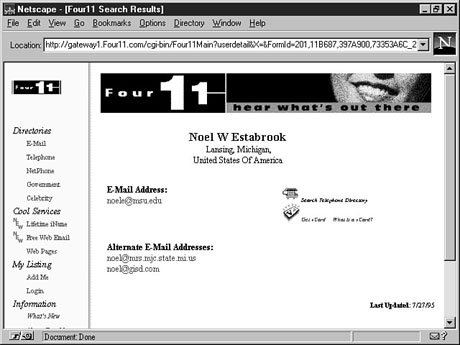
Finding People with Four11Another people finder on the Internet is the Four11 Directory, which is located at http://www.four11.com. It was really the first Web-based people locator on the Internet. With the Four11 Directory, you can restrict your search by area much like you can in the Info-Space directory. It also includes a SmartName feature, which locates names like Bob and Bobby when you do a search for Robert. If you know the domain of the person you're looking for, you can enter it as well. To Do: Using Four11 to Search for People1. From the Four11 home page, click in the First Name field and type Noel.2. Click in the Last Name field and type Estabrook. 3. Click the Search button. The results page brings up a listing of real names followed by a domain. 4. Click the name to go to that person's listing. When you search for Noel Estabrook, for example, one of the results is Noel W. Estabrook @msu.edu. For this exercise, click Noel W. Estabrook. The resulting page pictured in Figure 20.2 shows some of the e-mail addresses Four11 has for me. In this case, all three of them are accurate. Four11 makes finding people easy.
|
| Tag Code | File Type |
| 0 | Text file |
| 1 | Directory |
| 4 | Mac HQX file |
| 5 | PC binary |
| 8 | Telnet session |
| 9 | Binary file |
| s | Sound |
| g | GIF image |
| I | Image (other than GIF) |
| h | HTML (Hypertext Markup Language) |
Doing Your Search
Now you're ready to search for something. From the Veronica home page, you need to decide what you want to search for. You generally have two choices: searching by Gopher menus or directories or searching all of Gopherspace.
If you're looking for general, well-known terms, you can search Gopher menus. For more difficult searches, you probably should search all of Gopherspace. The first type of search is faster, but the second is more comprehensive. Try one to see what happens.
To Do: Searching with Gopher
1. From the Veronica home menu, click the Simplified Veronica: Find Gopher MENUS only link.2. Click the search field, and type internet -m100 -t0. Then press Enter. This search looks for the first 100 hits of text files with the term "internet."
3. View the results; Figure 20.3 shows an example. Then click a few of the links to see what you've found.
It's a good thing you narrowed down your search; otherwise, you would be looking at almost 70,000 hits!
Feel free to experiment with searches to see what you can find. See what the search internet AND FAQ -m50 -t0 brings up. After you conduct a few searches, you'll have a good idea what's available in Gopherspace.
Searching for FTP Files
If you're looking for files on the Internet, you can go a couple of ways, both of which are covered in the following sections. You can use a search engine called Archie, or you can go to the shareware.com Web site mentioned in Lesson 16, "Searching the Web for Virtually Anything." Both options offer ways of finding almost any file available on FTP sites.
ArchiePlex
Using Archie is probably the most popular way to search FTP sites for information. As with almost everything else on the Internet, you can access Archie in more than one way. The easiest way to access Archie, however, is through ArchiePlex gateways on the World Wide Web. You can find a list of every ArchiePlex server at http://pubweb.nexor.co.uk/public/archie/servers.asp.
Time Saver: The document listing ArchiePlex servers is very popular, and the computer that delivers it is often very busy. To avoid having to download it every time you want to do an Archie search, you can load it once and then save it on your own computer. Choose File|Save As in your browser, and then save the file to your hard drive. After you create a guidemark for this file, you have easy access to ArchiePlex servers.
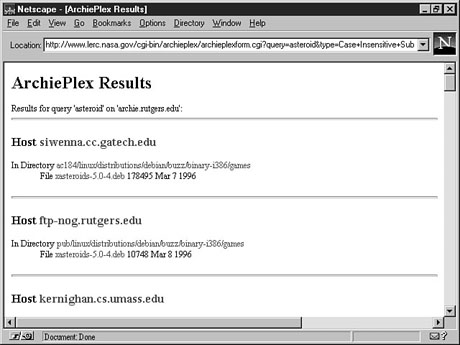
The NASA ArchiePlex search form page, located at http://www.lerc.nasa.gov/archieplex/doc/form.asp, is shown in Figure 20.4. To conduct a search, simply enter a search term in the Search for field. You should pay attention to a number of options that make your search more effective.
The ArchiePlex search form gives you lots of options to choose from.
For the types of search, you'll almost always want to choose Case Insensitive Substring Match. You should use Exact Match and Case Sensitive Substring Match when you know exactly what you're looking for.
You can use Regular Expression Match when you know only a partial filename or category of files. If you're looking for an Asteroids game, for example, but aren't sure exactly what to look for, you might search for asteroid* as a Regular Expression Match. Such a search would then result in all hits that contain files with the word "asteroid" somewhere in the name.
The rest of the options are relatively self-explanatory. They enable you to search certain locations, search for files by date or host, and determine how many hits you want displayed and how much of an impact you want to have on other users (always try to be nice!).
To Do: Searching with ArchiePlex
1. From the ArchiePlex search form, type asteroids. For this example, use the Case Insensitive Substring Match option.2. Don't restrict your search to a particular domain, but enter 50 to restrict the results.
3. Click the Submit button. You then see a list of results similar to the one shown in Figure 20.5.
You may not find these results too useful, but you can always go back and fine-tune your search.
Time Saver: In theory, all Archie servers are created equal. But Archie and ArchiePlex, like many programs on the Net, aren't perfect. A search of one Archie server, for example, may bring up nothing, whereas a search on a different server could bring up 100 hits. The moral of the story? If you don't get any matches, try a different form/server combination.
As you can see from Figure 20.5, the results pop up as a nicely formatted Web page that you can then save on your computer if you want. ArchiePlex searches can be slow and complex, so you might want to take a look at the next option.
shareware.com
Probably the best place to search for freeware and software programs on the Internet is shareware.com. From the shareware.com home page located at http://www.shareware.com, you can conduct a Quick Search, which quickly brings up a lot of software for you to download to your machine.
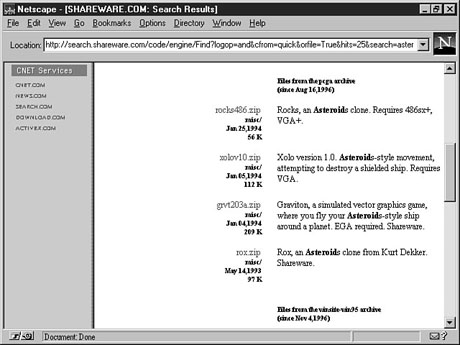
Remember the results you got for a search for the term "asteroid" in ArchiePlex? Now try that same search again at shareware.com. Simply type asteroid in the Quick Search field, select MS-Windows (all) from the pop-up menu, and then click Search. As you can see from Figure 20.6, the results are much better.
From these descriptions, you may have actually found some usable Asteroids games.
Just A Minute: In its database, shareware.com contains both filenames and file descriptions. This means that if a file's name isn't what you might expect it to be, you can still probably find it if your search term is located in the file's description.
Whatever you're looking for, you're sure to find it somewhere on the Net. You now know how to search just about anything on the Internet to find what you're looking for, whether it's FTP, Gopher, the Web, or something else. Of course, you'll probably find other things to search in your travels, but if you master what you've learned in this lesson, plus what was covered in Lesson 16, you should be well on your way to becoming a capable "Net detective."
Summary
This lesson showed you how to find many people, places, and things on the Internet. Using such sites as Four11 and WhoWhere, you discovered new ways to find people. You also learned how to locate Gopher information by using Veronica.
Finally, you learned how to find files using ArchiePlex and shareware.com. With the completion of this lesson, you should now have the tools to find just about anything you want on the Internet.
Workshop
The following workshop helps solidify the skills that you learned in this lesson.
Q&A
Q You spent a lot of time explaining how to find e-mail addresses. But I'm looking for something more mundane, like addresses and phone numbers. What can I do?
A Fortunately, most of the search engines look for this type of information as well. From http://www.whowhere.com, for example, you can click the Phone Number & Addresses option (http://www.whowhere.com/wwphone/phone.asp) to search for someone's name and address. This page even has an option in which you can enter a phone number and find out the person it belongs to!
Q In looking for files on FTP sites, it seems rather obvious that I would want to use shareware.com. Can you tell me why I might want to use Archie?
A Yes, Archie is very comprehensive and is an excellent source if you want to look for something very specific or hard-to-find. You are probably right; for simple searches for a category of software or a particularly common file or document, shareware.com is probably your best bet. But if you strike out there, don't forget to give Archie a visit.
Q On many of the Gopher sites, I've seen another search engine called Jughead. Is it different from Veronica?
A Yes, it is. Jughead (which stands for Jonzy's Universal Hierarchy Excavation And Display) is a search engine for a single Gopher site. At gopher.somewhere.com, you might find a Veronica engine, for example, that searches all of Gopherspace. A Jughead engine at the same place finds only files located on Somewhere's Gopher site.
Quiz
Take the following quiz to see how much you've learned.
Questions
1. Which one of these tools probably wouldn't work for finding someone's e-mail address? (a) Jughead(b) Four11
InfoSpace
2. Which tag would you use to limit the number of hits on a Veronica search? (a) -t
(b) -m
-n
3. When searching for files on shareware.com, make sure you type in the exact phrase you're looking for. (a) True
(b) False
Answers
1. (a) Jughead searches Gopher sites.2. (b) -m
3. (b) False. Remember that shareware.com keeps file descriptions in its database as well so that you can find files more easily.
Activity
Do you have a favorite video game? Space Invaders? Galaga? Centipede? Pac Man? Chances are, a shareware version of the game might be available for your own computer. Use ArchiePlex to try to find "your" game. Then try shareware.com. See if you can find a game that's close to the one you picked. Be forewarned: Most shareware versions of popular arcade games have names that are different from the original. A version of the arcade classic Star Castle, for example, is called Cyclone. Be flexible. Take a chance on a game that might be close to what you're looking for; it might be close enough. If arcade games aren't your thing, feel free to look for something else you're interested in--a recipe or checkguide-balancing program, perhaps.
|
|
Popular Tutorials
-
 MS Access
1109
MS Access
1109
-
 C++
1222
C++
1222
-
 HTML
584
HTML
584
-
 JavaScript
616
JavaScript
616
-
 Vbscript
873
Vbscript
873
-
 Oracle
473
Oracle
473
-
 VC++
875
VC++
875
-
 SQL
2959
SQL
2959
-
 XML
514
XML
514
-
 Java
814
Java
814
-
 Perl
455
Perl
455
-
 Linux
451
Linux
451