Web based School
Telnet to the Internet |
 |
 |
Chapter 19Telnet to the InternetBack in the old days, the only way to communicate with a computer was to "log on" as a user on the system and type away line by line. Compared to today's Web and other graphical interfaces, direct computer logons seem like they belong in the Smithsonian. But wait... In this lesson, you find the answers to the following questions:
Understanding TelnetFor you to understand what Telnet is, my explaining what it isn't might be easiest. When you use a Web browser, e-mail or newsgroup client, or just about any other application on the Internet, you never actually "see" what is on the computer you're connecting to. Instead, your client contacts the server, gets the information it needs, displays it on your screen, and then disconnects from the server. Telnet is in fact just the opposite. Telnet requires that you actually be connected to the server computer at all times to maintain communication. In this environment, all interactions are conducted in a command-line environment where your communication and the server's responses appear in a text format, as shown in Figure 19.1. New Term: Command-line environment: In this environment, you type text on a line, the server responds with text, you type in another command, and so on. These interfaces often require special commands and keystroke combinations to perform special functions. A Telnet session is about as Plain Jane as you can get. Though Telnet sessions may not be much to look at, a wealth of information is available using Telnet. Many libraries, local bulletin board systems, and more are all available via Telnet connections. Once you know your way around Telnet, you may make it one of your standard Internet tools. Telnetting from the WebBecause you must keep contact with the server at all times to maintain a Telnet connection, the standard Internet clients don't work. Instead, you must have a client that performs the necessary Telnet functions for you. In addition, you may often run into Telnet sites while exploring Gopher or the World Wide Web. So, having your Web browser configured to call a Telnet client automatically whenever you click a Telnet link is also helpful. The Flavors of TelnetBefore you can tell your Web browser which Telnet client to use, you need to have one first. Before you proceed, however, be aware that you will run into two types of Telnet: VT100 and TN3270. You need to know two things about these different terminal protocols. First, each of these terminal types requires its own client. Second, be aware that VT100 is by far the most common terminal type in use, but TN3270 is a common terminal type for libraries to which you can telnet. Usually, a TN3270 client will connect to VT100 sites. Before you set your browser to handle Telnet clients, you need to know where to get them:
After you install these clients on your hard drive, you're ready to tell your browser how to use them. Helping Your Browser with TelnetConfiguring your browser to use these Telnet clients is a relatively easy process. You only need to find out where your browser is configured to use helper applications and then plug in the correct filename. The following steps show you how to configure Netscape Navigator 3.0 to use Telnet clients. To Do: Configuring Netscape to Use Telnet1. In Netscape, choose Options|General Preferences.2. Click the Apps tab. 3. Click in the Telnet Application field. Then type in c:\windows\telnet.exe if you're using Windows 95 or the correct path and filename for any other Telnet client you're using. 4. Click in the TN3270 Application field and enter the correct path and filename for your TN3270 client. Your window should look something like the one shown in Figure 19.2. 5. Click OK, and you're ready to go. Netscape is easy to configure, so you can Telnet around the world effortlessly. Internet Explorer is both easier and harder to configure than Netscape. For standard Telnet sessions, Explorer comes preconfigured. You have to do a little work, however, before it can handle TN3270 sessions. To Do: Configuring Explorer to Use Telnet1. In Explorer, choose View|Options.2. Click the Programs tab, and then click the File Types button. 3. Scroll down in the resulting window until you see the URL:TN3270 Protocol item and double-click it. 4. Click the Edit button. Then either browse to find your TN3270 client, or enter it directly, as shown in Figure 19.3. 5. Click the OK and Close buttons until you return to the Internet Explorer window. You're now ready to go. The process takes awhile, but you can tell Explorer how to use TN3270.
No matter what browser you use, you should be able to Telnet to any machine in the world in a matter of minutes. Telnet EssentialsUnlike other types of sites you'll encounter on the Web, you don't gain automatic entrance to Telnettable Internet sites. You're likely to encounter several general types of Telnet sessions on the Internet:
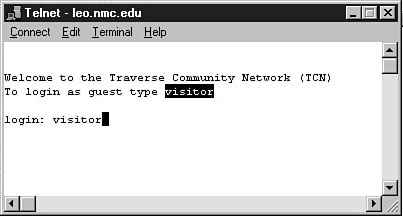
These different types of sites require different information when you log on and use different commands once you're on. I cannot give exhaustive coverage of all you'll need to know here, but I can offer some general information. Getting OnLibraries are really the only sites that often do not require any type of login or password information for you to get on. As for Freenets, BBSs, MUDs, and MOOs, the information they require is generally straightforward. As a rule, you are required to enter a user ID, or login ID, and possibly a password. Most often, if you're visiting one of these sites for the first time, you can use a login ID of new, guest, or visitor. Often, these IDs don't require a password. When a password is required, the login prompt tells you the information you need to give. Figure 19.4 shows a typical Telnet login screen. Most Telnet sites tell you what information they need before you log on. As a visitor or new user, you are often asked to give your name and other personal information to become a registered user. Usually, you need to become a member of the site to gain access to many of the offered features.
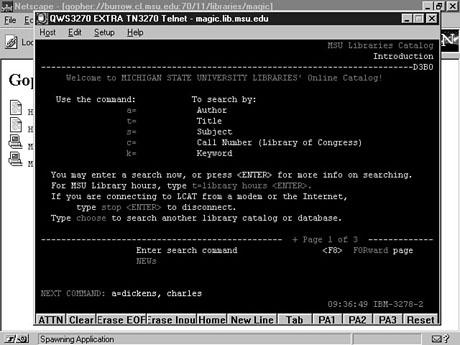
Again, many libraries don't require any login at all. Of those that do, library (or an abbreviated form of the library's name) is usually requested. The Alma College Library in Michigan, for example, asks you to log on as aclib. You will probably run into dozens of other login IDs, but you will generally be told what they are before you have to log on. What to Do After You Get ThereAfter you are on one of these sites, the choices of what you can do are almost endless. However, don't worry. As with login and password information, most Telnet sites offer help menus and self-explanatory directories that prompt you every step of the way. If you're logged into a BBS, chances are you're using a Galacticom bulletin board. Galacticom is probably the most popular BBS, but they all work pretty much the same. Figure 19.5 shows a typical Galacticom BBS menu. Keep in mind, though, that even non-Galacticom boards look similar. A typical BBS looks much like the one shown here. Notice the self-explanatory menu items. Many libraries are also similar to use. You can generally search them by a number of different criteria such as Subject and Author. Figure 19.6 shows a typical Telnettable library. Electronic libraries also give you explicit directions on how to use them. MUDs and MOOs are a little trickier and require more practice to use. For more details on how MUDs operate, refer to the "Getting MUDdy" section later in this lesson. Telnet ExamplesNow you're ready to see some of these sites in action. The following sections give you some idea of what is available in the world of Telnet. Telnet may not be flashy, but it sure has some substance. Using FedWorldFedWorld, which contains a lot of information, is probably one of the biggest Telnettable BBSs around. The following section tells how to get to it. To Do: Starting to Use FedWorld1. Go to telnet://fedworld.gov and login as NEW.2. You will be asked several questions about yourself, which you should answer. FedWorld will then leave you a piece of e-mail on your account with an attached user's manual. 3. After reading your mail, you come to the main menu. 4. From the main menu, select Option 1 to proceed to FedWorld. 5. Choose J to get a listing of Federal job openings. 6. From the next menu, choose Z to select jobs by state. 7. Select the option for whichever state you're interested in. 8. Feel free to browse around and search for a job. You may have to experiment a bit. As you can see in Figure 19.7, getting a Federal job may take awhile. If you're a qualified weapons assessor, this job's for you! Getting MUDdyNow take a look at the interactive world of MUDs and MOOs. These Telnettable sites offer all sorts of possibilities. For this example, you're going to look at Elendor, a MUD dedicated to "a literary and role-playing study of Tolkien's Middle Earth." Point your browser to telnet://elendor.sbs.nau.edu. If you want to log on as a guest, type connect Nomad nomad. This way, you can wander to your heart's content. You can also create a character when you log on. When you log on to one of these worlds, you should first look for login instructions, which often tell you where to go for help. In Elendor, for example, you are told to type WHO to find out who else is logged on.
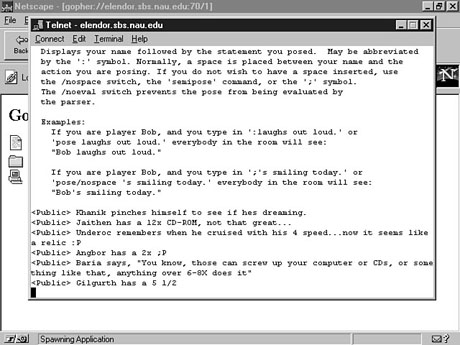
Besides WHO, several other commands are common. QUIT enables you to leave the world you're in, and help gives you descriptions of different types of commands. To Do: Getting Help with MUDs1. Type help commands to get a listing of the commands available in the MUD. When you do, you'll see that one of the commands is pose.2. If you're curious as to what this command actually does, type help pose to see a description like the one in Figure 19.8. 3. Look at the help for different commands. Focus mainly on the action commands because they are used most often. Now you know what the pose command does in a MUD. In Figure 19.8, notice that several lines start with <Public>, followed by sentences. These lines represent the discussions that often occur in these worlds.
Using the rest of the commands is generally a matter of trial and error. Walk around, look at objects, go to rooms that have others in them, and just spend some time "mudding around." You may find yourself hooked. SummaryYou learned a lot of information about Telnet in this lesson. You learned that you can Telnet to different resources, such as BBSs, MUDs, and libraries. You also know that you can configure your browser to two types of Telnet--VT100 and TN3270--for automatic access. You also learned how to log on to Telnet sessions and what to do after you get there. Finally, you looked at some examples of popular types of Telnet sessions. WorkshopThe following workshop helps solidify the skills that you learned in this lesson. Q&AQ I'm not real crazy about the Telnet client that comes with Windows 95. Are any others available? A Quite a few are available--some better than others. For the definitive listing of Telnet clients to try, point your browser to http://www.shadow.net/tucows/term95.asp. Q I use both Netscape Navigator and Internet Explorer, and I'm having problems getting Telnet to work all the time. What should I do? A First, make sure that they're both configured to handle Telnet correctly. Next, remember that Netscape Telnet URLs start with telnet:// or tn3270://, and Explorer's start with telnet: or tn3270:. If worse comes to worst, put your cursor over the Telnet link and make note of the domain name. Then you can manually open your Telnet client and connect to the site yourself. QuizTake the following quiz to see how much you've learned. Questions1. Which of the following is not a Telnet type? (a) VT100(b) Term63 TN3270 2. Web browsers cannot conduct Telnet sessions by themselves. (a) True (b) False 3. Which of the following are popular implementations of Telnet? (a) MUDs (b) Libraries BBSs (d) All the above Answers1. (b) Term632. (a) True. Browsers need Telnet clients to help them out. 3. (d) All the above ActivityThe next time you have an hour or so to while away, explore some of the virtual worlds of Telnet. As your starting point, go to gopher://spinaltap.micro.umn.edu:70/11/fun/Games/MUDs/Links/all. You also can use any of the search engines covered in Lesson 16, "Searching the Web for Virtually Anything," to search for MUDs or MOOs.
|
|
|
Popular Tutorials
-
 MS Access
1109
MS Access
1109
-
 C++
1222
C++
1222
-
 HTML
584
HTML
584
-
 JavaScript
616
JavaScript
616
-
 Vbscript
873
Vbscript
873
-
 Oracle
473
Oracle
473
-
 VC++
875
VC++
875
-
 SQL
2959
SQL
2959
-
 XML
514
XML
514
-
 Java
814
Java
814
-
 Perl
455
Perl
455
-
 Linux
451
Linux
451