Web based School
Chatting Live on the Internet |
 |
 |
Chapter ElevenChatting Live on the InternetAt some point, you may want to remove the time delay between sending and receiving e-mail. You may want to converse directly with another person or have the ability to address a group of people. This lesson covers many different ways to converse with people via your keyboard. In this lesson, you can find answers to the following questions:
Just like computers themselves are changing, so is Internet Relay Chat (IRC). What was once only a text-based system is evolving into a graphical interface. The blank text screen is becoming a new client, complete with Windows elements and 3-D virtual reality interfaces. What Is IRC and How Does It Work?Internet Relay Chat, or IRC, is a multiuser version of a program called talk. Talk allowed only one-to-one conversations, so it was pretty limited. Using IRC, large groups of people can simultaneously participate in discussion groups, called channels. IRC was developed in the late 1980s by Jarkko Oikarinen. It consists of a network of chat servers located all over the globe. Each server is connected via the network, allowing users to have real-time communications. A user's message is instantly viewed by all the other guests in that channel. IRC poses no restrictions to the number of users. Tens of thousands of people connect to IRC everyday to discuss everything from world news to what they had for dinner last night. If you can't find a channel for your topic of discussion, you can always start your own. Although most conversations that take place on IRC are thought of as frivolous, some have notable value. During the 1991 Persian Gulf War, IRC was used to gather eyewitness accounts of military activities. A special channel was created so that users from all over the world could join and hear the latest news reports. A similar application of IRC was used in September 1993 when the coup against Boris Yeltsin began. Again, users gathered on IRC channels to hear live reports of the situation. IRC gained U.S. appreciation when the 1994 California earthquake hit, downing phone lines and inhibiting news of what had happened. Within 20 minutes of the aftershocks, two new channels were created on the IRC to handle questions and accounts of the earthquake. Actually, a few separate networks make up IRC. The two biggest are EFnet and Undernet. Some channels are shared by both, whereas other channels reside on only one of the networks. Because of the network connections to either EFnet or Undernet, you don't have to connect to the same server every time. Try connecting to the one that is geographically closest to you. Doing so may make your connection faster. ClientsNow that you know a little about IRC, you should examine the software needed. IRC originally used only text-based clients developed on UNIX machines. Today, however, many users have traded in the text client for a more user-friendly Graphical User Interface (GUI) client. GUI clients use buttons, pull-down menus, and selection tools to replace some of the frequently used commands within the IRC client. Buttons for emotions and actions can now replace the normal code syntax. Later in this lesson, I describe three of the most-used clients to access IRC. Take the time to try out one of them. Many new users feel more comfortable using a GUI interface, so you might like it. ChannelsChannels on IRC are much like channels on a CB radio. Each channel has its set topic of discussion. All users on that channel can participate in any discussion that is being carried on. Generally, multiple discussions are carried out simultaneously across any given channel. A channel has the image of a big party atmosphere--lots of people talking, everyone trying to hear the person next to him or her while picking up fragments of other conversations. After you enter a channel, you should wait until you gather an idea of what conversations are covered before you try to jump in. Users find it rude for a new person to invite himself or herself into a conversation, so you may want to lurk (stand on the sidelines and watch) and wait to be invited to join the discussion. Take that chance to familiarize yourself with the topic and level of the dialogue. Afraid no one will know that you entered the channel or room? Fear not! All the users are automatically notified if a new user enters and if someone leaves. How embarrassing to talk to someone who wasn't there anymore. CommandsIf you're going to use a text-based IRC client, you need to know a few of the common commands. For more help on IRC commands, try entering /help newuser or /help intro after you are logged on to the IRC. Table 11.1 shows a list of basic commands that will get you started. Table 11.1. Sample IRC commands.
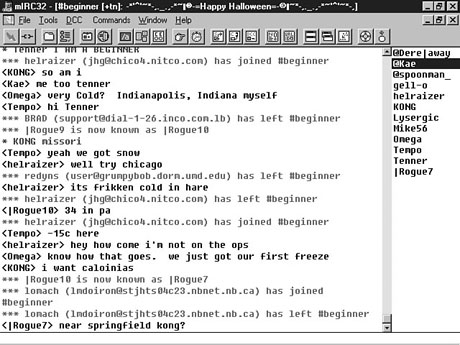
After you join a channel, you don't have to begin all your lines with a slash (/). Anything you type is simply distributed to all the users as a message from you. Only include the slash when you want to use a command or when you don't want the message to be seen by the entire group. CAUTION: The /Names and /List commands can produce massive amounts of text, especially on large IRC networks. Be prepared! As with any graphical interface, some Windows and Mac clients can relieve you of having to memorize a list of commands by enabling you to use buttons and pull-down menus. Finding, Plugging In, and Surfing IRC ChannelsIRC servers make up the hardware for the IRC network. You have to connect to one of these servers to access the network, so finding one is very important. You also may want to use an IRC client. You can download clients from various FTP sites. Some of the coolest that I have found are listed in the following sections. You also should obey some general rules, as outlined later in this lesson, when using IRC. IRC ServersThe following is a short list of some of the IRC servers available for use. If you downloaded an IRC client, you can probably find a much larger list of sites. Due to the constant change of the Internet, not all of these servers may be available by the time you read this lesson. blacksburg.va.us.undernet.org:6667 These servers are all within the Undernet network. Numerous other servers are connected to other networks. Find the one closest to you that you enjoy for the best effects. FTP for the ClientYou may want to download an IRC client to make connecting and communicating easier. The easiest way to find a client that you like is to check a search engine. Lycos (www.lycos.com) and Infoseek (www.infoseek.com) both have long lists of sites offering IRC clients, as well as complete information on installation. You also may want to check with your Internet service provider about what software they recommend. You may be able to download a copy of a client from their site. They may also be able to offer you some support if you run into problems. The following are some popular places to start looking for a client: ftp://ftp.undernet.org/pub/irc/clients/windows/ ftp://cs-ftp.bu.edu/irc/clients/pc/windows/ ftp://papa.indstate.edu/winsock-l/winirc/ ftp://ftp.winsite.com/pub/pc/win3/winsock/ http://alf8.speech.cs.cmu.edu/~ircle/ http://www.ex.ac.uk/~jastaple/irc/irchelp.asp EtiquetteJust as you do with e-mail and newsgroups, you should follow some etiquette guidelines with IRC. DO admit that you are new and ask for help if you need it. No one likes to admit it, but everyone was a newbie once. DO be tolerant of other users. DO be friendly and talk to other people. Friendships will develop quickly and can be useful if you're playing in Internet combat games. DO answer messages and public comments. DO use "shorthand" whenever possible. The following abbreviations also relate to shorthand that you may see in e-mail: brb be right back bbl be back later oic Oh, I see! imho In my humble opinion rotfl rolling on the floor laughing DON'T flood the channel with massive numbers of messages in a row. These messages may overflow some users' modems. Along those lines, don't send pages of information; keep your messages short and to the point. DON'T use autogreets, or automatic messaging, to say "Hello" and "Goodbye" automatically as people enter or leave the channel. They get old, and you may not really mean what you say. DON'T be offensive. People also use emoticons in IRC. The smiley :), for example, and all other sorts of characters are widely used to show emotion in an emotionless environment such as IRC. See Lesson 5, "Understanding E-Mail," for more emoticons. Chatting on the WebAs I've said before, hordes of IRC clients are available for use on most platforms. In the following sections, I describe three that I have found the most useful and that will go to the next level in chat. The first, mIRC, is a great chat program that is the most-used IRC application in the Windows environment. The next is ichat, a browser plug-in that offers you the privilege of not having to learn how to use a chat program because it is integrated within the Web browser. The last is of the next generation of IRC clients; Worlds Chat uses 3-D graphics and virtual reality to go above text-based chat. mIRCmIRC, which is a shareware IRC client for Windows, was developed by Khaled Mardam-bay. mIRC includes all the functionality of the normal text-based IRC clients from the UNIX, Windows, and Mac platforms. With a user-friendly interface, it is the most-used Windows IRC client. mIRC is highly configurable, enabling you to save settings for each connection. A toolbar with all the frequently used commands is displayed at the top of the screen. Tooltips are even included, in case you forget what the icons stand for. User customization is one of the strong points of the mIRC client. mIRC offers colored text lines, aliases, and remote commands. World Wide Web and sound support round off this client. Figure 11.1 shows a sample session using mIRC. Using mIRC to chat with other users. ichatichat is the first IRC plug-in for Netscape Navigator and Microsoft's Internet Explorer. Developed by ichat, inc. (www.ichat.com), the ichat plug-in integrates seamlessly with your browser to make access to IRC, MUD, and the ichat rooms as easy as viewing a Web page.
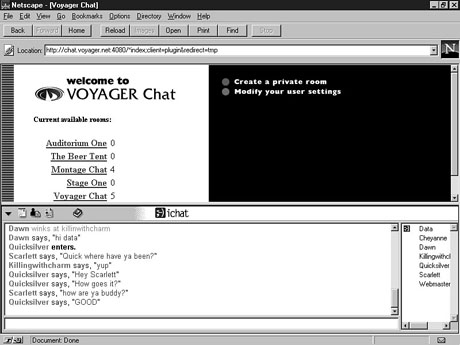
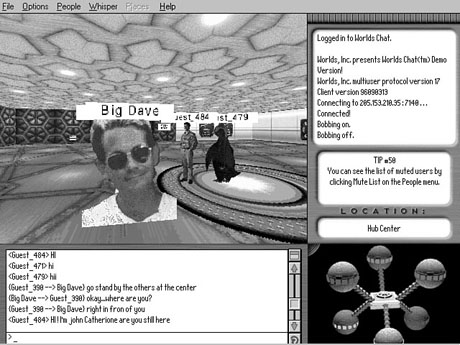
When you visit a Web site that is chat-enabled, like the one shown in Figure 11.2, the ichat plug-in configures the browser window for a chat session. The top frame remains for Web browsing, and the bottom contains a real-time chat session of all the visitors to that Web page. A chat session using the ichat plug-in. Remember, when you're visiting a Web site, you can assume that you are the only person reading the pages. Now you can chat with others as you explore a site. You don't have to memorize any special commands. You simply type your message if you want to address the entire group. You can also choose items from the menu bar for special responses as well as send a private message to one user. For users without plug-in compatible browsers, you can configure the stand-alone client to run a helper application. The client is launched whenever an ichat, IRC, or MUD link is encountered on the Web. The ichat Web site has a listing of major servers using the ichat software. A listing of special events that are moderated via the ichat plug-in also is included. Event moderation enables users to contribute to interviews with special guests. The lead moderator forwards questions from the online audience to the guest speaker. Replies to the questions go out on the chat line for all to see. Audio and video broadcasts may also be possible through the integration of a capable browser. Worlds ChatVirtual reality hits IRC, and Worlds Chat is born. Worlds Inc. (http://www.worlds.net) recently released the production version of their 3-D IRC client. Worlds Chat is just one of the new generation of IRC clients that use 3-D graphics and VRML to transport users to new arenas. Imagine experiencing a leisurely stroll with your virtual friend, hearing the babbling of a nearby brook and the chirping of birds overhead. You converse about your recent metaphysics journey. At a moment's notice, you take flight over your three-dimensional world, leaving your friend as he watches you hover above. Worlds Chat goes beyond the traditional flat screen of text and pictures to deliver a realistic experience. You can interact and "see" thousands of other real users in hundreds of different worlds. You navigate through 3-D virtual worlds suited as your persona, or avitar. Worlds Chat offers over 40 different avitars for you to choose from. Your avitar represents you while you communicate to other users in the virtual world. These personas range from seven-foot tall penguins to four-headed aliens, whichever fits your spirit at the time. You can even provide your own custom avitar, as shown in Figure 11.3. Big Dave's avitar is a little more original than the seven-foot tall penguin in the background. With the addition of sound effects and music to highlight the mood of the individual worlds, scenes take on a new excitement. The central space station, known as the Hub, connects you to the seven environments within the Worlds Chat arena. The Worlds Chat Gold is currently in its 1.1 version. A trial version is available on the Internet. This version, however, does not have the full functionality of the Gold version but will provide you with the basic experience. MUDs, MOOs, and Other InteractionsMultiuser Dungeons, or MUDs, could be considered computer adventure games. As the user, you are placed in a network of rooms and passages. These rooms contain other players, as well as valuable items to help you in your quest. The ultimate prize is to gain the class of wizard.
MOOs, MUCK, MUSE, and MUF are all variations of the MUD theme. These games, as well as some normal MUDs, have overall themes associated with them. One such game, for example, may be running on a Star Trek theme. Players in this game would be expected to act in the manner of a character from Star Trek. Not keeping with the theme of a MUD is grounds for being kicked off the MUD. Starting a MUD session requires you to pick a MUD to connect to. Check out one of the MUD newsgroups--for example, rec.games.mud.misc--to find a MUD that you might be interested in trying. You can Telnet directly to that MUD to begin your quest if you have a Telnet client, or you can use a MUD client to make the connection easier. You can do a search on your favorite search engine to find the best MUD client for your style. With the MUD client come instructions on connecting to the MUD, so I won't cover them here. Here's the URL for the MUD search on Yahoo! to help you get started: http://www.yahoo.com/Recreation/Games/Internet_Games/ ActionsOnce you're in a MUD, you will probably want to move around to see what all lies ahead. Some of the commands to move are straightforward, so I won't get too involved. The commands I describe are just some of the basic actions. Each MUD has its own set of special commands that you will have to learn. When you enter a room, probably the first thing you do is look around. Same with the MUD. When you first log in, you find yourself in a room. You have to find out whether anything valuable--food, water, or other people--is in the room, so look around. To look around or examine an object, you enter the following command: look <object> If the object resides in the room with you, a description of that object appears as the output. Otherwise, if you leave off the <object> portion of the command, you receive a description of the room itself. This command also lists the contents of the room. The description of the room may hint to more than simply the contents. Sometimes the MUD gives you advice on how to proceed. To move about in the MUD, you use the go command, as follows: go <object> MUDs generally understand directions such as north, south, east, west, up, down, in, and out. So simply entering out takes you out of the present room. With some more complex MUDs, you can use complete commands like this one: go through the north door At this point, you leave the room and exit the north door. Upon entering a new room, you are given a brief description of the room and its contents. If you encounter other players in the MUD, you may want to communicate. You're still in an IRC, remember. To talk to another user, you use the say command, as follows: say Hello, are you lost? The other players see this message on their screens <nick> says, "Hello, are you lost?" where <nick> is the user nickname that you used to connect to the MUD. You can talk to people only in your room using this command, just as you can talk to people only in your channel on the normal IRC. Be sure to do some exploring to find people to talk to. If you want to send a message to a player who is somewhere in the MUD, you can use the page command, as follows. It keeps you from having to search throughout the entire MUD just to talk to someone. page <user> <message> Here <user> is the nickname for the user you're trying to contact. <message> is, of course, the message you are trying to send to that person. Pages are visible only to the user you're contacting. What if you want to speak with only one person? To do so, you use the whisper command, as follows: whisper <user> <message> This command sends your message to the user you specified if he or she is in the same room with you. This command is the same as the whisper option in normal IRC use. One more basic command you can use in general MUD games is the act command. This command makes your character do something--for example, waving to everyone, as follows: act waves to everyone All the players in the room with you see <nick> waves to everyone where <nick> is again your nickname. Using this command can provide a lot of fun when actions speak louder than words. CombatIn some MUDs, you can fight with other players and computer-driven monsters. Combat MUDs are the most common form of MUD, so you shouldn't have to look hard to find one. Power is the goal in a combat MUD. Players fight monsters and each other to gain points. The more points you get, the more strength you gain. The more strength, the more power. As a player, you begin as a simple fighter and progress to the rank of wizard. You move up in rank by completing quests, solving puzzles, killing monsters, and interacting with other users. Each of these tasks gives you more points, enabling you to buy weapons, armor, or knowledge to increase your strength. A few commands such as wear, wield, and kill are used throughout combat MUDs. After you purchase a piece of armor, you must wear it to use its protection. The wear command is simple; you enter the following command to put on your helmet: wear helmet on head Some MUDs keep track and recognize certain body parts. Others aren't so advanced. To protect yourself, you need a weapon. With a certain number of points, you can purchase a sword. To arm yourself with this sword, or any weapon, you use the wield command, as follows: wield sword on right hand This command places the sword in your right hand, ready for battle. So you have your sword and armor, and you just stand there. No! Now you're ready to conquer the MUD. Only a few things are standing in your way. Literally. A group of angry trolls is about to attack you. You need to use the kill command quickly. Simply type kill troll and the battle begins. You may win and gain points as well as any treasure the trolls may have been carrying. You may also lose, in which case you will lose points and be transported to the central area to regenerate. This is just one example of the type of action that awaits you in the MUD. There are MUDs for all types of personalities and scenarios: knights and dragons, space alien invasion, robotic adventures, or underwater expeditions. Enjoy the action and have fun playing. SummaryIRC is a multiuser network of servers that span the globe. All one-to-one conversation restrictions of the old talk program are gone. IRC can now support tens of thousands of users on numerous channels. Conversations are now limited to the user, rather than the software. IRC clients make accessing the networks easier for the beginner. Multiuser dungeons make up the adventure gaming area within the Internet. Role-playing to specific themes, from knights to spacemen, adds to the addictive qualities of MUDs. WorkshopThe following workshop helps solidify the skills that you learned in this lesson. Q&AQ What's a bot? QuizTake the following quiz to see how much you've learned. Questions1. What does IRC stand for? (a) Interlink Response Correction(b) Internet Relay Chat Inhuman Roughneck Combatant 2. What does MUD stand for? (a) Mad Users Domain (b) Multipurpose User Device Multiuser Dungeon 3. The common use of IRC is to (a) Talk with friends (b) Make new friends Talk with strangers (d) All the above 4. What is an avitar? (a) A grand wizard in MUD (b) A persona in 3-D chat A person who flies a plane Answers1. (b) Internet Relay Chat2. Multiuser Dungeon 3. IRC is like a cocktail party on the Internet. The purpose is to provide a real-time conference area for users to discuss whatever happens to be on their minds. 4. (b) An avitar is your image in 3-D chat. This image is how you appear to other users in the 3-D chat world. ActivityDownload an IRC client from one of the FTP sites, and try out a channel or two. Begin by starting a conversation with one of the visitors. If that person doesn't want to talk, don't get discouraged; just try someone else. You may find that the 3-D chat worlds are a little easier to master if you're a new user. Download Worlds Chat from their Web site and give it a try. Be sure to choose an avitar that fits your style. I like the giant blue bear myself.
|
|
|
Popular Tutorials
-
 MS Access
1109
MS Access
1109
-
 C++
1222
C++
1222
-
 HTML
584
HTML
584
-
 JavaScript
616
JavaScript
616
-
 Vbscript
873
Vbscript
873
-
 Oracle
473
Oracle
473
-
 VC++
875
VC++
875
-
 SQL
2959
SQL
2959
-
 XML
514
XML
514
-
 Java
814
Java
814
-
 Perl
455
Perl
455
-
 Linux
451
Linux
451