Web based School
Getting the Scoop: Using Newsgroups |
 |
 |
Chapter TenGetting the Scoop: Using NewsgroupsNow that you know a little bit about how newsgroups and Usenet work, you can dive in. Before continuing, you should have access to a news server through your Internet service provider and should be set up with one of the many newsgroup clients available. Keep in mind that Internet Explorer and Netscape Navigator have built-in newsreaders. After you set up your client and complete this lesson, you'll be reading and posting like a pro. In this lesson, you discover the answers to these questions:
Most of the figures you see in this chapter feature a newsgroup client called WinVN. As you learn in Appendix B, "Shareware Products for Windows," several other good clients are available for both Windows and Macintosh. (Appendix C, "Shareware Products for the Macintosh," lists some products for Macintosh, as well.) Most of these clients operate basically the same way; slight differences in clients are generally easy to figure out.
Subscribing to NewsgroupsBefore you can begin participating in the wonderful world of Usenet, you actually have to subscribe to some newsgroups first. Once you have some newsgroups to look at, you can proceed. In the following sections, I describe how to sign up for some groups to read. Who Are You?No one calls up a magazine subscription service, tells the operator, "Give me a subscription starting next month, please," and then hangs up the phone. How would the publisher know who or where to send the magazine? The same is true of subscribing to newsgroups. You first have to tell the client a little bit about yourself before you proceed. Most newsgroup clients have a menu option called Config, Configurations, Properties, or Preferences. From these configuration menus, you tell your client who you are. You need to provide several pieces of information to your client before you can continue. Depending on your service provider, some of this information may come preconfigured with your software:
New Term: NNTP server: NNTP stands for Network News Transfer Protocol. An NNTP server transfers news to your client using the language of Usenet. You also can define many other settings, such as your real name and other personal information and how many articles to download at a time. As a rule, sticking with the settings that come preconfigured with your client is usually safe. Sign Me Up!Your client is ready, you're ready, your server is
ready--let's go! If your client doesn't automatically connect to your NNTP server, now is
the time to do so. After connecting, you should be presented with a list of all the groups
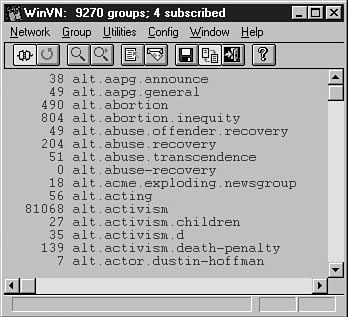
your server carries, as shown in Figure 10.1. Begin looking for groups in a full group listing.
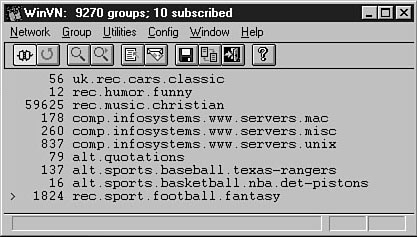
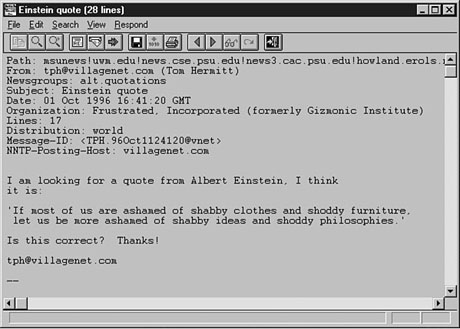
Take a moment to scroll quickly through some of the groups. Quite a few of them, aren't there? At this point, you can simply double-click any group name to read it. After you close the group window, however, your client doesn't save any information about your actions on that group. This way, you can "test out" a group to see if you want to subscribe to it first. Opening up groups before subscribing to them gives you a "snap shot" of what the group is about. You can quickly see that finding a group in which you're interested could take quite awhile if you simply scroll through the list. For this reason, all news clients have a Find option (which also works to find articles within a group). Using this option, you can search the entire newsgroup list for interesting groups. Locate your client's Find function (in WinVN, it's under the Group menu), and begin searching for topics. Figure 10.2 shows a search in progress. Searching for groups is the quickest way to start subscribing to groups. To Do: Searching for Groups1. Get your list of topics from the "Activity" section in Lesson 9.2. Use your client's Search or Find function to locate one group under each topic. 3. As you find a group or groups for each topic, locate the Subscribe to Group option (usually under the same menu as the Find option), and subscribe to each group. 4. Locate the option that enables you to display only groups to which you have subscribed. This option is usually a toolbar button or a menu option; you can generally toggle it on or off to get back to a full group listing at any time. After you locate and subscribe to some groups, you should see a window that looks similar to the one pictured in Figure 10.3. Proceed to the next section to find out what the parts of this window actually mean. This typical group window is displayed in WinVN. News AnatomyYou deal with several different windows when using newsgroups: the Group Listing window, the Article Listing window, and the Article window. The following sections help you discover how each one works. The Group Listing WindowFigure 10.3 shows one example of what a Group Listing window might look like. Generally, this simple window contains two pieces of information: the name of the group and a number. The number represents the number of unread articles in the group. So, the 56 next to uk.rec.cars.classic means that 56 articles appear in that group and haven't yet been seen by the user. As you can see from Figure 10.3, some groups have a lot of traffic (as indicated by a high number), and some groups have less traffic (as indicated by a lower number). Beware of very high traffic groups; keeping up with them can often take a lot of time and money. The Article Listing WindowNow you're ready to take a close look at what's inside a newsgroup. What do all these articles look like? For an example, take a peek at Figure 10.4, which shows an Article Listing window. A little confused? Well, read on. This Article Listing window is typical, if initially confusing. Most news clients display a lot of miscellaneous information about each article, such as the time and date it was posted, the sequential number of the article, and how many lines appear in the article. You really need to pay a lot of attention to only two pieces of information, however. First is the poster, which is usually a name (real or made up) of the person who posted the article. Second, you should see the subject of the article. With this second area, most confusion arises. All newsgroup articles combine to make what is called a thread. A thread is basically nothing more than a number of articles that all deal with the same subject. Just like many cloth threads make up a piece of clothing, so too do many article threads make up a newsgroup. New Term: Thread: A thread is a series of articles all dealing with the same topic. Someone replies to an article, and then someone else replies to the reply, and so on. This organization of original topic articles and replies makes up a newsgroup thread. Notice that several articles are highlighted in Figure 10.4. The first article has a subject, whereas the other two articles simply have a > indented at various levels. This setup indicates a typical small thread. The article with the subject is the original available article in the thread. The article with the > indented once is a reply to the original posting, and the article with the > indented twice is a reply to the reply. Even though this example is simple, threads can get very complicated. With a little time and practice, you'll get used to them. The Article WindowFrom the Article Listing window, you can double-click any message to read it. When you do, you see a window similar to the one pictured in Figure 10.5. The information in this newsgroup article should look familiar to you. Experiencing a little deja vu? Well, you should be. Newsgroup articles are similar to e-mail messages. They both contain headers with lots of technical information about the article and bodies with the actual text of the article. Much like e-mail headers, most news article headers can be ignored. You should, however, pay attention to several headers:
Posting, Replying, and Managing NewsI can hear you screaming, "Enough explanations already!" Okay, okay, you can post some news now. First, a piece of advice: Using your client's Find option, locate and subscribe to the newsgroup alt.test. This newsgroup is set up specifically to accept test messages. If you make a mistake posting or replying to articles in this group, no one cares. After you practice here awhile, you can post some real articles to those groups you've been lurking on. Posting ArticlesAs a rule, with most news clients, you can post new articles from either the Group Listing or Article Listing windows. Generally, selecting the Post New Article option from within an Article window results in a reply to that article, which I talk about in the next section. For now, here's how you can post your first article. To Do: Posting Articles1. From either the Group Listing or Article Listing window, choose the New Message option for your client.2. Type in a Subject: and which newsgroup (alt.test, in this case) to which you want the article posted. 3. Click in the body of the article composition window, and type a short message. It should look something like the message shown in Figure 10.6. 4. Finally, click the Post or Send button (or choose the corresponding option). Congratulations! You have posted your first article to Usenet. Don't worry if it seems that you did not fill in a lot of the header information; your client provides such details to the news server automatically. The next time you retrieve the new articles for alt.test, search for your article; new articles generally appear on the group within several minutes. A newsgroup article looks almost identical to an e-mail message. Replying to PostsAnother type of post is the reply. Again, the similarities between replying to a post and replying to e-mail are striking. With the exception of the Newsgroup: header, the process is almost identical. You can generally reply to a post from either the Article Listing window (with the article you want to reply to selected) or from the Article window itself. Look at the header for just a moment before replying to the article. Your client provides all the information you need to post your reply.
In the body of the message, notice that, like e-mail, the original article is included, with each line preceded by an include mark (>). As with e-mail, you can select and edit the original article's text in any way you want. After your reply is complete, select the Post or Send option. The next time you read the group, you should find your reply in the list of articles. Managing NewsgroupsAs you have already seen, newsgroups can contain a lot of traffic and can get quite complicated at times. For this reason, you need to be able to manage newsgroups effectively. Most of your newsgroup management will consist of making sure that you keep your .newsrc file up-to-date. Failure to do so can result in a lot of wasted time and effort. New Term: .newsrc file: A .newsrc file contains information about your newsgroups, such as which groups you're subscribed to and how many articles (both read and unread) are in each group you subscribe to. Most other news clients have somehow managed to keep this term, which is actually used by UNIX newsreaders. You maintain your .newsrc file by marking a group or article as read, which is also called "catching up" by some news clients. You can use the following procedure to manage your groups: To Do: Managing Groups1. Choose a group to read.2. Browse the group until you have read, posted and replied all you want. 3. Find the Catches Up or Marks Articles As Read menu option or toolbar button, and select it. 4. Go to the next group and repeat this process. Most people manage groups this way. Failure to catch up a group means that, the next time you read news, you'll have to sort through articles you have already read. Especially with high-traffic groups, having to re-sort can get messy really fast. The following are a couple of final notes on group management:
More 0s and 1s: BinariesNo discussion of news would be complete without talking about binaries. Dealing with newsgroup binaries could easily take up several chapters, but it may help you if I talk about them and point you in the right direction here. New Term: Binary: A binary is any non-text file, such as a picture or shareware program. For the purposes of e-mail and newsgroup messages, a binary file is encrypted and then attached to an e-mail message or newsgroup posting. Special utilities are usually required to decode these files for use. First comes the task of determining which newsgroup articles are binaries. Fortunately for you, probably 95 percent of all binary articles on Usenet are posted to newsgroups with the term binary. or binaries. included. By searching for these groups, you can find most groups in which binaries are posted. Next, you should know that most good Windows news clients, such as WinVN and NewsXpress, can handle binary files. They do this by either using an external application (which you'll never have to launch yourself) or by doing the decoding internally. The best Macintosh newsreader, Newswatcher, does require an external application to handle binaries (see Appendix B). In general, you handle binaries from the Article
Listing window. Follow these steps to handle a binary file while using a typical news
client:
1. From the Article Listing window, click each
article belonging to the same binary. Most binaries are too big for one article, so they
are usually labeled Binary Posting Subject (1/3), Binary Posting Subject
(2/3), and so on. Again, your client's Help menu may be of great assistance in figuring out the details. With most clients, however, you can handle binaries easily by following the simple steps outlined here. SummaryThis lesson provided you with a comprehensive tour of how to participate in newsgroups. You discovered what information your client needs to let you subscribe to groups. You now should know how to browse, find, and subscribe to newsgroups. This chapter showed how similar newsgroup articles, postings, and replies are to e-mail. You also learned how to "catch up" newsgroups for effective management. Finally, you learned the basics of how to find and handle binary articles. WorkshopThe following workshop helps solidify the skills that you learned in this lesson. Q&AQ I have limited time and don't want to spend too much money online to access newsgroups. Do you have any advice for me? A Yes. Begin by subscribing to a moderate number of groups (20 to 25), possibly including 2 or more groups dealing with each topic. Then browse each group for a week or so to weed out the groups that have too much traffic or information that isn't useful to you. Most people settle on 5 to 10 groups that they read on a regular basis. Q Bottom line: Are binary newsgroups really worth reading? A I'll answer that question with a qualified "No." Many of the binary newsgroups contain nothing but illegal and useless material. In addition, most useful files that you find on binary newsgroups are usually much more easily and readily available through other services such as the World Wide Web and FTP. Given that these files usually take a long time to locate and download, most people would be better off looking elsewhere. QuizTake the following quiz to see how much you've learned. Questions1. In which window would you be able to view a thread? (a) The Group Listing window(b) The Article Listing window The Article window 2. Most news clients include your vital header information when you reply to an article, so you don't need to pay attention to it. (a) True (b) False 3. The number 632 next to a newsgroup name in the Group Listing window indicates which of the following? (a) The number of articles a user has not yet read (b) The total number of articles on the news server The number of articles you have read since subscribing to the group Answers1. (b) The Article Listing window.2. (b) False. Always look at the Newsgroup: header to make sure that you don't needlessly cross-post. 3. (a) The number of articles a user has not yet read. ActivityIt's time for the rubber to meet the road. After lurking on some groups for a while, post an original article to a newsgroup and get involved in one additional thread by replying to an article. Hint: The alt.quotations newsgroup is a great place to start. In this group, people are always looking for the sources of quotations and discussing their origins and other interesting topics.
|
|
|
Popular Tutorials
-
 MS Access
1109
MS Access
1109
-
 C++
1222
C++
1222
-
 HTML
584
HTML
584
-
 JavaScript
616
JavaScript
616
-
 Vbscript
873
Vbscript
873
-
 Oracle
473
Oracle
473
-
 VC++
875
VC++
875
-
 SQL
2959
SQL
2959
-
 XML
514
XML
514
-
 Java
814
Java
814
-
 Perl
455
Perl
455
-
 Linux
451
Linux
451