Web based School
Chapter 3
Extending the Power of Web Pages with VBSScript
CONTENTS
- How VBScript Enhances Browsers and HTML
- Where VBScript Is Supported
- Embedding VBScript in an HTML Document
- The Structure of an HTML Document
- Summary
- Q&A
- Workshop
- Quiz
Now that you've seen what the World Wide Web is and what VBScript can do within it, it's time to learn how to put VBScript to work within the Web. Because VBScript is a new technology and the World Wide Web is evolving so rapidly, VBScript will continue to be supported in more and more browsers, tools, and components as time goes on. Today, you will be presented with an overview of most of the major browsers, tools, and components that have been or will soon be released. As you have read in Day 2, "The Essence of VBScript," VBScript works together with Web browsers, but VBScript language can potentially be used with a variety of other tools, components, and services as well.
In addition to showing you many of the places VBScript is or will be supported, this lesson focuses its attention on just how VBScript is implemented in Web browsers. After a general discussion of hosting environments, the rest of the guide will focus on browser implementations of VBScript since that is by far its most popular use. This lesson, therefore, shows you the general structure of an HTML document as well as how to embed VBScript in that document. The specific details needed to embed your first script are covered, starting with which tags to use for an embedded script. That is followed by discussion of how to delimit script code in comments so it is correctly handled by VBScript-aware browsers and ignored by non-VBScript-aware browsers. Finally, script insertion rules and the framework for a simple script are outlined. At the end of the lesson, you'll have the opportunity to create your first Web page using HTML and VBScript together. By the end of the lesson you will have a good understanding of where you can use VBScript both now and in the future. You will also know how to get a browser to recognize and work with VBScript.
How VBScript Enhances Browsers and HTML
VBScript enhances Web browsers in a variety of helpful and significant ways. Web browsers are able to read and interpret HTML code, formatting the text and other data in a Web page based on the specifications of the browser. HTML was originally written to address content of a document while allowing the browser itself to worry about how to present the output to the user. As such, it is a relatively simple language that is quite limited in its power. One of its biggest limitations was the inability to support interaction with a Web page as fully as users have come to expect from computer-run applications. For instance, people who use sophisticated word processors such as Microsoft Word or MacWrite might come to expect the user-friendly atmosphere of menus, toolbars, and dialogs that help accomplish various tasks. When working with a Web page built only using HTML, the user is very limited in what he or she can do. Various controls can be placed on a form, but the Web page input must be submitted back to the server in order to perform any processing. This restriction usually makes Web pages fairly rigid in their interactive capabilities.
Web pages built entirely on HTML usually require the user to set a series of controls, such as check boxes and text fields. Typically an entire form's worth of data is supplied at a time. After filling in fields on a form, the user can click on a button, usually called Submit, and the contents of the Web page are sent back to the server. No work is done on the client's computer other than displaying the Web page to the user. All the intelligent work and processing must be done on the server. This not only increases the amount of traffic required on the Internet, but it also denies the user the ability to interact with the Web page. If, for example, the Web page was used to take a survey, HTML would not be able to validate the user's input. In other words, the Web page wouldn't be able to make sure that what the user was entering was valid. Rather, the user could enter a bunch of invalid data and send it to the server, only for the server to turn around and send the contents back, or simply give up and force the user to start over.
With VBScript, however, the Web page has its own intelligence. VBScript can, for example, make sure that what a user enters is valid before it is sent back to the server. This eliminates the need for all the extra traffic, not to mention the delay the user must experience in waiting for the information to get there. One immediate benefit for the user is that the overall Web page experience becomes much more enjoyable from faster, more responsive Web pages. Furthermore, many effects, such as multimedia and animation, that are limited, if not nonexistent, in HTML, can be performed relatively easily using VBScript to enhance the Web page experience.
Another great strength of VBScript is its capability to act as a "glue tool" that can integrate other components on a Web page like a fabric. Components such as OLE objects, ActiveX controls, Java applets, intrinsic HTML form controls, and VRML controls can all be tied together and controlled using VBScript. This same capability also made Visual Basic the tool it is today. To you, it means that all the components you obtain for Web pages can be quickly and easily brought together and controlled using a single language.
Therefore, VBScript enhances the power of browsers and HTML because it gives the Web page a higher degree of interaction with the user, allows for processing on the user's computer rather than only on the server, provides the user with more control over the Web page, and acts as glue to bind together various Internet components that can serve the user.
Where VBScript Is Supported
VBScript can be supported and used in any browser distributed with VBScript run-time support, as well as with a variety of other tools and components. This section briefly reviews some of the environments where VBScript is hosted, before turning to the specifics of how to make VBScript work in HTML browsers.
Web Browsers
At the time of this writing, support for VBScript was planned for many browsers. Microsoft Internet Explorer 3.0 supports VBScript today. It is expected that the other major browsers will follow suit, especially when VBScript gains enough popularity that market conditions and user pressures force the issue. Netscape's Navigator is the browser with the largest market share. Speculation has been that an add-on might materialize to provide support for VBScript in this environment. If and when that move occurs, then VBScript will become virtually a de facto standard in the browser arsenal, and would likely be a part of all serious browsers from then on.
Microsoft's Internet Explorer is the focus of the discussion in the remainder of this guide, since that is the most established VBScript platform. If you use VBScript in another environment, recognize and take comfort in the fact that VBScript should work essentially the same everywhere. No matter which browser your script runs in, consistent behavior of the core language can be expected. The run-time interpreter, the engine that interprets and processes the language, will behave the same since it will be derived from the same Microsoft VBScript source code wherever it is found.
If a browser or tool vendor ports VBScript to a different environment, they can license the source code free of charge from Microsoft and modify it to work in that other environment. But even the modified version must meet Microsoft's criteria for VBScript conformance. There also may be slight variations in the objects that a host, such as a browser, makes available to VBScript to manipulate. Aside from these differences, though, the language and behavior of VBScript will be consistent from one implementation to another.
Microsoft's Internet Explorer already contains the Visual Basic run-time interpreter. Versions for 32-bit Windows will become available, as well as versions for the Macintosh and UNIX-based computers. This cross-platform support of VBScript through the Internet Explorer will not restrict VBScript users to the Windows environment, as did Visual Basic. Furthermore, Microsoft will provide the Internet Explorer for free to users across these platforms.
So what does it mean to say that a browser supports VBScript? Later in this lesson, you will see the answer to this question and understand what it takes for VBScript to run within a browser. But first, consider some nonbrowser environments where VBScript will also be hosted.
Other Internet Tools
In addition to Web browsers, a variety of other tools for the Internet will benefit from VBScript support. The first case to consider is custom controls, which can be used as building blocks for standard applications. A variety of companies produce browser controls for Windows applications, for example, that allow developers to build their own Web browsers or incorporate some browser functionality into their applications. If, for example, a designer is building an application for a company, she may want to make the application "Internet aware" and provide a browser interface to the World Wide Web from within the application itself. A browser component such as this could potentially be made to support VBScript code as well. This would give application developers who incorporate browsers into their own applications the ability to support Web pages that use VBScript.
VBScript is also supported in services not directly related to Web browsers. Microsoft's Internet Information Server product is one example. The Internet Information Server enables computers where Web pages permanently reside to share their pages with the rest of the Internet. The product works in conjunction with Windows NT to deliver Web pages across the Internet in response to a user's request. VBScript is even used to glue server-side solutions together just like it can be used to glue Web page components and logic together.
VBScript support has also been projected for WebObjects, a dynamic Web page tool from Next Software, Inc. WebObjects is a tool that can be used for rapid development of sophisticated Web server solutions. Another area where VBScript can be used is Microsoft's ActiveVRML environment (see www.microsoft.com/intdev/avr). The Virtual Reality Modeling Language, or VRML, is quickly becoming very popular on the World Wide Web. VRML allows designers to create a three-dimensional world rather than fixed Web pages. The user can then navigate through this world, much like one would walk through a house, to explore its contents. VBScript can interact with Microsoft's ActiveVRML through standard events and properties of an ActiveVRML viewer ActiveX control. VBScript support for the VRML control will help enhance its power and give the Web user even more visually appealing ways to interact with information.
Virtual Reality Modeling Language is a language used to present a three-dimensional, graphical world to the Web user.
Why is VBScript so prevalent? Precisely because it was intended to be. Microsoft designed VBScript to be a general-purpose scripting language. It was not intended to be constrained just to HTML Web pages. To the contrary, it is specified in such a way that it can easily be incorporated as a smart programming language into any application. Microsoft provides the VBScript run-time license and source code free of charge to any software manufacturer who wants to take his product and make it VBScript aware.
Assume, for example, that you are marketing your own spreadsheet software. You want to give your customers a way to write macros that can interact with the contents of a spreadsheet based on instructions provided by the customer. One of the best ways to do this would be to incorporate VBScript run-time support. Then, you've extended the capabilities of your product by giving your customers an easy way to control the spreadsheet. It costs you, the manufacturer, virtually nothing, since you did it by leveraging Microsoft code. Models of this sort will continue to facilitate the growth of VBScript into arenas beyond just that of the Web page.
Microsoft announced plans to license its more extensive Visual Basic engine, called VBA, or Visual Basic for Applications, a few months after announcing the licensing plans for VBScript. A software provider could incorporate VBA into their product much the way they could incorporate VBScript. The difference is that VBA is a higher-end product, with more function, options, and bulk. VBA 5 has a development environment that can be called from the application that incorporates it, for example. VBScript, on the other hand, is designed to be lightweight, fast, and simple. Since it is derived from VBA, and is in fact a proper subset of VBA, the languages are very similar. Which will most vendors incorporate? Time will tell. Given that VBScript can be licensed for free, which is not the case with VBA, and its speed and simplicity advantages, it is a safe bet that you will continue to see VBScript spread into more and more applications.
As these examples show, the applications for VBScript are potentially broad. And VBScript can be targeted for networks other than the World Wide Web. It can also be useful in intranet applications, in a sense running over a private mini-Web. The intranet is a scaled version of the Internet that is contained within an organization-an intranet's corporation is equivalent to the Internet's world. VBScript can be used in such cases as well, since the same technology can be used in the intranet as is used in the Internet. In fact, VBScript may be especially well suited to the intranet, since very sophisticated solutions can be crafted on a powerful set of front-end Web pages and corresponding customer-made business rules as determined by the organization. The problems of distribution and support of components might be easier to handle when those components are shared just within the organization rather than the entire Internet. VBScript could make such a strategy more feasible.
The possibilities for using VBScript are numerous. Still, by far the most common desire for VBScript today is to use it to make great Web pages. This guide uses VBScript within the Web browser. It also restricts the use of VBScript to Microsoft's Internet Explorer 3.0 running within Windows 95. Keep in mind, however, that the concepts you learn in this guide can be applied in any of the platforms or within any of the tools that support VBScript. You will now see specifically how VBScript is supported within a browser. Once you gain this knowledge, you will be able to create your first VBScript program!
Embedding VBScript in an HTML Document
Since the focus of this guide is on placing VBScript code within HTML documents, you need to first of all know how an HTML document is constructed. This section will give you an overview of that structure, as well as a list of the most important HTML keywords you need to recognize when placing VBScript code in a document. Then, you will actually learn how to embed this code and see a working example of a Web page that uses VBScript.
The Structure of an HTML Document
An HTML document is a simple text file. While its simplicity makes it ideal for transmission across the Web, it can often be an inconvenience for the programmer. Until fairly recently, if you wanted to create an HTML document, you pretty much had to type it all in yourself. Now, however, programs are emerging on the market and in the Internet that help "manufacture" an HTML document for you. They put in all the tedious keywords and other code elements for you, allowing you to focus on your objective and not get sidetracked by the syntax and other details. Still, even with an HTML editor, you must at some point examine the raw HTML document. This is particularly true when you work with VBScript.
When you write VBScript code, you need to open the HTML document in a text editor, such as the Microsoft Notepad or ActiveX Control Pad utility, and write your code within that program. It is quite likely that utilities to help you write VBScript code will continue to emerge once VBScript is used on a widespread scale. In any case, regardless of the tool used, you need to have an understanding of the underlying structure of an HTML document to effectively and properly use VBScript.
To begin with, an HTML document consists of a series of elements called tags. Tags help to block off portions of the Web page for some specific purpose. For example, you use a tag to tell the browser that you are about to enter VBScript code. Then, you use another tag to tell the browser you're finished.
A tag is a special formatting code used to create an HTML element. That element can then be recognized by a program that reads HTML, such as a browser.
The first tag required in an HTML document is used to help define the structure of the document. It is called the HTML tag, and it indicates that the file is an HTML file. Even though VBScript is not HTML code, it does live inside the HTML document, and this tag is simply explaining to the browser what kind of document it is. A tag in HTML is surrounded by the < and > symbols. Therefore, the HTML tag is designated as <HTML>.
An HTML document is a list of HTML instructions that constitute a Web page. These instructions are represented as standard lines of text with the appropriate HTML tags.
This marks the beginning of the HTML document. When the HTML document is finished, usually at the end of the file, another tag is needed to complete the section. The first tag is called an opening tag because it tells the browser that whatever the tag represents, in this case the fact that the document is an HTML document, is now in effect. The tag that tells the browser that a condition previously put into effect is now finished is called the ending tag. Ending tags contain a slash character (/), followed by the text in the starting tag. Thus, the ending tag for the <HTML> starting tag is simply </HTML>.
Your HTML document is therefore structured in this format:
<HTML>
… your code
</HTML>
The beginning and ending tags surround the contents within the tags. An HTML document is divided into two main parts-the head and the body. Each of these sections has its own tag to designate it-the head section using the <HEAD> tag and the body section using the <BODY> tag. The head section of an HTML document contains elements that serve as a "prologue" to the rest of the document. Such elements can include the title, comments telling who wrote the page, and any other introductory information you want to appear at the top of a document. The body of the document is where the main parts of an HTML document- such as text, the controls, pictures, and so on-are stored. This makes the general format of an HTML document
<HTML>
<HEAD>
… head content
</HEAD>
<BODY>
… body content
</BODY>
</HTML>
Note that the head and body tags consist of opening and closing tags. It is very important to include both tags in your document.
Important HTML Keywords
While it is not the purpose of this guide to teach you how to use HTML, this section lists some of the more familiar and important keywords that are used in an HTML document. If you don't know HTML at all, you need to become somewhat familiar with it. You might consider Lemay's Teach Yourself Web Publishing with HTML 3.2, Professional Reference Edition by Sams.net Publishing. It will teach you everything you need to know to create basic Web pages. You might also want to keep an eye on Microsoft's Web site, http://www.microsoft.com, since any late-breaking technologies, as well as help information, free programs and controls, and other important information, can often be found there.
Having said that, the following section is a list and description of each of the major keywords in HTML and what they are used for.
The Title
The title tags are used inside an HTML document to indicate what the document is for and what it describes. Titles are commonly used to catalog Web pages, much like the titles of guides are used as references on the library shelf. The title of a page normally shows up in the title bar of your browser when that page is active. The title tags are <TITLE> and </TITLE>.
The title is always placed inside the head section. An example of a title in action is
<HTML>
<HEAD>
<TITLE>What You Need to Know About Gardening</TITLE>
</HEAD>
<BODY>
… body code
</BODY>
</HTML>
Note that the contents in between the opening and closing tags of the title are used to specify that any text within those tags is part of the title. The tags do not need to be on separate lines, nor do any of the tags shown. When you choose a title, you need to be brief, yet descriptive enough so that those browsing through the Web know what your Web page will provide them.
Headings
Headings are used to divide up sections of text on a Web page. You can use headings in much the same way they are used in this guide-that is, to subdivide information into manageable parts for your user. Consider the Web page code shown in Listing 3.1, for example. This program, named, headers.asp, is located on the CD-ROM that accompanies this guide.
Listing 3.1. A Web page using headers.
<HTML>
<HTML>
<HEAD>
<TITLE>Gardening Tips</TITLE>
</HEAD>
<BODY>
<H1>
<A HREF="http://w3.softlookup.com"><IMG ALIGN=CENTER SRC="../shared/jpg/samsnet.jpg"_
BORDER=2></A>
<EM>Gardening Tips</EM></h1>
<HR>
<H2>Soil Types</H2>
<H3>Sandy Loam</H3>
<H3>Loamy Sand</H3>
<H3>Humus Soil</H3>
<H2>What to Plant</H2>
<H3>Vegetables</H3>
<H3>Fruits</H3>
<HR>
<center>
from <em>Teach Yourself VBScript in 21 Days</em> by
<A HREF="../shared/keith.asp">Keith Brophy</A> and
<A HREF="../shared/tim.asp">Tim Koets</A><br>
Return to <a href="..\default.asp">Content Overview</A><br>
1996 by SamsNet<br>
</center>
</BODY>
</HTML>
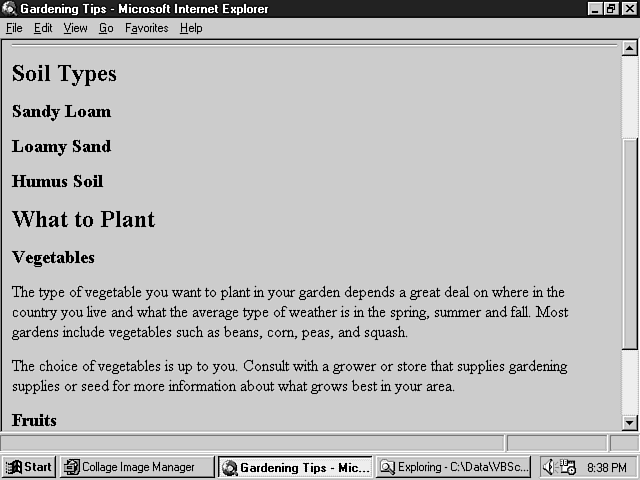
The browser ignores the leading spaces in the listing for each of the headings-they are there simply to make the listing more readable. Notice that each heading tag has a number inside it-<H1>, <H2>, and so on. Each additional heading is one level "deeper" than the one before it. This controls the rendering of the titles, with <H1> rendered as a larger heading than <H2>. Like all aspects of HTML, the use and ordering of the heading tags is a stylistic decision made by the Web page author. There is nothing to prevent you from using several consecutive <H1> headings, for example. This Web page is shown in Figure 3.1.
Figure 3.1 : A Web page using headers.
You can add as many headings as you want, but be sure to close them off with the appropriate tags.
The Center Tag
The center tag is used to center something on the screen. If, for example, you wanted to center a sentence on the Web page, you would simply enter
<CENTER>I am centered.</CENTER>
You would probably also want to put some space above and below this sentence, which you can do using the paragraph tag discussed in the next section.
Paragraphs
Another useful tag in an HTML document is the paragraph tag. This tag doesn't require a closing tag. The paragraph tag is used to indicate paragraphs because most browsers will place extra space between them. The paragraph tag is simply
<P>
Consider the Web page in Listing 3.1. Then, make it more useful by adding some paragraphs, as shown in Listing 3.2. This Web page, named paragrph.asp, is also on the CD-ROM that comes with the guide. (See Figure 3.2.)
Figure 3.2 : A Web page using paragraphs and headers.
Listing 3.2. A Web page using paragraphs and headers.
<HTML>
<HEAD>
<TITLE>Gardening Tips</TITLE>
</HEAD>
<BODY>
<H1>
<A HREF="http://w3.softlookup.com"><IMG ALIGN=MIDDLE
SRC="../shared/jpg/samsnet.jpg" BORDER=2></A>
<EM>Gardening Tips</EM></h1>
<HR>
<H2>Soil Types</H2>
<H3>Sandy Loam</H3>
<H3>Loamy Sand</H3>
<H3>Humus Soil</H3>
<H2>What to Plant</H2>
<H3>Vegetables</H3>
<P>The type of vegetable you want to plant in your garden depends
a great deal on where in the country you live and what the average
type of weather is in the spring, summer and fall. Most gardens
include vegetables such as beans, corn, peas, and squash.
<P>The choice of vegetables is up to you. Consult with a grower or
store that supplies gardening supplies or seed for more information
about what grows best in your area.
<H3>Fruits</H3>
<HR>
<center>
from <em>Teach Yourself VBScript in 21 Days</em> by
<A HREF="../shared/keith.asp">Keith Brophy</A> and
<A HREF="../shared/tim.asp">Tim Koets</A><br>
Return to Content <a href="..\default.asp">Overview</A><br>
1996 by SamsNet<br>
</center>
</BODY>
</HTML>
Note in Figure 3.2 that the two paragraphs inserted into the HTML document are indeed separated by a small amount of space. Also notice that it doesn't matter how pretty you make the text in your HTML document source code appear. The browser does its own formatting of the document. The browser ignores carriage returns in the document-all it sees or cares about are text and the tags it needs to recognize what to display.
Comments
The comments tag is used to place comments in the document. Comments are often used for notes the designer wants to place in the document, such as who wrote the Web page and when. Comment tags are a bit different from the other tags. The opening comment tag looks like this:
<!--
The closing tag looks like this:
-->
Therefore, a comment would look like this:
<!-- This is a comment -->
While comment tags are necessary and very convenient for adding comments to a Web page, they are also important when writing VBScript code. This is because when you write VBScript code inside a Web page, you can't be sure the browser used to view the Web page will support VBScript. You may write and test your Web page using Internet Explorer 3.0, but once you make that page available on the Internet, you have no way of predicting the avenues users may take to view it. A user may view your "World's Greatest VBScript-Boosted Page" with the Acme, Inc., browser, which was produced in 1995 before VBScript even existed. Although you hope this pool of users would be small, there will definitely be some out there, and when they stumble across your Web pages, you don't want them to see ugly, confusing results. Therefore, you need to find a way to tell non-VBScript browsers to ignore any VBScript code if they cannot recognize it. The comment tags are used for that very purpose. You will see how this is done in the section "Placing a Script Within an HTML Document."
Scripts
Finally, you must understand the use of the script tag when working with VBScript. The script tag looks like this:
<SCRIPT>
It is closed using this:
</SCRIPT>
Unlike the other tags you have seen so far, however, the opening script tag requires an argument-namely, the language of the script. This is the tag used to embed VBScript code within an HTML document. For VBScript code, the tags are used as follows:
<SCRIPT LANGUAGE="VBScript">
…your VBScript code goes here
</SCRIPT>
The language parameter should be specified as "VBScript", including the quotation marks. Early beta versions of Internet Explorer used "VBS" and did not require the quotation marks, but later betas and the final release require the parameter as specified above. If you are using another scripting language, such as Java, you would enter an indicator such as "JavaScript" rather than "VBScript" in the language argument when you write the opening script tag. When the browser encounters a script tag, it checks to see what language the script has been written in. Then the browser checks whether an interpreter is available that can read the script code. If so, the interpreter takes over from there. If not, the script tag is ignored, and HTML moves on its merry way to the next line of code after the script tag.
There are a variety of other tags you can use in an HTML document. Some of these tags are introduced in later lessons because they are important in working with VBScript. Others are not directly applicable to VBScript but are useful to know anyway. Again, you may want to read Lemay's Teach Yourself Web Publishing with HTML 3.2, Professional Reference Edition for more information on how to use HTML in building Web pages. Now that you have all the pieces of the puzzle you need, let's put them together to give you the overall picture of how to place VBScript code in your Web pages.
Placing a Script Within an HTML Document
To place a script inside an HTML document, you should use the script and comment tags together. As previously mentioned, the comment tags are important just in case a browser that reads the Web page and does not support VBScript is used. You will see an example of the impact in a moment.
The following is the syntax for placing VBScript code inside an HTML document. This code can be placed anywhere within the framework of your HTML document:
<SCRIPT LANGUAGE="VBScript">
<!--
… your VBScript code
… goes here …
-->
</SCRIPT>
Notice that the comment tag appears immediately after the script tag. This comment tag appears here so that if the browser doesn't recognize the script, it will ignore the script tag and treat anything that follows as regular HTML text. The comment tags are used to prevent the browser from displaying the script code just in case it is a browser that doesn't recognize VBScript. The VBScript interpreter will not process the comment tags because when the browser finds an HTML comment, it does not bother to pass the comment on to the VBScript interpreter. As a result, you don't need to worry about VBScript not being able to figure out why the HTML comment tags are in there.
Internet Explorer will let you place VBScript code anywhere inside your HTML document. In practice, however, it is best to place your VBScript code at the very end of the body section in your HTML document. Without this convention problems can occur in certain situations. For example, you can reference controls in VBScript code when a page loads. If this code is placed before the lines where the controls themselves are included on the page, the code may not recognize the controls, at least with beta Internet Explorer 3.0 software. Also, you can place VBScript code within control definitions themselves. If you use this technique within the body of the HTML document, VBScript must also reside in the body of the document. Placing the script code at the end of the body section is, therefore, the safest place for it.
Listing 3.3 shows an example of a Web page that contains VBScript code placed at the end of the body section of the document. This Web page, named usingvbs.asp, is on the CD-ROM that comes with the guide.
Listing 3.3. A Web page using VBScript code.
<HTML>
<HEAD>
<TITLE>VBScript Test Page</TITLE>
</HEAD>
<BODY>
<H1>
<A HREF="http://w3.softlookup.com"><IMG ALIGN=MIDDLE
SRC="../shared/jpg/samsnet.jpg" BORDER=2></A>
<EM>VBScript Test Page</EM></H1>
<HR>
<CENTER><INPUT TYPE=BUTTON LANGUAGE="VBScript" VALUE="Test" NAME="TestButton">Â </CENTER>
<HR>
<center>
from <em>Teach Yourself VBScript in 21 Days</em> by
<A HREF="../shared/keith.asp">Keith Brophy</A> and
<A HREF="../shared/tim.asp">Tim Koets</A><br>
Return to <a href="..\default.asp">Content Overview</A><br>
1996 by SamsNet<br>
</center>
<SCRIPT LANGUAGE="VBScript">
<!--
Sub TestButton_OnClick()
MsgBox "You just clicked the Test button."
End Sub
-->
</SCRIPT>
</BODY>
</HTML>
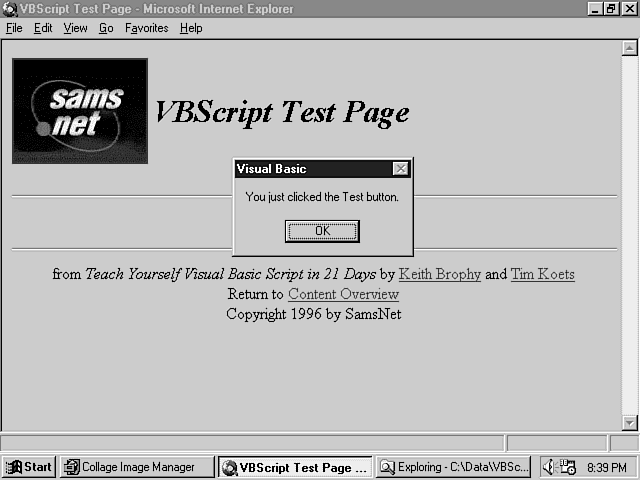
This Web page is shown in Figure 3.3.
Figure 3.3 : An example of a Web page using VBScript.
As you can see, the Web page includes a button that, when clicked on by the user, results in a message box being displayed (the message box is also shown in Figure 3.3). You will begin learning the details of this Web page tomorrow. The code used to create the Web page shown in Figure 3.3 works fine because the browser recognizes VBScript. If the browser didn't, the comments between the script tags would prevent the code from being displayed in the Web page.
To see what would happen if you didn't use those comment tags, and then used a browser that was not VBScript aware, look at the Web page named nocomnts.asp, shown in Listing 3.4.
Listing 3.4. A Web page using VBScript code and no comment tags for the script.
<HTML>
<HEAD>
<TITLE>VBScript Test Page</TITLE>
</HEAD>
<BODY>
<H1>
<A HREF="http://w3.softlookup.com"><IMG ALIGN=MIDDLE
SRC="../shared/jpg/samsnet.jpg" BORDER=2></A>
<EM>VBScript Test Page </EM></H1>
<HR>
<H2> No Comment Markers! </H2>
<CENTER><INPUT TYPE=BUTTON LANGUAGE="VBScript" VALUE="Test" NAME="TestButton">Â
</CENTER>
<HR>
<center>
from <em>Teach Yourself VBScript in 21 Days</em> by
<A HREF="../shared/keith.asp">Keith Brophy</A> and
<A HREF="../shared/tim.asp">Tim Koets</A><br>
Return to <a href="..\default.asp">Content Overview</A><br>
1996 by SamsNet<br>
</center>
<SCRIPT LANGUAGE="VBScript">
Sub TestButton_OnClick()
MsgBox "You just clicked the Test button."
End Sub
</SCRIPT>
</BODY>
</HTML>
Rather than using the Internet Explorer, which supports VBScript, observe the Web page using Mosaic, which at the time of this printing did not support VBScript. The Web page is shown in Figure 3.4.
Figure 3.4 : An example of VBScript code with no comment tags.
Notice that, in this case, all the VBScript code is printed in the Web page-a very undesirable result! That is why it's so important to use the comment tags whenever you write VBScript code within a Web page. That's all there is to it!
One more thing you should know about writing VBScript code: If you want to break up a very large code statement that runs off the right side of your text editor, you can use the continuation character to break up the flow. An example of this is shown in Listing 3.5.
Listing 3.5. Using the continuation character.
<HTML>
<HEAD>
<TITLE>VBScript Test Page</TITLE>
<H1>Test Web Page</H1>
</HEAD>
<BODY>
<CENTER><INPUT TYPE=BUTTON VALUE="Test" NAME="TestButton"></CENTER>
<SCRIPT LANGUAGE="VBScript">
<!--
Sub TestButton_OnClick()
MsgBox "The total number is " & GetResult( 1, 2, 3, 4, 5,_
&nbs p; 6, 7, 8, 9, 10 )
End Sub
Function GetResult(a, b, c, d, e, f, g, h, i, j)
' This function adds up all the paramaters and returns the grand total
GetResult = a + b + c / d * e + f * 2 _
+ h/i + j
End Function
-->
</SCRIPT>
</BODY>
</HTML>
Don't worry if you don't understand all the details of the code in Listing 3.5. It uses a function call, which is described in later lessons. You should take note of a couple details, however. In the code in Listing 3.5, you can see that the continuation character is used to break up the flow of text in two places where the line of code would otherwise be so long that it wouldn't fit on a page. You will see examples of the continuation character used throughout the rest of the guide.
Another commonly used character is the single quote, which can be seen at the start of the first line after the function call declaration. This single quote character designates a VBScript comment. Everything that follows on that line will be ignored by the VBScript interpreter, and is just for documentation purposes for the programmer's benefit. Earlier in the lesson, the HTML comment indicator <!-- --> is discussed. It is important to understand the distinction between these comment indicators. Everything within an HTML comment is either ignored by HTML or passed off to the VBScript interpreter if the comment appears between the script tags that denote the start and end of VBScript code. The VBScript interpreter comment indicator will cause the remainder of the lines sent to the VBScript interpreter to be ignored, while the others will be processed by VBScript.
So the structure you see in Listing 3.5 contains many fundamental elements of the script. The script tags, the HTML comment tags, the VBScript line continuation characters, comments, and code structure are common to most of your VBScript programs. As you can see, the basic structure of a VBScript program is fairly straightforward and easy to implement. The remaining lessons deal with how to fill in the rest of the pieces.
Summary
Not only are a wide variety of browsers available for World Wide Web users, but a growing number of controls, applications, and other tools are becoming available for use as well. Today you have seen that VBScript can be supported in any or all of these tools, controls, and applications. All that is needed is for the designers of these tools to include with their product the VBScript run-time interpreter. Having done so, these tools will be able to recognize Web pages that use VBScript. But VBScript isn't restricted to the Web. Developers can take advantage of the technology in any circumstance, even in intranet environments where a company, for example, runs its own, self-contained intranet in its organization. In any of these cases, VBScript can be supported as long as the run-time interpreter is recognized by the browser, control, application, or tool in question.
Today's lesson begins by recognizing that the widest use of VBScript, at least at the outset, will be in working with Web browsers. Web browsers that support or might potentially support VBScript in the future are discussed. Keep in mind, of course, that the browsers are constantly changing, and since this guide was written, many more than were listed in this lesson are probably supported. The browsers that support VBScript are expected to do so across various platforms, including Windows, Macintosh, and UNIX systems.
But the use of VBScript is not limited to commercial browsers. Many control vendors also offer ActiveX controls that allow programmers to integrate the Internet into their applications. If those controls support VBScript, then any application that incorporates those controls to link to the Web will be able to recognize it. In addition to controls, tools such as the Internet Information Server also contain support for VBScript.
Having presented many of the cases in which VBScript can be supported, the lesson focuses on how VBScript is used in the browser. This guide concentrates on the browser because that is the most common place VBScript is used. Keep in mind, however, that no matter where you plan to use VBScript, this guide will teach you what you need to know to be able to write useful VBScript programs for any environment.
The lesson gives a brief overview of the structure of an HTML document, including the keywords most commonly used to present output to the user. This is followed by a detailed explanation of how to use those keywords to put VBScript code in place within an HTML document. Special attention is paid to showing you how to safely include VBScript so that browsers that do not recognize VBScript will not display the source code all over the screen. The lesson shows an example of this, and shows the way to prevent this from happening.
Now that you've read today's lesson, you're ready to start learning the VBScript language. You learned about the World Wide Web and the Internet in general on Day 1, "Introducing VBScript and the World Wide Web," as well as how VBScript fits into the picture. Then, on Day 2, you learned a bit more about VBScript itself and what you can do with it. You even saw some examples of Web pages using VBScript. In today's lesson you have seen some of the other places VBScript can be used. You saw how VBScript is used in the browser and how you embed VBScript code within it. On Day 4, "Creating Variables in VBScript," you will learn about a fundamental building block of any VBScript program-the variable. Congratulations! You're ready to become a VBScript programmer.
Q&A
| How do I know which browsers currently support VBScript? | |
| The best way to find out is to go to the home page of the Internet site where you got the browser. You might also want to check the Microsoft page to see if it provides a list of the tools that support VBScript. Other Web sites with VBScript information may also eventually provide lists. Refer to Appendix B, "Information Resources," for further information. | |
| If my Web page is used on a browser that doesn't recognize VBScript, what will happen? | |
| As long as you place comment tags around your code, the browser won't show the VBScript code on the screen, and the user will see no sign of it. However, the functionality of your Web page will obviously be severely limited, but it depends on how you designed the page. If your Web page revolves around VBScript, it simply won't work. If the user can still see what he or she needs to see without VBScript, you may be okay. In any case, you may want to let the users know up front that the Web page uses VBScript so that if their browsers don't support it, they will know why the page isn't working correctly. One good way you can do this is to include the logo of the browser that your page does work with, such as Internet Explorer, on your page to clue users in to your targeted browser. Such logo programs typically have guidelines, and you should review them before incorporating the browser logo into your page. At the time of this writing, information on Microsoft's Internet Explorer logo program was available under http://www.microsoft.com/ie. Fortunately, as VBScript gains popularity, more and more browsers will support it and the problem of users encountering your pages with browsers that do not support VBScript is likely to diminish. | |
| I thought I wouldn't have to learn any HTML if I can learn VBScript instead. Is that true? | |
| Well, your use of VBScript means that perhaps you won't have to resort to HTML as much, but you'll still need to know some elementary HTML to make your Web page appealing. VBScript can be used to interact with controls on the Web page, but it doesn't replace the basic HTML needed to produce the content of your page. Furthermore, you need to know about HTML just to get the VBScript code on the Web page itself. So yes, you do need to know some HTML, but you may not need to be an expert. As always, the more you know, the better off you are. As you work through this guide, you will be exposed to enough HTML that you should be able to pick up a starting level of information. Still, if you want a thorough understanding, you should read a guide that covers all the fundamentals of HTML programming. |
Workshop
To get the most out of programming with VBScript, now would be a good time to pick up a good reference on HTML. You may want to consider a good HTML programming guide such as Lemay's Teach Yourself Web Publishing with HTML 3.2, Professional Reference Edition or, perhaps, you might simply want to take a look at many of the examples available on the Web. You may also want to take a look at the current HTML specifications out on the Web. Microsoft had an HTML specification available at the time of this guide's writing reachable by navigating pages under http://www.microsoft.ie. W3C had very good HTML information available at http://www.w3.org/pub/WWW/MarkUp/Activity.asp. No matter how you do it, become somewhat familiar with HTML now if you're not already-it will make learning VBScript much more enjoyable.
Quiz
| Note |
Refer to Appendix C, "Answers to Quiz Questions," for the answers to these questions. |
- What is needed for any browser, control, or other software to recognize a Web page that has VBScript within it?
- What other software is out there besides browsers that can use VBScript?
- Write a simple HTML document that contains a script tag for VBScript. You needn't write any VBScript code. All you should write are the container tags needed to make it happen.


Popular Tutorials
-
 MS Access
1109
MS Access
1109
-
 C++
1222
C++
1222
-
 HTML
584
HTML
584
-
 JavaScript
616
JavaScript
616
-
 Vbscript
873
Vbscript
873
-
 Oracle
473
Oracle
473
-
 VC++
875
VC++
875
-
 SQL
2959
SQL
2959
-
 XML
514
XML
514
-
 Java
814
Java
814
-
 Perl
455
Perl
455
-
 Linux
451
Linux
451