Web based School
Helping Your Browser with Plug-Ins |
 |
 |
Chapter 15Helping Your Browser with Plug-InsMost browsers are designed to display text and graphics with generally no problems. What about the new technology, however, and third-party software manufacturers that want their wares to be visible and usable on the World Wide Web? Here, the world of plug-ins begins. In this lesson, you find the answers to some of the more basic questions about plug-ins, such as the following:
What Are Plug-Ins and How Do They Work?Start with a quick review. Your Web browser can display only three file types: text, GIF, and JPEG. The text category includes plain text files and HTML (Hypertext Markup Language) documents. GIF (Graphics Interchange Format) and JPEG (Joint Photographic Experts Group) are graphical formats for images and backgrounds. So, before plug-ins, almost everything you could view in a browser was in one of these three formats.
It follows that the basic function of a plug-in is to enable you to view a file type other than text, GIF, or JPEG. Instead of redesigning, reengineering, and redistributing browsers for each new file type, software developers have developed plug-ins for use with the most popular browsers. This way, applications or files developed with their applications can be used on the Internet. Okay, so plug-ins are a good idea, but what are they? Well, a plug-in is typically a small program or file that is loaded into your Web browser when it is launched. Most plug-in-capable browsers have a plug-ins folder in their application directory. The browser looks to this folder when it is being launched to find any plug-ins that it can load for use. The minimum version for plug-in support for Netscape Navigator is 2.0; for Microsoft's Internet Explorer, it is 3.0. These plug-ins may not be apparent to you until you encounter an enhanced Web page. In this case, the plug-in works with the browser to display the embedded audio, video, or whatever the developer has added to the site. New Term: Enhanced Web page: An enhanced Web page includes a file type that is viewable within a browser that is loaded with the proper plug-in. Before the advent of plug-ins, you had to rely on the applications loaded on your hard drive to view certain material. If you wanted to download and view a Word document, you had to have Microsoft Word on your machine. Table 15.1 shows some basic helper applications and what file type they are used to view. Table 15.1. Examples of helper applications.
Installation BasicsTypically, your browser creates a plug-in directory when it is installed on your machine. If you're using Netscape, for example, you can find the directory on your hard drive in the Netscape folder. Here's where the directory is located, based on the type of operating system you are using: Win95/NT C:/Program
Files/Netscape/Navigator/Program/plugins/ Mac In the Netscape folder labeled Plug-ins Most plug-ins will be installed into this directory. The whole process is normally very simple. You can generally install a plug-in in one of three ways:
Most sites include good directions for installing their plug-ins. Be sure to read these instructions for possible incompatibilities or special system requirements. Are Plug-Ins Practical?Should you rush out and install every plug-in that's available on the Web? No. Doing so would be a terrible waste of time and disk space. A good rule of thumb is that you install a plug-in when you encounter a Web site that is advertising its pages as enhanced for use with a specific plug-in or you have a general need for the added functionality a plug-in offers. You can use a plug-in, for example, to listen to ABC news reports from your laptop, as in Figure 15.1. Listening to ABC news via the RealAudio plug-in. At Netscape's Web site
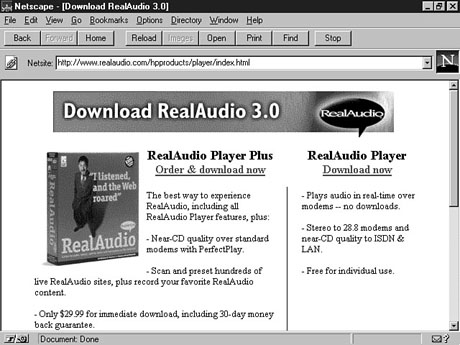
(http://home.netscape.com/comprod/ A plug-in also can make your browser into a viewer. As a viewer, it cannot make any changes to the file; it can only display the file for you. This capability leads to a very economical situation for some groups. Instead of loading Microsoft Office onto everyone's machine, for example, now you can install the plug-ins only for people who don't use the applications for more than reading the online files. Netscape's and Microsoft's approaches to the plug-in world are to configure their respective browsers to react to different file types. Each of these browsers can alert you when you begin to download a Web page that requires a particular plug-in that you don't have installed on your machine. The alert, like the one shown in Figure 15.2, presents you with the option of going to a site to download and install the needed plug-in. A browser's alert that you need a plug-in to view this site. In Microsoft's case, the site displays a security certificate verifying that this site is authorized to distribute the plug-in. This certificate also serves as protection to your system because installing a file from the Internet always leaves the opportunity for a malicious program to infect your hard drive. If you decide to accept the certificate, the plug-in is automatically downloaded and placed in the appropriate location on your hard drive. The process doesn't get much easier than that. RealAudio, Real-TimeAs I stated earlier, one reason to install a plug-in is to be able to listen to news reports from your laptop. The RealAudio plug-in (http://www.realaudio.com) from Progressive Networks delivers "Audio on Demand." It delivers streaming, CD-quality audio to your computer via the Internet. New Term: Streaming: Streaming audio means that the clip begins playing as soon as the file download begins. You therefore don't have to wait for the entire file to download before you can hear it. Download and InstallThe RealAudio Player is offered in a couple different forms. The basic player plug-in is available for free downloading. Another version of this plug-in, Player Plus, offers increased sound capabilities and more user features. Here, I describe the installation of the free plug-in, but the procedure should be the same for both of them. To Do: Download and Install the RealAudio Player1. From the RealAudio Web site (www.realaudio.com), choose Download RealAudio 3.0 or go directly to the download site (www.realaudio.com/hpproducts/player/download.asp).2. To install the free plug-in, click the Download Now link on the right side of the screen, as shown in Figure 15.3. Choose the free RealAudio Player or purchase the
RealAudio Player Plus.
ABC News via RealAudioOne of the best sites displaying the RealAudio technology is the ABC News Reports site (www.realaudio.com/comtentp/abc.asp). Updated hourly, the same news used by the television and radio stations is broadcast from the web site. Users can hear Peter Jennings as he delivers his daily commentary on global and national matters, listen to Johnny Holliday deliver his sports report, or hear the general news that is updated hourly. The archives of all three newscasts contain news feeds back to the beginning of the year. Catch the ShockwaveShockwave by Macromedia (www.macromedia.com) captures the power of Macromedia's suite of tools--Director, FreeHand, and Authorware--and delivers it over the Internet. Director, a professional presentation application, is used by graphic artists and visual production companies. FreeHand is a powerful graphic artist's tool kit, and Authorware is the world's leading authoring tool for interactive information. Macromedia recently released a new collection of plug-ins: Shockwave Deluxe. The Deluxe version contains the plug-ins for Director, Authorware, FreeHand, and SoundEdit 16. SoundEdit 16 is a powerful digital audio application used to develop soundtracks for various platforms--from movies to CD-ROM games to Internet Web sites. Most of the big names in multimedia have developed Web sites using Shockwave technology. These "Shocked" sites include Disney, Sony, MCI, Paramount, and hundreds more. Let's take a few minutes and run through the procedure for bringing your machine up-to-speed with Shockwave. To Do: Install the Shockwave Plug-In1. Click the Get Shockwave button on the Macromedia Web site (www.macromedia.com), as shown in Figure 15.4, or go directly to the Shockwave download area (www.macromedia.com/shockwave/download/).On Macromedia's Web site, click the Get Shockwave button to install the plug-in. 2. Fill in your personal information if you want to receive e-mail regarding information on Shockwave. This information is optional and will not limit you from using the software. 3. Select your operating system and language. Select the flavor of the package you want: Shockwave or Shockwave Deluxe. Click the final Get Shockwave button. 4. The location of the installation program appears as a link labeled Download NOW!. Clicking this link begins the download process. A window may appear asking you where to save the file; choose a location on your hard drive. 5. Locate the install program (n32z0007.exe or similar) on your hard drive and run it. You are prompted to select the browser and location to install plug-in files. When the installation completes, restart your browser. Now you're ready to view some example of using Shockwave on the Internet. Let's try out your new plug-ins on Macromedia's SSotD. That's Shocked Site of the Day for the uninitiated. Shocked Site of the DayI thought the Macromedia site was cool, but some people actually use it to do more than make buttons flash. Entire arcade style games use Shockwave. Why not take a quick trip? Now that you have your browser armed to handle the Shockwave files, look at some examples. The best place to start is the Macromedia Web site. On it, you can find examples of Macromedia's own work, as well as links to all sorts of sites using Shockwave technology. In the Shockwave Gallery is a collection of sites that range from educational to mass media. Companies from CNN to Apple are in the spotlight as major Web sites featuring the Shockwave plug-in. Also check out the Shocked Site of the Day. These sites include full arcade-style games using Shockwave technology to deliver outstanding sound and graphics. Overview of Other Plug-InsAs I mentioned earlier, Netscape records more than
102 plug-ins available for use with its browser. I can't list all of them, but I can give
you a slight tasting of some of the features that await. Remember, check out the Netscape
Plug-in page for the complete list (http://home.netscape.com/comprod/ BubbleviewerIf you get tired of looking at the same flat graphics on a Web site, check out the Bubbleviewer plug-in by Omnivision (www.omnivision.com). With the Bubbleviewer plug-in, your browser can display 360-degree, spherical photographs called PhotoBubbles. You're placed at the center of a 360-degree experience. You can zoom in and out, and you can look left, right, up, and down in 360-degrees of freedom. Saab and Toyota are just a few of the Web sites using PhotoBubbles. Also, be sure to visit the Philadelphia Museum of Art. Go to the Omnivision Web site for a complete list of sites featuring PhotoBubble technology. Live3DThe Live3D plug-in
(http://home.netscape.com/comprod/ FutureSplashYou can design Web sites with small, fast, vector-based animations and multimedia screens with the FutureSplash Animator by FutureWave Software (www.futurewave.com). The FutureSplash Animator could be considered the common man's Macromedia Director. It isn't nearly as powerful, but it gives great results in a short amount of time. At the time of this writing, a trial copy of the FutureSplash Animator was available at the FutureWave Web site. The hit TV show The Simpsons now has an official page on the Fox Network site (www.foxworld.com/simpsons/simpsons.asp). The developers of this site used the FutureSplash Animator to design interactive buttons and screens of animation of Bart, Lisa, and Homer. Take a look at this site after you install the FutureSplash plug-in. KeyViewThe mother of all plug-ins has to be KeyView (http://www.ftp.com/mkt_info/keyv2.asp) by FTP Software. It slices. It dices. This little wonder delivers more than 200 file formats to your browser's window. KeyView is cross-platform capable, displaying both Macintosh and Windows files. You can use KeyView as a Netscape plug-in or by itself to perform everyday operations such as print, convert, copy, and compress from one file format to another. SummaryIn this lesson, you learned the basics of adding functionality to your Internet browser by using plug-ins. With plug-ins, you can use your browser to view files that you cannot view normally. Launching a helper application is no longer necessary. Some plug-ins can work as viewers, relieving the requirement to have the full application present on the machine. Some browsers have been developed to prompt you to install a needed plug-in. Some of the best multimedia Web sites are making full use of the capabilities of plug-ins. These enhanced sites provide audio, video, and VRML worlds that you can view and enjoy right within the browser window. WorkshopThe following workshop helps solidify the skills that you learned in this lesson. Q&AQ How can I make enhanced Web pages? A Most of the third-party software companies provide their plug-ins for free use. They do so because you have to purchase their applications to create the files to use on your Web site. To use RealAudio on your site, for example, you have to purchase the RealAudio Encoder software. Q Do I have to pay for these plug-ins? A Well, the answer to this question depends on the plug-in. Some are free because they only display proprietary files made with an application you have to purchase. Others are shareware that you can try before you buy them. Q Can I remove plug-ins? A Yes. Look for the plug-in in the Plug-ins folder in your browser's directory. Delete or move the file, and your browser will not load the plug-in. Some plug-ins are even listed in the Add/Remove Software section in Windows 95. Q Do I need a different plug-in for every file type? A Yes and no. Some plug-ins, such as KeyView, display many different file types. Some applications, however, develop files that you can view only with custom plug-ins. In this case, you need to install the appropriate plug-ins to view these files. QuizTake the following quiz to see how much you've learned. Questions1. Plug-ins launch the external application on your machine. (a) True(b) False 2. In what form do plug-ins download? (a) Zipped (compressed) (b) Executable Single file (d) All the above 3. How do you know you need a plug-in to view a site? (a) The browser warns you with an alert message. (b) The browser crashes. You can't see the site at all. Answers1. (b) False. Plug-ins use the browser to access the files. The full application does not have to be installed on your computer.2. (d) A plug-in can be in any form--zipped, as an executable installation program, or a single file. 3. (a) Your browser notifies you that the site you are about to visit requires a plug-in. You are given the option of downloading the plug-in. ActivitiesGo to the RealAudio site and install the RealAudio plug-in. Listen to the nightly news report from the ABC RealAudio page or hear a program from National Public Radio. See if any of your local stations support RealAudio on their Web sites. Download the Shockwave plug-in for your machine and visit the Macromedia Shocked Site of the Week. Play one of the Shocked games with a member of your family or a friend. .
|
|
|
Popular Tutorials
-
 MS Access
1109
MS Access
1109
-
 C++
1222
C++
1222
-
 HTML
584
HTML
584
-
 JavaScript
616
JavaScript
616
-
 Vbscript
873
Vbscript
873
-
 Oracle
473
Oracle
473
-
 VC++
875
VC++
875
-
 SQL
2959
SQL
2959
-
 XML
514
XML
514
-
 Java
814
Java
814
-
 Perl
455
Perl
455
-
 Linux
451
Linux
451