Photopea Review: Free Online Photoshop Alternative in 2026
Photopea is one of those tools that makes you wonder why you ever installed heavy software for a quick edit.
You open the website, drop in an image or PSD file, and you’re working. No installer. No waiting around while a giant desktop app updates itself. For a lot of people, that’s exactly the point.
Photopea feels like a lightweight Photoshop alternative that lives in your browser. It supports layered editing, PSD workflows, common image formats, text tools, masks, filters, and a familiar Photoshop-style layout.
I like to think of it as the “I just need to fix this one thing” editor.
Imagine someone sends you a banner file late at night, and your main computer doesn’t have Photoshop installed. You don’t want to install a trial, sign into three things, or ask the designer to resend it. You open Photopea, make the change, export the file, and move on. That’s where it shines.
- What Photopea is best for
- Why it’s popular as an online Photoshop alternative
- Where it beats desktop tools for convenience
- Where GIMP, Krita, or Canva may be better
- Whether Photopea is enough for your editing workflow
Quick Verdict: Should You Use Photopea?
Use Photopea if you want a browser-based Photoshop-style editor, especially for opening or editing PSD files without installing anything. Skip it if you need offline editing, huge-file performance, or a simpler beginner-friendly design tool.
Best for
- Editing PSD files in a browser
- Quick Photoshop-style edits
- Users on shared or low-storage computers
- Students and casual designers
- People who don’t want desktop software
Not ideal for
- Very large layered files
- Users who need full offline work
- Professional Adobe Creative Cloud teams
- Beginners who want a Canva-style template editor
Photopea Snapshot
| Software | Photopea |
|---|---|
| Category | Online photo editor / graphics editor / PSD editor |
| Platform | Web browser |
| Price | Free access available; premium/ad-free options may exist |
| Best for | Online PSD editing, quick image edits, Photoshop-style browser workflows |
| Best alternatives | GIMP, Pixlr, Canva, Krita, Paint.NET |
What Is Photopea?
Photopea is an advanced online image editor that works directly inside your browser. It can handle simple jobs like cropping and resizing, but it also supports more complex work like layers, masks, vector shapes, text, filters, and PSD-based editing.
The big selling point is simple: you don’t need to install anything. You visit Photopea, open a file, edit it, and export the result. For users who want a free online Photoshop alternative, that’s a huge win.
Photopea is especially useful when you need to open a PSD file quickly. The official Photopea site describes PSD as its main format, and it can open and save PSD files. That makes it more practical than many lightweight online editors that only handle JPG and PNG.
It’s not just for PSD files, though. Photopea also supports many raster and vector formats, so it can work for web graphics, simple design tasks, image conversion, and quick edits from almost any modern computer.
Why People Use Photopea Instead of Photoshop
Photoshop is still the professional standard for many designers, but plenty of users don’t need the full Adobe setup just to edit one graphic.
A student might need to update a poster. A blogger might need to resize a featured image. A small business owner might need to change text on a banner. A developer might need to quickly open a PSD mockup from a designer. None of those jobs always justify a subscription or a full desktop installation.
Photopea fits the gap between “too simple” and “too expensive.”
It’s more capable than most basic online editors, but easier to access than desktop tools like Photoshop or GIMP.
Key Photopea Features
- Runs directly in a web browser
- PSD file opening and saving
- Layer-based editing
- Masks, selections, text, shapes, and filters
- Support for raster and vector graphics
- Works with many image and design file formats
- No desktop installation needed for normal use
- Useful for quick edits on shared or temporary devices
What Photopea Does Well
Photopea is best when speed and access matter. You don’t have to install anything, and you don’t need a powerful computer just to make a normal edit.
It also feels familiar if you’ve used Photoshop before. The menus, tools, layers, and general layout won’t feel completely foreign, which makes it easier for Adobe users to jump in and get something done.
✓ Pros
- Runs in the browser
- Strong PSD support
- No installation required
- Familiar Photoshop-style interface
- Good for quick edits and file conversions
- Works on many devices with a modern browser
- Useful when Photoshop is not installed
✗ Cons
- Performance depends on browser and device
- Large layered files can feel slow
- Not as polished as Photoshop for professionals
- Can feel busy for beginners
- Not ideal for offline-first workflows
- Free usage may include ads or limits
Where Photopea Falls Short
Photopea is impressive, but it shouldn’t be oversold.
If you work with huge layered files every day, a desktop editor may feel smoother. If you’re doing advanced digital painting, Krita is more natural. If you want a template-based design tool for quick social media graphics, Canva is easier. And if your whole team is built around Adobe Creative Cloud, Photoshop may still be the practical choice.
Also, browser editing has limits. It’s convenient, but it still depends on your machine, your browser, and how heavy the file is.
Best Free Photopea Alternatives
Photopea is one of the strongest online editors, but these alternatives may fit better depending on what you’re trying to do.
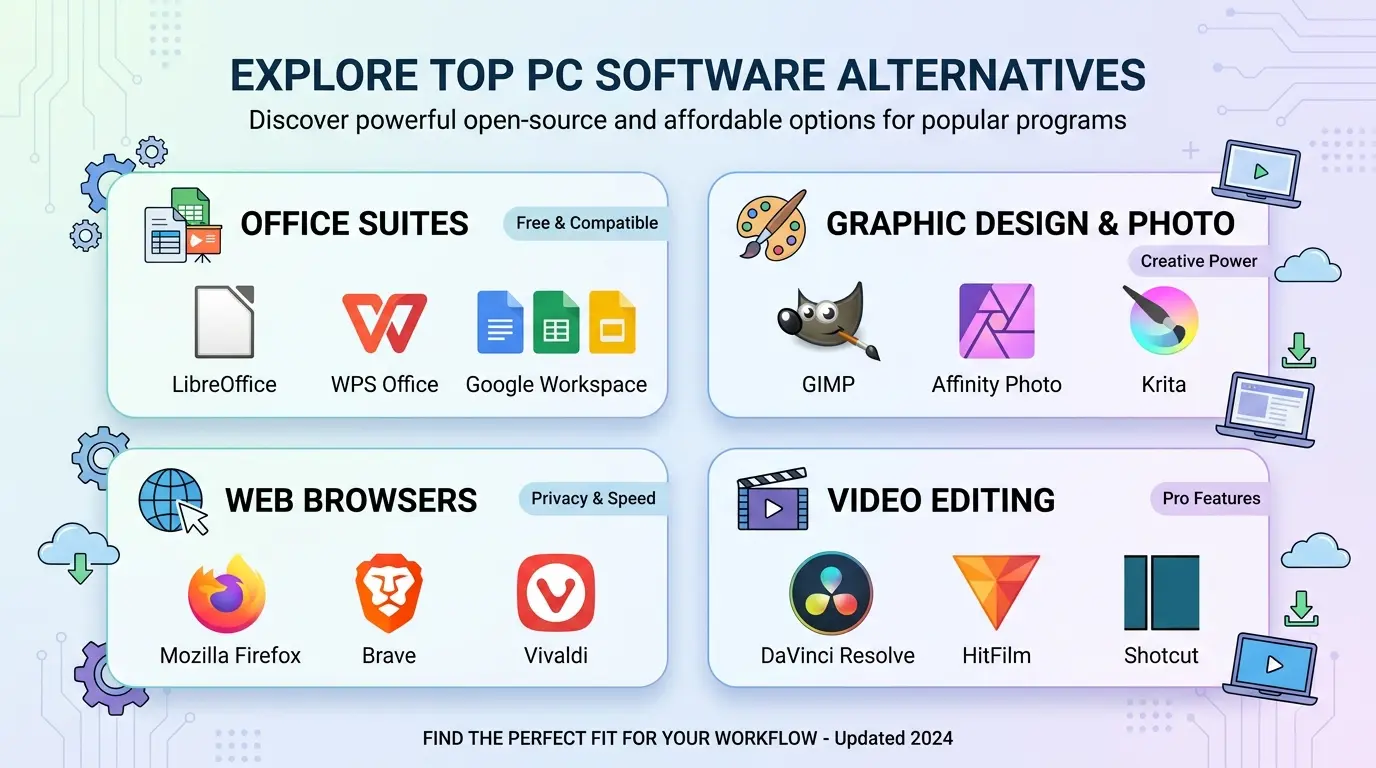
1. GIMP — Best Free Desktop Alternative
GIMP is better if you want a full offline desktop editor and don’t mind learning a different workflow. It’s not as convenient as Photopea, but it’s powerful and completely free.
2. Pixlr — Best for Quick Browser Edits
Pixlr is easier than Photopea for basic edits. If you only want to crop, resize, add text, or make a quick graphic, Pixlr may feel less intimidating.
3. Canva — Best for Templates and Social Graphics
Canva isn’t a Photoshop-style editor, but it’s great for people who want ready-made templates, social media posts, presentations, and simple graphics.
4. Krita — Best for Drawing and Painting
Krita is the better choice for artists, illustrators, and digital painters. It’s less convenient than Photopea, but much stronger for brush-based creative work.
5. Paint.NET — Best Lightweight Windows Editor
Paint.NET is easier for Windows users who want a simple desktop photo editor without the weight of GIMP.
Best Online Alternatives to Photopea
If your main requirement is “no download,” compare Photopea with these:
- Pixlr — easier for quick photo edits
- Canva — better for templates and social posts
- Adobe Express — good for simple branded designs
- Fotor — beginner-friendly photo effects and quick edits
For actual PSD-style work, though, Photopea is usually the one to test first.
Photopea vs GIMP vs Photoshop vs Pixlr
| Tool | Free? | Online? | Best For | Beginner Friendly? |
|---|---|---|---|---|
| Photopea | Free access available | Yes | PSD editing in browser | Medium |
| GIMP | Yes | No | Free desktop photo editing | Medium to hard |
| Photoshop | Trial / paid | Limited web options | Professional Adobe workflows | Medium |
| Pixlr | Free access available | Yes | Quick browser edits | Easy |
| Canva | Free plan available | Yes | Templates and social graphics | Easy |
When You Should Use Photopea
Choose Photopea if you need a fast online editor and especially if you work with PSD files sometimes. It’s a good fit for:
- students editing school designs
- bloggers resizing images
- small businesses updating banners
- developers opening PSD mockups
- users on shared or low-storage computers
- anyone who wants Photoshop-style editing without installing software
When You Should Pick Something Else
Pick GIMP if you want free offline desktop editing. Pick Krita if you’re drawing or painting. Pick Canva if you want templates. Pick Photoshop if you’re in a professional Adobe workflow and need maximum compatibility.
Photopea is excellent for quick, flexible browser editing. It just isn’t the answer to every image problem.
Safe Use Notes
Use the official Photopea website when opening the editor. Avoid clone sites, fake “Photopea download” pages, or browser extensions from unknown publishers. Since Photopea is mainly a web app, users usually don’t need to install anything to use it.
Editors: add Softlookup’s verified review/download reference here if available.
Frequently Asked Questions
Is Photopea free?
Photopea can be used for free in the browser.
Is Photopea a good Photoshop alternative?
Yes, especially if you want a browser-based editor with PSD support and a Photoshop-style layout.
Can Photopea open PSD files?
Yes. Photopea supports the PSD format and can open and save PSD files.
Do I need to download Photopea?
No. Photopea runs in a web browser, so most users can open it and start editing without installing desktop software.
Is Photopea better than GIMP?
Photopea is better for quick online PSD editing. GIMP is better if you want a free offline desktop editor.
What is the best Photopea alternative for beginners?
Pixlr is easier for quick image edits, while Canva is easier for template-based designs.