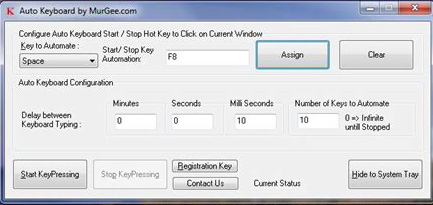
Use AutoKeyboard to automatically type some text when you need bulks of it and have no time with the help of this neat and helpful auto-write software application
The Ultimate Tool for Automated Text Typing
Understanding AutoKeyboard and its Time-Saving Capabilities
Whether you're a student, a professional, or just someone who spends a significant amount of time typing on a keyboard, finding ways to save time can be invaluable. This is where AutoKeyboard comes in - an innovative automated text typing tool that can revolutionize the way you type.
AutoKeyboard is an advanced keyboard automation software that allows users to automate their typing tasks effortlessly. With its intuitive interface and user-friendly features, this powerful tool enables you to streamline your workflow and boost productivity by eliminating the need for manual typing.
Gone are the days of repetitive keystrokes and wasting precious minutes on mundane typing tasks. AutoKeyboard takes care of it all for you with its auto type capabilities. Whether it's filling out forms, writing emails, or entering data into spreadsheets, this software can handle it all with lightning speed and accuracy.
Sometimes, writing the same thing over and over again can become boring. The same can be said about performing a certain mouse movement. AutoKeyboard The app has a simple interface and a clean layout, which means that it should be easy to figure out. AutoKeyboard enables you to set up various entries. These may be created for typing, mouse clicking and form filling, as well as some games.
One of the key benefits of using AutoKeyboard is its ability to save you significant amounts of time. By automating your typing tasks, you can focus on more important aspects of your work or personal life without sacrificing efficiency or accuracy. Imagine how much more you could accomplish if you had an extra hour or two each day!
Furthermore, AutoKeyboard's versatility makes it suitable for a wide range of users. From students looking to expedite their note-taking process to professionals seeking to streamline their daily work routines, this keyboard automation tool caters to various needs and industries.
In conclusion, AutoKeyboard is not just another typing software - it's a game-changer in terms of time-saving capabilities. By automating your text typing tasks with precision and efficiency, this innovative tool empowers you to make the most out of every minute spent at your keyboard. Say goodbye to tedious manual typing and embrace the future of automated text input with AutoKeyboard!
The Benefits of Using AutoKeyboard in Various Work Settings
1. Boost Efficiency in Data Entry and Form Filling Processes
2. Simplify Repetitive Tasks with Automated Text Typing
3. Improve Accuracy and Reduce Errors in Content Creation and Editing
AutoKeyboard automation software offers a range of benefits that can significantly improve efficiency and streamline tasks.
One of the key advantages of using AutoKeyboard is its ability to automate typing in the workplace. Whether it's repetitive data entry, filling out forms, or responding to emails, this tool eliminates the need for manual input, saving valuable time and reducing errors. By automating these mundane tasks, employees can focus on more critical responsibilities that require their expertise and problem-solving skills.
Furthermore, AutoKeyboard offers a user-friendly interface and customizable features, making it adaptable to different work environments. From administrative tasks in office settings to data entry in retail or customer service industries, this software can be tailored to meet specific job requirements. It allows users to create shortcuts for frequently used phrases or paragraphs, enabling them to complete tasks with just a few keystrokes.
The benefits of using AutoKeyboard extend beyond time-saving and error reduction. By automating repetitive typing tasks, employees experience reduced physical strain associated with prolonged keyboard use. This not only promotes better ergonomics but also contributes to overall well-being and prevents potential workplace injuries.
Moreover, AutoKeyboard enhances collaboration by ensuring consistent messaging across teams and departments. With standardized templates and pre-defined responses readily available at the touch of a button, communication becomes more efficient and cohesive. This feature proves particularly useful in customer support roles where quick response times are crucial.
In conclusion, AutoKeyboard is a powerful productivity enhancement tool that revolutionizes the way we handle typing tasks in various work settings. Its ability to automate typing saves time while reducing errors and physical strain on employees. With customizable features catering to different job requirements and promoting consistent messaging across teams, this text automation software proves invaluable in streamlining workflows and improving overall efficiency.
How to Get Started with AutoKeyboard: A Step-by-Step Guide to Set Up and Use the Software
Are you tired of repetitive typing tasks? Look no further, because AutoKeyboard is here to save the day! In this step-by-step guide, we will show you how to set up and use this powerful software, allowing you to automate your keyboard inputs and save valuable time.
To get started with AutoKeyboard, the first thing you need to do is download and install the software on your computer. Once installed, follow these simple steps to configure text shortcuts:
1. Launch the AutoKeyboard application: Locate the software icon on your desktop or in your applications folder and double-click to open it.
2. Access the settings menu: Within the AutoKeyboard interface, navigate to the "Settings" tab or menu option. This is where you will find all the configuration options for text shortcuts.
3. Add a new text shortcut: Click on the "Add Shortcut" button or similar option within the settings menu. A new window should appear, prompting you to enter a keyword or phrase that will trigger your desired text replacement.
4. Configure your text replacement: In the same window, specify what text should be automatically inserted when your chosen keyword or phrase is typed. You can enter a single word, a sentence, or even paragraphs of pre-defined content.
5. Save and activate your shortcut: Once you have entered both the keyword/phrase and its corresponding replacement text, click on "Save" or a similar button to store your settings. Make sure that any checkboxes related to enabling shortcuts are checked so that they become active.
6. Test it out: Open any application where you can type (e.g., word processor, web browser) and start typing your chosen keyword/phrase. As soon as you finish typing it and press space or another designated key (depending on how AutoKeyboard is configured), the software will automatically replace it with your specified text.
Remember to explore the various settings and features within AutoKeyboard to fully customize your experience. From adjusting timing intervals to creating complex macro sequences, this software offers a wide range of possibilities for streamlining your keyboard inputs.
Top AutoKeyboard Features
When it comes to automation tools, AutoKeyboard stands out from the competition with its impressive range of features. One of the key features that sets AutoKeyboard apart is its customizable hotkeys and triggers. With this feature, users can assign specific keystrokes or combinations to automate repetitive typing tasks, saving valuable time and effort.
Another standout feature of AutoKeyboard is its multi-line text support. This allows users to automate the typing of longer texts or paragraphs with ease. Whether it's filling out forms, composing emails, or entering data into spreadsheets, AutoKeyboard simplifies the process by automatically inputting multiple lines of text accurately and efficiently.
The scheduler feature offered by AutoKeyboard is yet another reason why it shines among its competitors. Users can set up timed automated typing tasks, ensuring that certain actions are performed at specific intervals without manual intervention. This functionality proves invaluable for tasks that need to be executed at regular intervals or during specific timeframes.
With these powerful automation features at your disposal, AutoKeyboard empowers users to streamline their workflow and boost productivity significantly. Whether you're a busy professional looking to automate repetitive typing tasks or a data entry specialist seeking efficiency gains, AutoKeyboard provides the necessary tools to accomplish your goals effectively and effortlessly.
AutoKeyboard runs on
Windows 10/11
and is available under the
Time-limited Trial
license
— the installer is 1.7 MB.
We’ve catalogued it under
General.
Help fellow users decide. Share your experience with AutoKeyboard.