Web based School
Chapter 18
Advanced User Interface and Browser Object Techniques
CONTENTS
- 2-D Forms, the Layout Control, and the ActiveX Control Pad
- Loading Graphics in Advance with the ActiveX preload Control
- Anchor Clicks on Images and Text
- Browser Objects
- Summary
- Q&A
- Workshop
- Quiz
There are a lot of ways to make pages active. You can use scripts to interact with the user, control objects, and even generate HTML on the initial document. After all, the concept of a scripting language is to extend the capabilities of the page. But in addition to providing new functions, VBScript lets you do old things better. This is particularly true of image handling. What happens when a user clicks on one area of an image to trigger some action? With a traditional page, you had to make use of image maps with server-side assistance to provide a response. VBScript, on the other hand, lets you respond immediately. With the new layout control, you have a powerful range of capabilities. Other controls greatly enhance the user experience as well. What if you have a page with plenty of graphics to load? In days past, you were pretty much limited to providing a hypertext link and loading the graphics on demand. With VBScript, you not only can trigger a link from code, you can even cause graphics to be preloaded well before a page that needs them is displayed.
Today's lesson outlines these techniques. It looks at processing clicks on an image to determine exactly which area was clicked on. This lesson checks out the method for linking to another page through code. You'll examine techniques for preloading graphics. Building from these samples, you'll explore an approach for using all these techniques together. Then you will get an overview of the entire browser object capabilities. Finally, you'll get a look at what you can do with the powerful layout control with 2-D control from a script. Not only will this information allow you to have more powerful scripts, but it may also cause you to rethink your entire Web page approach. Smart scripting, with these techniques and others like them, lets you do the old tried-and-true page presentation methods better than before, as well as add exciting new capabilities to your pages.
2-D Forms, the Layout Control, and the ActiveX Control Pad
If you've spent much time designing Web pages, you know that a great deal of patience is a prerequisite for the task. It can often be tedious work to lay out and position the HTML elements and any associated controls on a Web page to achieve best visual results. An evolving World Wide Web Consortium draft standard would make this task much easier. The standard provides a framework for precisely specifying the position of elements on pages. This approach to page layout is sometimes called 2-D layout since it deals with two-dimensional placement of elements on pages. This means that when you design your form you can precisely specify where on a page any given element should be positioned. You won't have to worry about breaks, meticulous alignment issues, or relying on tables to position elements side by side where you want them. Instead, you could simply indicate the x and the y position of elements. Then the element would be laid out in a two-dimensional space on that page or frame. Script languages such as VBScript can take great advantage of this. The script program can query the position of elements or reposition elements.
2-D layout techniques are rapidly evolving. Microsoft has already provided an interim strategy to carry out this type of Web page development. This strategy is based on a layout control. An object declaration for the layout control looks similar to other object declarations:
<OBJECT CLASSid="CLSID:812AE312-8B8E-11CF-93C8-00AA00C08FDF"
id="Layout2" STYLE="LEFT:0;TOP:0">
<PARAM NAME="ALXPATH" REF VALUE="Layout2.alx">
</OBJECT>
You incorporate the layout control into your page. If you use the ActiveX Control Pad tool, it is automatically inserted in response to a menu item request. If you include a layout control in a page, then the layout control in turn references another data page with an ALX file (ActiveX layout file). The layout control uses this data file to determine how to place components, generate HTML, and associated scripts on the part of the main page that it is designated to control. The layout control can work with 2-D location specifications that are in its data file. These attributes are properties of elements that the layout control recognizes. Therefore, the elements that the layout control has control over can be defined in a 2-D manner at design time. The layout control can even provide for specifying "Z-order," or the layering relationships between multiple elements.
A sample ALX file is on the CD-ROM in file Layout2.ALX.
You can open it in a standard text editor to inspect it. The page
that incorporates this data file through the layout control is
Layout2.asp. You can run
this page to see an example of what can be accomplished with the
layout control. The sample
shows an image that is moved about the page in response to user
events. Overlapping images are also used. Be sure to click on
the avatar heads to initiate the sample! VBScript code moves the
heads around the Web page in response to the user's selection
of directional arrows. You can observe the layering capabilities
of the layout control through
the behavior of the heads as they move about the screen. The head
on the first avatar will be layered on top of the directional
arrows as it moves across them. The head on the second avatar
will be layered below the arrows when it moves across them.
| Note |
One very powerful feature made possible by the layout control is that it provides for overlaid elements. For example, a control with a transparent background can be placed on top of an image control and the user can see the image underneath. Along with the much-improved capabilities for handling 2-D and layering issues with the layout control comes better handling of issues such as transparency that make it easy to build impressive solutions in the Layout Editor. At the time of this printing, many impressive sample programs using layout control technology were available for viewing on the Microsoft site. Go to www.microsoft.com/intdev and do a search on layout control for further details. |
Microsoft has a development tool that works in conjunction with
the layout control to allow for easy creation of the data file.
The Microsoft ActiveX Control Pad can be used to edit pages. The
corresponding Layout Editor lets you define ALX files in a visual
fashion. The editor provides easy access to controls, including
an image and a hotspot
control. The hotspot control
is actually implemented as a transparent label. You can drag elements
onto a layout form, position them, and get a feel for the visual
results immediately. This is much like the traditional form-based
design of Visual Basic. Then with the integration power of the
layout control, this layout
form data is integrated into your page at run-time. What if you
want VBScript code to interact with elements in the layout file?
You simply associate VBScript with them in that file, using exactly
the same methodologies you have seen so far!
| Note |
The ActiveX Control Pad Layout Editor and the layout control are available from Microsoft's Web site. Check www.microsoft.com/intdev for the latest availability information. |
With the power of the layout control and the ActiveX Control Pad Layout Editor you can move into the new era of Web page authorship. Your VBScript skills move right there with you. This style of Web page design leads to very rich, sophisticated Web pages. The role of VBScript is even more important with this new style of page design because the pages that are produced will certainly become more sophisticated, full functioned, and in many cases more like traditional applications. These trends will all increase the need for good scripting solutions.
The layout control approach itself is very likely an interim solution. It can be expected that eventually what is now known as the layout control will become an intrinsic part of the browser, and eventually the shell and operating system environment. In the not too distant future the standard approach for working with pages will be very much like that of Visual Basic. You will be able to work from a form or collection of forms, associating code with the visual objects that you see.
Along with these capabilities, the Microsoft ActiveX Control Pad also provides an editor that can be used for editing VBScript. This editor not only provides basic editing support, it also has a facility for easy insertion of object definitions. A sample page on the CD-ROM, Page1.asp, was produced with just the ActiveX Control Pad and contains notes on its usage. The tool facilitates creation of pages and scripts in many ways. You can easily paste in a label control, for example, without having to remember all the syntax. Also, a stand-alone utility called Acid was available at the time of this printing on the Microsoft Web site. This achieves much the same purpose of inserting object definitions, but can be used independently with any environment that allows you to paste. VBScript is very much affected by the availability of such tools. One of the unique aspects of VBScript is that it is first and foremost an integration language. It is intended to be used to integrate components and interact with environments. Therefore, any tools that make it easier to use VBScript can be expected to greatly increase its use and adoption.
Loading Graphics in Advance with the ActiveX preload Control
Just about every Web page user has experienced the frustration of staring at a not-quite-ready page as the graphics are downloaded from the server. Even with a high-speed link to the Internet, the wait for images to be downloaded can be a nuisance. For those with lower-speed modem links, waiting for graphics has become a new 20th century form of self-inflicted torture.
VBScript and a special ActiveX control now make it possible to alleviate some of this suffering. An ActiveX preload control can be used in Web pages and optionally controlled from code to load graphics before they are required. To appreciate how this works, imagine that a user is to be presented with two Web pages. The first Web page is a welcome page for the Virginia Happy Trails Running Club, a regional running club organization. The second page contains results from the club's annual Bull Run 50 Mile trail ultramarathon race. Included on that page are several high-resolution photographs of runners during the race.
The user can be expected to first spend time on the welcome page, reading over the detailed greeting, club history, club philosophy, and scheduled events. Traditionally the computer sits idle during this time while the user spends several minutes reading the screen. Only after this period of time will the user proceed on to the race results page. Once the race results page is loaded, the user must wait a couple minutes as the large photographs are downloaded from the server. Then he can view the final results page.
The user's pattern of interaction in this instance is
- View the welcome page (while the computer does nothing in the background)
- Advance to the results page
- Wait for the results page graphics to download
- View the results page
The computer does nothing in the background, which means that as the user is viewing the page, nothing else is really going on in that user's computer. A more efficient Web page would take advantage of the time the user spends reading the first page to have the computer start downloading some of the graphics that will be needed for the next page. The graphics can be downloaded without the user even realizing that the download is taking place. It happens automatically and transparently to the user as he reads the first page. Once he proceeds to the second page, the graphics are already available locally. The user experiences no wait; he can start viewing the second page immediately. This new model of interaction is
- View the welcome page (while the computer downloads the next page's graphics in the background)
- Advance to the results page
- View the results page immediately
Obviously, the second approach is much nicer for the user. So how do you make it happen? The ActiveX preload control makes it possible. The preload control lets you specify the URL location of an image file to download and allows you to tell the control when you want that download to occur. The preload control is added to a page by including its object declaration, just as the objects from Day 10, "An Introduction to Objects and ActiveX Controls," were added. The declaration to add a preload control object named preGif is shown in Listing 18.1.
Listing 18.1. The declaration for a preload control that downloads a GIF file.
<OBJECT
id=preGif
classid="clsID:16E349E0-702C-11CF-A3A9-00A0C9034920"
width=1
height=1
>
<PARAM NAME="URL" value="massive.gif">
<PARAM NAME="enable" value="0">
</OBJECT>
This control will never be seen by the user. A preload
control is not visible on the page. It goes about doing its work
out of sight. It has two object attributes that are of significance-classID
and ID. The classID
identifies this object definition as that of a preload
control. The ID assigns a
name to this preload control
that you can refer to from your code.
| Note |
Currently classID is identified in terms of a rather cryptic-looking number. You can expect to eventually be able to identify a classID by a classname instead. Check the guide update pages, described in Appendix B, "Information Resources," for an up-to-date summary of this and any other enhancements as VBScript, ActiveX, and Browser technology evolve. |
Next comes the list of parameters, which are essentially properties
of the preload control. There
are two main properties you must be concerned with. The first
is the URL
property. This property identifies the file that is to
be downloaded. If you have an image file contained in the same
directory as the main page itself, for example, you simply supply
the filename in the URL parameter. If the file to be downloaded
resides at a different server location, you can specify the full
URL name.
The next property is the enable
property. This property controls when the download starts. When
enable is set to 1,
the download will commence. When it is set to 0,
no download occurs. You can use the preload
control by itself, without any code, by taking advantage of this
property. To do this, you would simply include the control declaration
in your HTML source code and set the enable
property to 1. Then as soon
as the page is loaded, the control will begin downloading the
desired file.
Alternatively, you can write your code to turn on the download
at some specific point. You might do this if the user is at a
page where he is not likely to proceed further, and you have provided
a button for the user to indicate his intentions in advance if
he will continue. Then all your users don't have to have the download
happen; just those who request it. In response to a button click,
for example, code could set the enable
property to 1 to cause the
download to begin. An example of such code is shown in Listing
18.2.
The preload control downloads
data in anticipation of a user proceeding to a subsequent page
that uses the data. As the user views the page, the download continues.
The only sound the user might notice while viewing the original
page is the occasional hit on his hard disk as the data downloads.
At some point, the user will likely click on the link that advances
him to the next page. When he gets to that next page, the data
is already available. At least some of the data for the page will
already be cached, and the user will be able to view the page
more quickly. This approach has the most user impact for larger
files. The bigger the file, the better it is to shield the user
from the load time.
Listing 18.2. Starting the download by turning on the enable
property.
Sub cmdPreload
' The user clicked this button to indicate
they plan to continue
' on to the next pages when they are done
reading this page,
' so start downloading the next page graphic
now.
preGif.enable = 1
end Sub
| Note |
It's very important to note that the preload technique applies to any kind of file that's included as part of a Web page. You can preload audio files, movie clips, or VRML files, as well as images. As a matter of fact, the benefits of preloading these other file types are potentially more noticeable, because they tend to be larger. For the sake of simple, clear examples, this lesson focuses primarily on using the control with image files. |
Setting enable on (to 1) in code or in the object definition raises some interesting considerations. You could always start the background download for the next page as soon as the user loads the current page. Of course, there is no guarantee that the user will proceed to the next page. As a matter of fact, he may back up or select a hypertext link to a different page. Then the graphics download was wasted effort; it was never needed at all. How costly is this wasted effort? Most likely, the user will never know the difference. But on the other hand, a download is extra work for the system. That means if the user stops viewing the current page and tries to carry out some other task on his system, part of the computer's resources are already occupied on a download that the user couldn't care less about.
So although the user won't usually notice the difference, he could. And he might not appreciate a lot of unnecessary preloads. He might even view it as downright impolite. Alternatively, you could force the user to click on a button at the start of the page to indicate whether he thinks he will continue to subsequent pages. That way, you need only turn on preloading for users who stand to benefit from it. Once again, though, you run the risk of imposing on the user a bit. Clicking on a preload button is an extra step. And for less experienced users, who might be unclear on the concept of downloads and separate image files, it may even be a very confusing step.
The best solution, however, can be implemented only with certain types of pages. Suppose you have a page that has lots of interaction with the user. Information is collected through input controls and buttons, and feedback is provided through labels, message boxes, input boxes, graphs, or other means. Based on the level of interaction, a script can ideally assume at some point that the user will continue to further pages. For example, assume that a page lets a user price different car package options. If the user tries several packages, the script could assume that the user will likely view a linked page that shows what that car line looks like. The script could trigger the preload of the images for that page in the same event that prices a package. The next page image, which the user probably will proceed to, starts to get downloaded even as the user continues to price his options. He's none the wiser that the download has started. When he proceeds to the link to view the car a couple minutes later, he marvels at how quickly the page, laden with snazzy images of the car, pops up on the screen.
Unfortunately, the ideal cases don't present themselves very often. When you use the preload control, you generally must make a subjective choice about the best time to start the preload. There are no right or wrong answers; rather, the answer depends largely on the type of page and its expected usage flow.
Since so much of a user's time is spent waiting for images to load, it is probably better to overuse than underuse this control. If a graphic image was already previously downloaded to the user's computer during the session, it will simply be pulled from the browser cache (temporary local storage) rather than pulled across the network.
It is often helpful to know when a preloaded image is completely downloaded. That way, you can give the user a visual cue that the next page is ready, or perhaps initiate another in a series of image downloads. Fortunately, the preload control provides an event for just such a purpose. A Complete event is generated after an image download finishes. You can supply code to deal with a Complete event just as you have for other events covered earlier in this guide. You simply define a procedure with a special name. That name consists of the control name, followed by an underscore, and then the event name. The event procedure for the preload control, which was defined in Listing 18.1, is shown in Listing 18.3.
Listing 18.3. The Complete event for the preload control.
sub preGif_Complete
MsgBox "Graphics for the next page are downloaded.",_
vbOkOnly + vbInformation, "Next page ready"
end sub
Another event that can be generated by the preload control is the Error event. The Error event will occur when certain types of error situations arise. Your script can use this event to let the user know that problems have occurred during a download. A script could even perform some types of error recovery, such as linking the user to a different page when an error occurs. (This can be done with Location.URL, which you'll learn more about later today). An example of the error event is shown in Listing 18.4.
Listing 18.4. The Error event for the preload control.
sub preGif_Error
MsgBox "An error occurred downloading graphics for the next page. ",_
vbOkOnly + vbInformation, "Next page not ready"
end sub
The preload control provides one method that may be of use. It is the AboutBox method, which is supported by most of the other ActiveX controls. You can use this to provide the user with a way to verify the version of the control he is using. For example, the code in Listing 18.5 could be associated with a command button. It calls the AboutBox method to allow a user to verify his current control level.
Listing 18.5. The AboutBox method for the preload control.
sub cmdVersionCheck
' Let the user see the details on this control
preGif.AboutBox
end sub
Caching Considerations When Using preload
When you use preload, you may have a difficult time convincing yourself of its benefits. This is because a browser's caching does such a good job that it can fool you into thinking your downloads are nearly instantaneous. Browser caching means that your browser stores pages and the files those pages require in temporary locations on your hard drive when a page is first loaded. When you return to that page later, the necessary files can be directly reused, rather than downloaded across the network. If you're testing the preload control, keep this caching aspect in mind. Caches can be emptied to force a load across the network. However, make sure you fully understand all your cache options before attempting to empty it, and remember that the user of your page will enjoy these caching benefits as well. However, preload may not be providing as big a benefit as you imagine on frequently used pages. The big advantage of preload is on first-time page loads. Then, depending on a user's browser cache settings, he may be reloading the file from cache rather than across the network anyway.
Putting preload to Work in Your Script
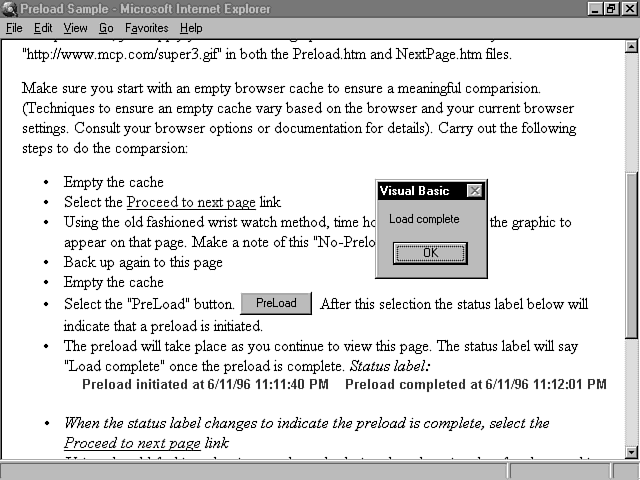
All you need to do to use preload is insert the preload object in your script, assign a file to the URL of the control, and turn its Enabled property on. Then you need a secondary page that uses the file loaded on the first page. Today's workshop provides an example of how to use preload. Figure 18.1 shows the first page that puts preload to work.
Figure 18.1 : The first page of a preload sequence (from today's workshop).
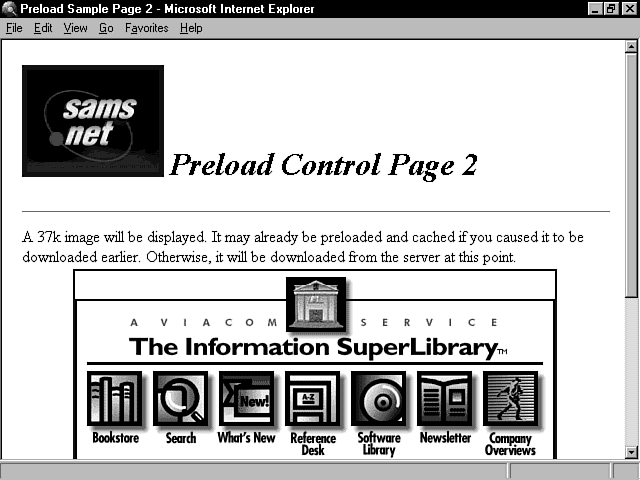
Figure 18.2 shows the secondary page that has reduced load time because the image on the page is loaded when the first page is presented.
Figure 18.2 : The second page of a preload sequence (from today's workshop).
| Note |
The preload program shown in Figures 18.1 and 18.2 is available on the CD-ROM in file preload.asp. See the workshop at the end of this lesson for more details on using and customizing this program. |
Maintenance Considerations When Using preload
You can make your pages more impressive with preload. In the ideal world, images, audio files, and avi movie files can be waiting and ready to go as your user smoothly flows from one page to another. Your user perceives that he has better performance than ever, and it's all thanks to your insightful page and script authorship. But there are some downsides, too. When you use a preload to prepare data for a page yet to come, you are making an assumption about one page leading to another. As your pages are modified, it will take more effort to make sure this relationship is maintained. If the name of a preloaded file on the second page changes, it not only requires changing the HTML source code there, but will also require a change on the first page that preloads the graphics. Because there is no automatic indication of these types of relationships, more burden is placed on the author to ensure that such links are properly maintained. The polished, professional impression that can be conveyed through preloaded pages is worth the price. Just make sure you understand the pitfalls as well as the benefits, and you can put preload to work for your pages.
Anchor Clicks on Images and Text
It used to be that quite a bit was involved in making your page react to a user's clicks on an image. The page itself couldn't begin to deal with this situation. HTML had no native intelligence to support reacting to the clicks. Instead, it could send the click information back to the server if it knew that image was preplanned to be a map, having different regions for the user to click on. Once the information got back to the server, a map file was needed to help associate the clicked area with the corresponding action. This map file would tie the desired action to a script or resulting page. And finally, the end result page would make its way back across the network to be displayed in the user's browser.
Quite a lot of action and overhead resulted from one little click! Then along came VBScript. VBScript can still provide the action, but eliminates the overhead. You can provide a smart page that reacts to clicks without leaning on a server across the network. As a matter of fact, you can even do more! You can write code that reacts to mere movements of the mouse even without clicks. And when the clicks do occur, you can redirect the destination link through your script. All you need is the VBScript image click, MouseMove events, and the code you write to go with them.
The magic that lets you get this degree of control is the ability to reference an anchor object. An anchor is indicated by the <A> tag and allows you to specify a hypertext link for the entity that follows the tag. You can supply an anchor to an image or a text string. Then, when the user clicks on that image or text string, the referenced page is loaded into the browser. This hypothetical anchor, for example, links the user to a page called Suds.asp when the user clicks on the graphic EmptyStein.gif:
<A HREF="suds.asp"> <IMG SRC="EmptyStein.gif"></A>
This anchor carries out the same link when the user clicks on the text string Tell me more:
<A HREF="suds.asp"> Tell me more!</A>
The Anchor ID
You can associate an ID with the anchor link. The ID allows you to do a wonderful thing: reference the anchor from your source code! More specifically, it lets you reference anchor events. If you have a named anchor link and you supply appropriately named procedures in your code, your script can deal with two very important anchor-link events-the MouseMove and the Click.
First, take a look at the following example of providing an ID for an anchor. This is an example of an image anchor for which an ID has been provided. The name, in this case, is lnkPicture:
<A id="lnkPicture" HREF="../shared/vbperf.asp">
<IMG SRC="../shared/jpg/picture.jpg" WIDTH=450 HEIGHT=300 BORDER=20></A>
The following lines show a text anchor that links to an image. The anchor associated with the image is named lnkText:
<A id=lnkText HREF="../shared/jpg/picture.jpg">
Note: You can detect mouse moves on text links like this one too!</A>
The Anchor MouseMove Event
Once you have an ID for an anchor, you just have to supply the event procedure in your script using the normal event procedure naming approach. The first part of the name is the anchor ID, then an underscore, and then the event you want to handle in the script. MouseMove is one event that the anchor generates. This event is triggered any time the user moves the mouse over an anchored area, regardless of whether it's a text anchor or an image anchor. When the MouseMove event occurs, it passes the current x and y coordinates of the mouse into the procedure as well. It is up to you to decide what to do within your script routine if you handle this event. Listing 18.6 shows an example of a script procedure that handles a MouseMove event for the lnkPicture anchor.
Listing 18.6. The MouseMove event procedure for an image anchor.
Sub lnkPicture_MouseMove(shift, button, x, y)
' This event is called whenever the mouse moves over the linked image to
' generate a new label caption depending where the mouse moves.
' Remember the last position moved to, so we can see where we are if
' a click occurs. (The click event doesn't get passed x/y values)
s_CurrentX = x
s_CurrentY = y
' Check to see if mouse has moved into hot zone on the picture
If InZone(x, y, 205, 199, 253, 250) Then
' The mouse is on the guide
lblWeSay.caption = "This is recommended reading for serious VB"&_
"programmers."
elseIf InZone(x, y, 154, 111, 169, 118) Then
' The mouse is on Tim's mouth
lblWeSay.caption = "Hi, I'm Tim. I like tennis, cockatiels, " & _
" and integrating components with VB, the nastier the better."
elseIf InZone(x, y, 304, 126, 320, 130) Then
' The mouse is on Keith's mouth
lblWeSay.caption = "Howdy, I'm Keith. I enjoy running on trails, " &_
" going to the park with the kids, and writing VB programs at 4AM."
Else
lblWeSay.caption = ""
End If
End Sub
| Note |
The anchor MouseMove event currently passes four parameters to the subroutine that is defined for it: a shift indicator, a button indicator, the x position, and the y position. You have seen how the x and y positions are used. At the time of this writing, the shift and button parameters were not fully supported. A 1 is always returned in the shift parameter, and a 0 is always returned in the button parameter. You may want to check the Microsoft Web site at www.microsoft.com/intdev to check if this support is added down the road. |
The x and y coordinates that are passed to the event routine indicate the position of the mouse within the anchor area. The leftmost side will be 0 for the x value, and x values will increase to the right. The top of the anchor area will be 0 for the y value, and y values will increase from top to bottom. Figure 18.3 shows the x and y values for various areas of an image of two disheveled programmers.
Figure 18.3 : x and y values, as interpreted by anchor event.
In the code in Listing 18.6, the x and y values are stored in a global-scope variable. This is because the anchor's Click event, which is considered next, does not receive any x and y parameter information with it. So by always remembering the last place the mouse has moved in a global variable, other areas of the code, such as the anchor Click event, know exactly where the mouse is when they are called.
Another interesting aspect of handling x and y values is the way you can use them to determine exactly which area of an image the mouse is on. The code in Listing 18.6 is carrying out checks to see if the mouse is over specific areas of the picture. The corresponding Web page is shown in Figure 18.4.
Figure 18.4 : A Web page with a script that processes anchor MouseMove and Click events.
| Note |
The program shown in Figure 18.4 is available on the CD-ROM in file mousetrk.asp. |
This Web page displays one message in a label control if the user's
mouse moves over the guide in the picture. It displays a different
message in the label if the mouse moves over the mouth of either
of the disheveled programmers. If the mouse moves onto any other
area of the image, the label will be blanked out so no message
is displayed. The code in Listing 18.6 makes this logic pretty
clear. A series of checks is carried out to see where the mouse
currently is with respect to the predefined zones of the guide
or the mouths. The zones are outlined in Figure 18.3.
| Note |
If you are laying out your own anchor image handling and need to identify the edges of your boundaries, just use code like that of Listing 18.8. When the mouse is clicked anywhere on the anchor image, a message box pops up, giving the x and y coordinate. If you click on the two opposite corners of a desired zone and note the x and y positions, that is all you need to define your zone. |
A function call is used to determine whether the current x and y values fall within a specific zone. The function call accepts a parameter for the current x and y position, as well as the x and y pairs for the upper-left and lower-right corners of the zone. The definition for this function, called InZone, is shown in Listing 18.7.
Listing 18.7. The InZone function.
Function InZone(CurrentX, CurrentY, rx1, ry1, rx2, ry2)
' This function returns true if the supplied Current x/y parameters are within
' the box defined by parameters rx1, ry1, rx2, ry2
If (CurrentX>=rx1) AND (CurrentX<=rx2) AND (CurrentY>=ry1) AND _
(CurrentY<=ry2) then
' It's in the box
InZone = vbTrue
else
' It's not in the box
InZone = vbFalse
end if
End Function
With the MouseMove event in this function, you can provide the user with any type of feedback in response to any area of the image. You could, for example, display a state map and provide the name of any county that the mouse moved over. You could display a picture of your old broomball team, and display the name of each player the mouse moved over. The possibilities are many. And if you're a seasoned Web page author, you'll appreciate the fact that you can provide this feedback with only local script processing. No server intervention is required.
The Anchor Click Event
The anchor Click event is generally the one that triggers heavy-duty action. Regardless of what you do in the event procedure you supply, the browser will react to the click on a link. After your event procedure completes in reaction to a click, the browser will load a linked page in response to an anchor click.
You define the OnClick event procedure in your script with the ID of the anchor, an underscore, and then OnClick. Listing 18.8 shows the OnClick event for the anchored image of the disheveled programmers.
Listing 18.8. The OnClick event procedure for an anchored image.
Sub lnkPicture_OnClick
' This event is called whenever a click occurs on the image.
' It will link to a different page depending on where the click was.
' Show the user where the click was first.
msgbox "You clicked at X position " & s_Currentx & " & _
" and Y position " & s_Currenty, 0, "Image Click Feedback"
' The link has a target destination supplied in the <A> tag, but change
' to the Macmillan Publishing destination if the guide area was_
clicked on.
' Otherwise the default location will be used.
If InZone(s_CurrentX, s_CurrentY, 205, 199, 253, 250) Then
location.href = "http://w3.softlookup.com"
End If
End Sub
When the Click event occurs, a message box is generated to show the x and y position of the click. This makes use of the x and y values that were preserved from the most recent MouseMove on the image. This will always indicate the click position, since the mouse must be at the last place that was dealt with in the MouseMove event. If the mouse had been moved after that event, another MouseMove event would have occurred and caused the global x and y values to be modified again. The most recent values are therefore guaranteed to be current.
Redirecting a Link to Another Location
The last portion of the code in Listing 18.8 illustrates one of the most useful anchor interactions. This is the ability to implement an image map on an anchored image, to process mouse clicks and to redirect subsequent page links right from your code. Most users are accustomed to interacting with large image maps, where they can click on different areas of an image to select a link to another page. This has traditionally required server-side communication, maps, and scripts to derive which region of an image the click was indicating. As the example shows, that ability is now available from within a script. All that's needed to round out the image map model is the means to cause a specified link to take place. And that capability is provided by the location.href property.
The location entity can be thought of as an intrinsic document-level object. No special action is required to define it. The HREF parameter of the object specifies the URL of the link. Assume that you have specified an HREF attribute within <A> tags. When you click on an anchored image, this attribute is the target destination unless, that is, this target destination is overridden by the Click event handler for the anchored image. The Click event takes place after the user clicks on the anchored image but before the browser attempts to load the associated URL indicated in the HREF attribute. Therefore, the event handler is executed during a brief window of time in which the URL can be reassigned before the browser reacts and loads the next page. The event handler can modify the anchors HREF attribute by setting location.href to some other URL.
The sample in Listing 18.8 illustrates this approach. When the Click event occurs, a check is made to see if the click was within the area of the guide that the disheveled programmers are holding. If the click was within this zone, then location.href is reassigned to be http://w3.softlookup.com. The browser will load this page, which is the Macmillan Computer Publishing home page. On the other hand, if the click did not fall within this zone, no assignments are made to location.href. In this case, the HREF attribute is still the same value that was specified in the original HTML for the anchor:
<A id="lnkPicture" HREF="../shared/vbperf.asp">
<IMG SRC="../shared/jpg/picture.jpg" WIDTH=450 HEIGHT=300 BORDER=20></A>
So if the HREF attribute is not overridden by the event-handling procedure, the browser will proceed normally and load the page associated with the anchor. The ../shared/vbperf.asp page would be loaded in response to such a click.
Since you can assign location.href from your code before an anchored link takes place, you have the ability to specify a link dynamically. Your code can make a decision on where to link to after the user clicks on a page. This decision and subsequent redirection can occur without any intervention from the server.
There are many reasons you might want to control a link location from your script. Perhaps you want to direct the link based on values supplied in other fields on a page. For example, assume you have a clothing store page and a user indicates through a radio button choice that he prefers spring fashions. Then you can link him to the spring fashion page rather than the winter fashion page when he clicks on the Sales Info part of an image. Or maybe you author a page for a convention center. Your welcome page provides a general overview of the facility. But if the user clicks on the hypertext link Today's Meetings, you could present different information based on the time of day. If your script detects that it is early morning, you might link to a page of morning activities. And if it detects it is afternoon, you can link to the afternoon page. Of course, you'd want to give all users some way to see all activities, as well, but this could be handled by an additional link.
Another possibility is related to the preload control discussed earlier. You can define an anchor link over an image to go to a subsequent page. The HREF link target for the image is initially specified as a nonexistent location. As soon as the user moves the mouse over that image, the script event procedure can start the preload control's downloading of the relevant file. The script's preload control Complete event can set a global variable to indicate that the preload has finished. When the user clicks on the image, the code Click event handler can check the global variable to see if the required graphic for the next page is fully loaded. If it is, the link can be assigned to location.href and the preload can complete. If it is not, no valid link is provided, and the user receives a message telling him that the next page is not yet ready to be viewed. This may not be a standard technique you'd want to apply to every page. But in certain situations, such as a textguide page with a link that leads to a sample page with a large audio file, this technique could make for a much more pleasant user experience. The user won't be confronted with viewing a page that is not yet able to do anything for him.
Directly Linking to Another Location
So far, the focus has been on redirecting links. But what is actually going on is a little different. When you set location.href, you cause that link to take place and that page to be loaded. It doesn't matter if you do it in response to an anchor click or just in response to a plain old command button click with no relation to an anchor at all. When you tell it to happen, that page will be loaded. Listing 18.9 shows code that loads a page from the Click event of a button.
Listing 18.9. Directly linking to another location.
sub cmdK_Onclick
location.href = "http://w3.softlookup.com"
end sub
An infinite range of possibilities is opened by this capability. You can cause another page to load in response to anything, from anywhere in your code! Since VBScript gives you access to the events of an anchor and provides an object to direct its link, you have full control over the flow of pages based on the current conditions of a page. As a matter of fact, you can control the progression of pages even outside an anchor. No difficult server code or customized browser is required. Your pages can become as smart and responsive as you care to make them.
Browser Objects
In this guide's first 17 days of learning about what you can do with VBScript, the focus has been on two different layers. One is the core capabilities of the VBScript language. This consists of aspects of the language itself. For example, language keywords such as if and dim are supported directly by the VBScript interpreter. This language will be consistent whether you use VBScript hosted in the Internet Explorer browser, in some other browser, in the Internet server, or even in some application that supports VBScript not related at all to the Web. Then the focus turned looked at objects defined externally to the browser, including ActiveX controls. Objects can be controlled by VBScript because the host environment makes it possible. Support in the Internet Explorer browser and its interface with the VBScript interpreter lays the framework for letting your VBScript access such objects. If you use VBScript in another host environment such as a different browser or a non-Web-related application, it may very well provide the same support. On the other hand, it may not. There is no requirement in the VBScript language definition that dictates that every host must provide this capability.
Clearly, the host environment makes a difference in what you can do with VBScript. There is one more area yet to consider: objects the host itself exposes. You have already seen many such objects today, including the location and document objects. The Internet Explorer, which is the host primarily focused on in this guide, provides VBScript with access to information about itself and with interfaces to control its own behavior through objects such as the document object. These capabilities relate to different ways the browser handles information and provides support for generating and viewing that information. The Internet Explorer provides access to this browser information by making available several intrinsic browser objects. This is not a unique concept. Other browsers such as Netscape Navigator expose a range of objects to JavaScript. For the most part the objects exposed by Microsoft Internet Explorer to JavaScript and VBScript are the same as those exposed to JavaScript by other browsers. This means that intrinsic objects in scripting are likely to be very consistent from browser to browser. However, it is important to realize that the intrinsic objects exposed by the browser are not an inherent part of the VBScript language. If you work with VBScript hosted in other environments, these objects may not be available to you, but if you're in another browser host, odds are they will be.
The real power of VBScript is its ability to integrate objects and easily script together solutions around these building blocks. In that respect, it is very important to realize which objects are available for you to use from the browser. These can become an important part of your scripting arsenal and lead to more powerful pages for your end user.
Objects exposed by the Internet Explore browser consist of the window object, the document object, the element object, the frame object, the history object, the script object, the anchor object, the element object, the form object, and the navigator object. With these objects you can do many things. From your code you can link to other pages. You can detect the version of the browser that is being used. You can respond to mouse movements and clicks on link areas. You can work with the browser history list. You can even find out the name of the referring page for the current page. In other words, you can tell the page that your user visited before he linked to the page that contains your VBScript. You can also use these objects to provide control over multiple frames from your code. The following script statement, for example, could reside in a script in a currently displayed frame page and update the contents of another visible frame:
parent.frames(1).document.writeln "<HTML><BODY><h2> You can " & _
" generate HTML to a page!</h2></BODY></HTML>"
Parent.frames(1).document.close
| Note |
A frame is an independent HTML window created through the <FRAMESET> and <FRAME> tags. You can find more details on frames from any HTML reference, including Microsoft's online documentation at www.microsoft.com/intdev. The parent keyword references the parent window of the current frame. That window contains a collection of all existing frames created underneath it. The first is referenced as parent.frames(0) and the second as parent.frames(1). The document keyword indicates the document object belonging to that frame. Writeln is a method of the document object that you can use to generate HTML content to a page, and close is a method used to conclude the document changes. |
The possibilities are limitless. A good representative summary of these intrinsic browser objects appears in the sample program Browser.asp on the CD-ROM. This page includes samples of script control between frames and various ways to advance from one page to another and determine information ranging from the browser version to the last date that a page changed. A table of some of the key properties and methods of the browser objects appears on this page. Browser.asp will serve as a good initial reference point to the browser objects for you. A detailed discussion of all the objects would be very lengthy, given the range of capabilities. Refer to Microsoft's documentation for the comprehensive documentation. However, the samples you have seen so far today, as well as the samples you can inspect in Browser.asp, should be enough to get you off to a good start on creating your own sophisticated scripts.
Summary
Today you have examined ways to provide what have been coined "smart pages." These pages use special scripting so that they can preload files for subsequent pages and respond to mouse movements and clicks on anchored images. A script can even select links based on dynamic conditions of the page when an anchored link is selected.
The ActiveX preload control provides the means to preload files. Preloading a file for a subsequent page can take place in the background while a user views a current page. Then, when the user moves to the subsequent page, he will not have to wait for that file to be downloaded from the server. The preload control can start loading a file in advance for a subsequent page as soon as a parent page is loaded. On the other hand, it can be declared through its object definition so that it doesn't start preloading the file until code triggers it. A script can make decisions on whether to preload a file based on the user's other interactions. In cases where a preload occurs, the user will have the perception of better performance. The preload control even provides a complete event so a script can detect when the download of a file is complete and notify the user that the next page is ready.
Another aspect of pages that you can easily control through VBScript is the anchor. The anchor defined through HTML can be specified with an ID attribute. This name is then used in VBScript to refer to events of the anchor. The MouseMove event occurs whenever the mouse moves over the anchored image or text. The MouseMove event is accompanied by parameters that provide the current x,y location of the mouse. These parameters can be used directly or stored for later reference by the Click event. The Click event occurs whenever the anchor is clicked on. The Click event is not provided with any parameter information. Click event code that needs to make decisions based on the current mouse position can do so by looking at the mouse position last stored by the MouseMove event.
One of the important features of the anchor control in VBScript is that you can override an anchor's target link from code. You do this by setting the location.href property. The URL specified in location.href is the page that the browser will load. A script doesn't even have to react to an anchor event to do this. The location.href property can be set from anywhere in the code and will cause the specified link to take place. So you can build your own links anytime, anywhere, for any reason, in your scripts!
All these capabilities add up to provide a very high degree of control over the most important aspects of pages-links, anchors, and associated files. Links let you control the flow of pages. A file is anything an anchor points to, such as an image, an audio file, or a subsequent HTML page. You can load server files, link files, and respond to user interaction with anchors and file links. Smart pages that do more for the user, without any server intervention, are the end result.
Q&A
| Q | What code statement would you use to start the download of an audio file from a preload control named preKeithsYodeling? |
| A | preKeithsYodeling.enable = 1 |
| Q | Can the anchor MouseMove event be used just with image links, and not text links? |
| A | No, you can use it to track text-link mouse movements as well. |
| Q | As the mouse moves around in an anchored image, does just one MouseMove event occur, or do many? |
| A | Many MouseMove events occur. The MouseMove event is generated every time a mouse movement is detected, so as you move the mouse around in an image, a series of calls to it will be made. |
| Q | What if I want to write code that changes the caption of a label just the first time the mouse moves across an image, but I don't want to update it over and over? |
| A | Use a static variable to keep track of how many times the event procedure has been called. Check the value each time the event is called. The first time through, when this variable is 0, set the caption. If the value is not 0, it has already been set in a previous call, so no action is required. |
| Q | What attribute do you use to name an anchor so your code can reference it? |
| A | The ID attribute, which is specified within the anchor <A> tag. |
| Q | Can I set location.href from a regular procedure, or does it have to be within an anchor-related procedure? |
| A | You can set location.href from a regular procedure. No anchor association is required. This means you can cause another page to be loaded anywhere in your script. |
Workshop
Compare how long it takes a page to load normally with the time required to preload the main graphic file using the ActiveX preload control. Use the preload.asp and nextpage.asp files that are on the CD-ROM that accompanies this guide. The pages generated by these files are shown in Figures 18.1 and 18.2.
Customize this solution to work with your own graphic. These files reference the graphic image. Replace all occurrences of this file reference in both files to reference your graphic image instead. Use the largest file possible to make the preload and no-preload differences stand out.
Instructions for carrying out the comparison of preload and no preload appear on the page displayed by preload.asp. Study the script events from the preload.asp listing in Listing 18.10 before viewing the page. Then, when you view the page, see if you can mentally match up the page feedback to the events you examined.
Listing 18.10. preload.asp source code.
<SCRIPT LANGUAGE="VBS">
<!--
sub cmdPreLoad_OnClick
lblStatus.caption = "Preload initiated at " & now
preGif.enable = 1
end sub
sub PreGif_Complete
lblStatus.caption = lblStatus.caption & " Preload completed at " & now
msgbox "Load complete"
end sub
sub PreGif_Error
msgbox "Error detected"
end sub
sub cmdCheck_OnClick
msgbox preGif.enable
preGif.AboutBox
end sub
-->
</SCRIPT>
<!-- ---------------- Preload Control ---------------------------->
<OBJECT
id=preGif
classid="clsID:{16E349E0-702C-11CF-A3A9-00A0C9034920}"
width=1
height=1
>
<PARAM NAME="_extentX" value="1">
<PARAM NAME="_extentY" value="1">
<PARAM NAME="URL" value="http://w3.softlookup.com/super3.gif">
<PARAM NAME="enable" value="0">
</OBJECT>
Quiz
| Note |
Refer to Appendix C, "Answers to Quiz Questions," for the answers to these questions. |
- Assume that you have an anchor declaration such as the following:
<A HREF="http://w3.softlookup.com" id=lnkguides>
<IMG ALIGN=BOTTOM SRC="../shared/jpg/samsnet.jpg" BORDER=2></A>
Show the name of the declaration that would be required to handle the Click event for this anchor. - Show the anchor declaration that would be required to handle
the MouseMove event for this
anchor:
<A HREF="http://w3.softlookup.com" id=lnkguides>
<IMG ALIGN=BOTTOM SRC="../shared/jpg/samsnet.jpg" BORDER=2></A>
Be sure to include parameters. - Show the statement you would need to add to the Click event in the answer to question 1 to redirect the link. You want the link to proceed to page http://www.microsoft.com/vbscript.


Popular Tutorials
-
 MS Access
1109
MS Access
1109
-
 C++
1222
C++
1222
-
 HTML
584
HTML
584
-
 JavaScript
616
JavaScript
616
-
 Vbscript
873
Vbscript
873
-
 Oracle
473
Oracle
473
-
 VC++
875
VC++
875
-
 SQL
2959
SQL
2959
-
 XML
514
XML
514
-
 Java
814
Java
814
-
 Perl
455
Perl
455
-
 Linux
451
Linux
451